
The Timeline view
The Timeline shows the same cards as bars on a calendar: when each starts, when it is due, and how they overlap.
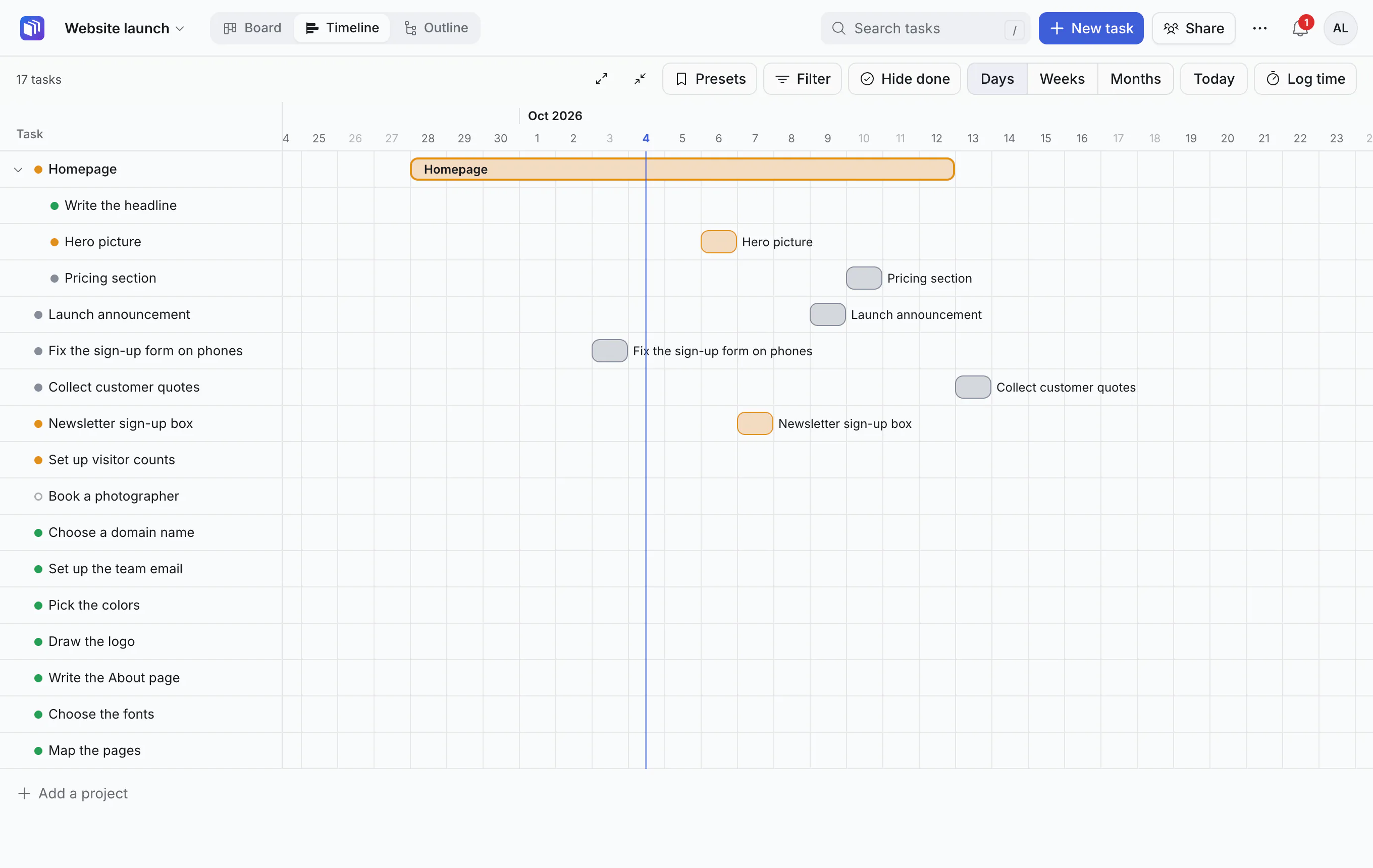
What you see
- Each row is a task. Subtasks sit under their parent; fold or unfold a parent with the arrow beside it.
- A task with a start and a due date is a bar between them. A task with only a due date is a mark on that day.
- A task with no dates has an empty row: click in the row to give it dates.
- A line marks today.
Change dates by dragging
- Drag a bar left or right to move it.
- Drag either end to make it longer or shorter.
The card's start and due dates change with it. Undo with ⌘Z.
Zoom
Switch between days, weeks and months to see the next two weeks or a whole year.
Hide what is done
Hide done removes finished tasks from the Timeline. The Outline follows the same switch (there it is under Display), so turning it on in one hides them in both. A line says how many are hidden.
Bar colors
A bar takes the color of its status. To pick one yourself, open the card and choose a Timeline color.
When the board belongs to a plan
If your team plans people's time, and this board is linked to a project in the workspace's plan, the top of the Timeline shows who is booked on the project, at what share of their time, and until when. See planning people.
Good to know
- Search and filters work here too.
- Long boards show the first 500 rows, with Show more rows.
- On a phone, scroll sideways through time; press and hold a bar to drag it.