
Writing a description
The description is where a card's detail goes: what it is for, the steps, the links. It can be a single line or a whole page.
Start writing
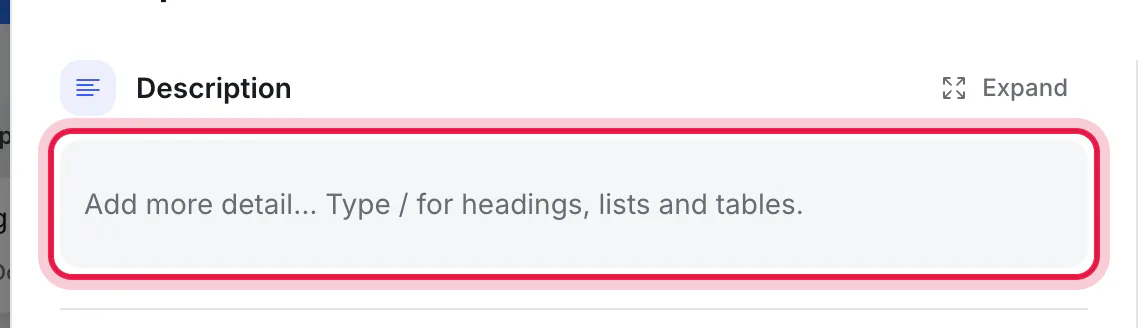
Open a card and click the description, or the Add more detail… box if it is empty. If you click a word in an existing description, the cursor lands on that word.
Formatting
Use the toolbar, or type the characters shown here followed by a space. (On Windows, use Ctrl where this says ⌘.)
| To get | Toolbar | Or type |
|---|---|---|
| Bold, italic | B, I | ⌘B, ⌘I |
| A heading | H₂ | ## |
| A list | Bullets | - |
| A numbered list | Numbers | 1. |
| A checklist | Checkbox | [ ] |
| A quote | Quote marks | > |
| A link | Select the words, click the link button, paste the web address | |
| Text shown exactly as typed (for commands or code) | </> | ` |
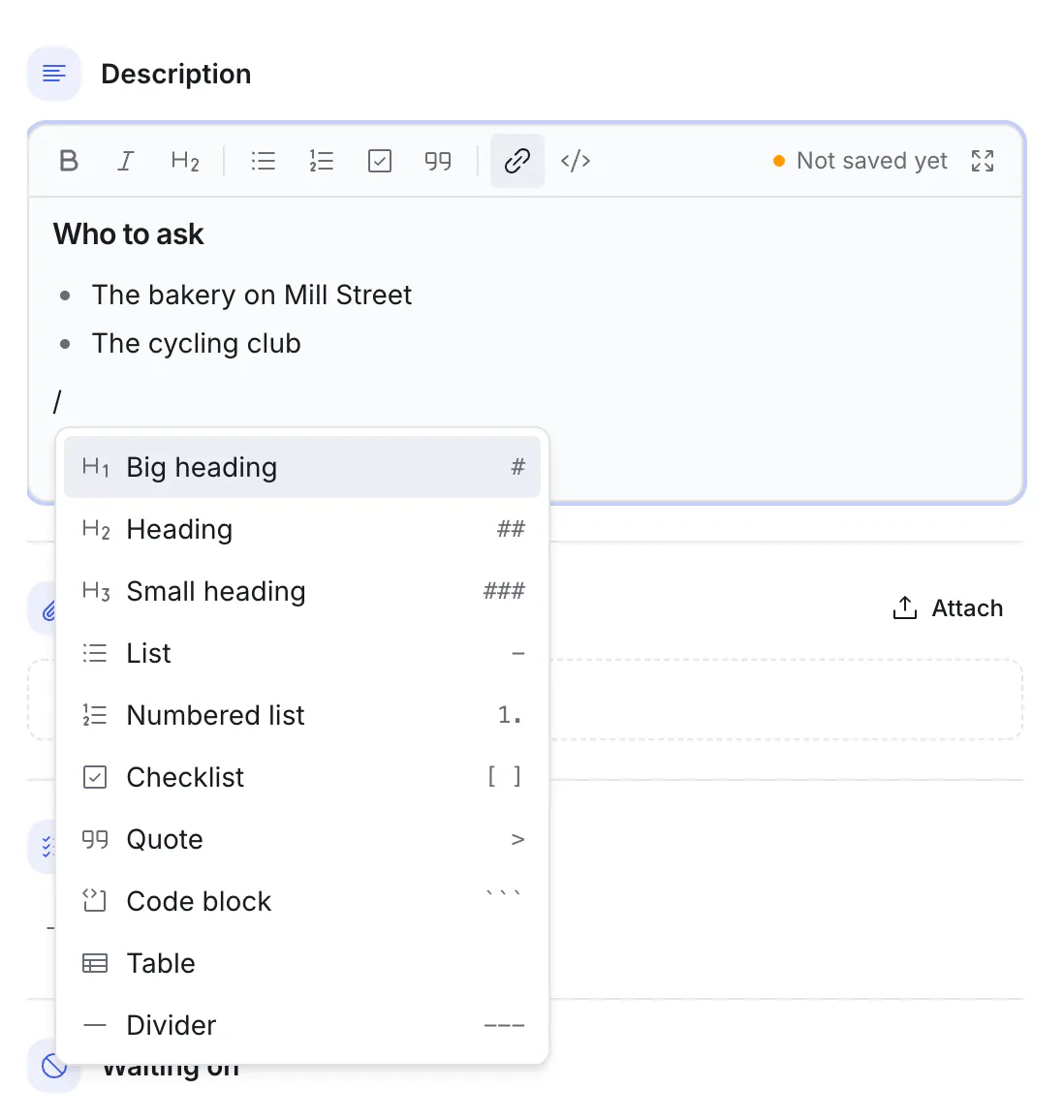
Type / on a new line for a menu of everything else: three sizes of heading, lists, a quote, a code block, a table and a divider. Keep typing to narrow it ("/tab"), and press Enter to choose. Inside a table, / offers its rows and columns instead: add a row, add a column, delete one, or delete the table.
Paste text written elsewhere and it keeps its shape. Text copied from an AI assistant, with its ## headings and - [ ] checklists, comes in formatted rather than as symbols.
Type # and the start of a file's name to point to one of the card's files, and pick it from the list. (A # followed by a space makes a big heading instead, which is why the menu shows "#" beside "Big heading".) Drop or paste a file into the text and it is attached to the card and mentioned where your cursor is.
Saving
Most things in Kanbanto save as you go. A description is the exception, because it is written over several minutes: it is saved when you finish.
- click anywhere outside the description,
- press Esc, or
- press ⌘Enter (Ctrl+Enter).
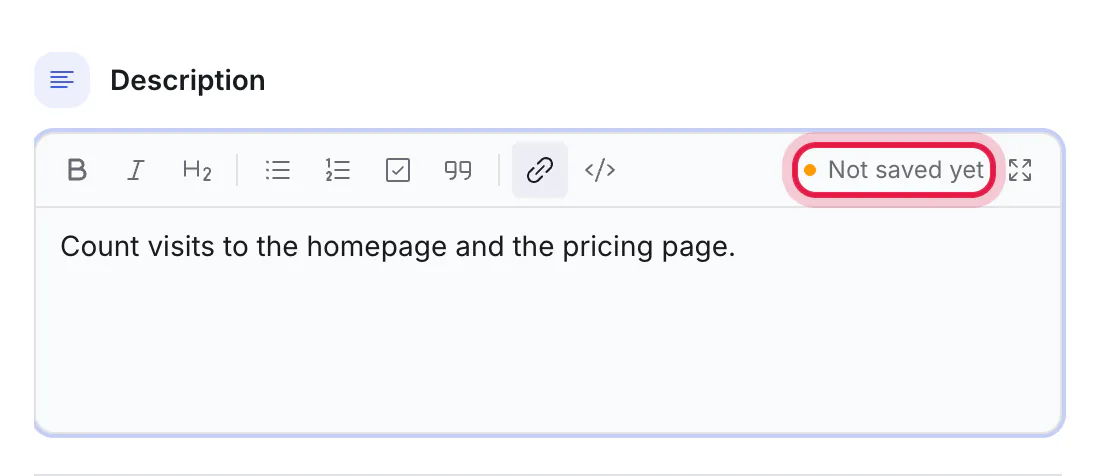
⌘S saves and lets you keep writing. The small sign at the right of the toolbar says Saved or Not saved yet.
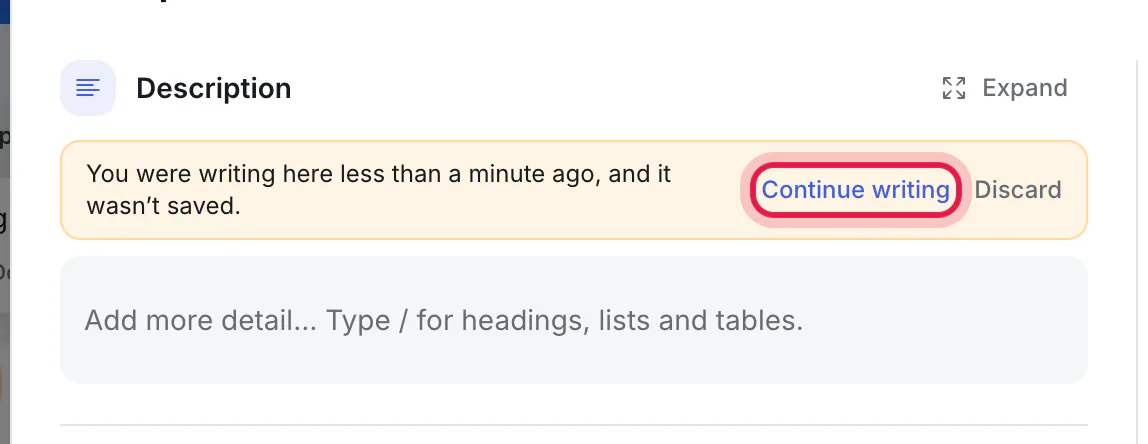
Until it is saved, your writing is kept as a draft in your browser. If the page reloads or you close the tab by accident, the card shows "You were writing here…" with Continue writing and Discard.
Long descriptions
In the card, the writing area grows to about half the window and then scrolls, with the toolbar staying in view.
A long description is shown folded, with Show more.
Checklist items can be ticked straight from the card, without editing.
Full page, for real writing
Click Expand above the description, or the arrows at the right of the toolbar while you are writing. The description opens full page.
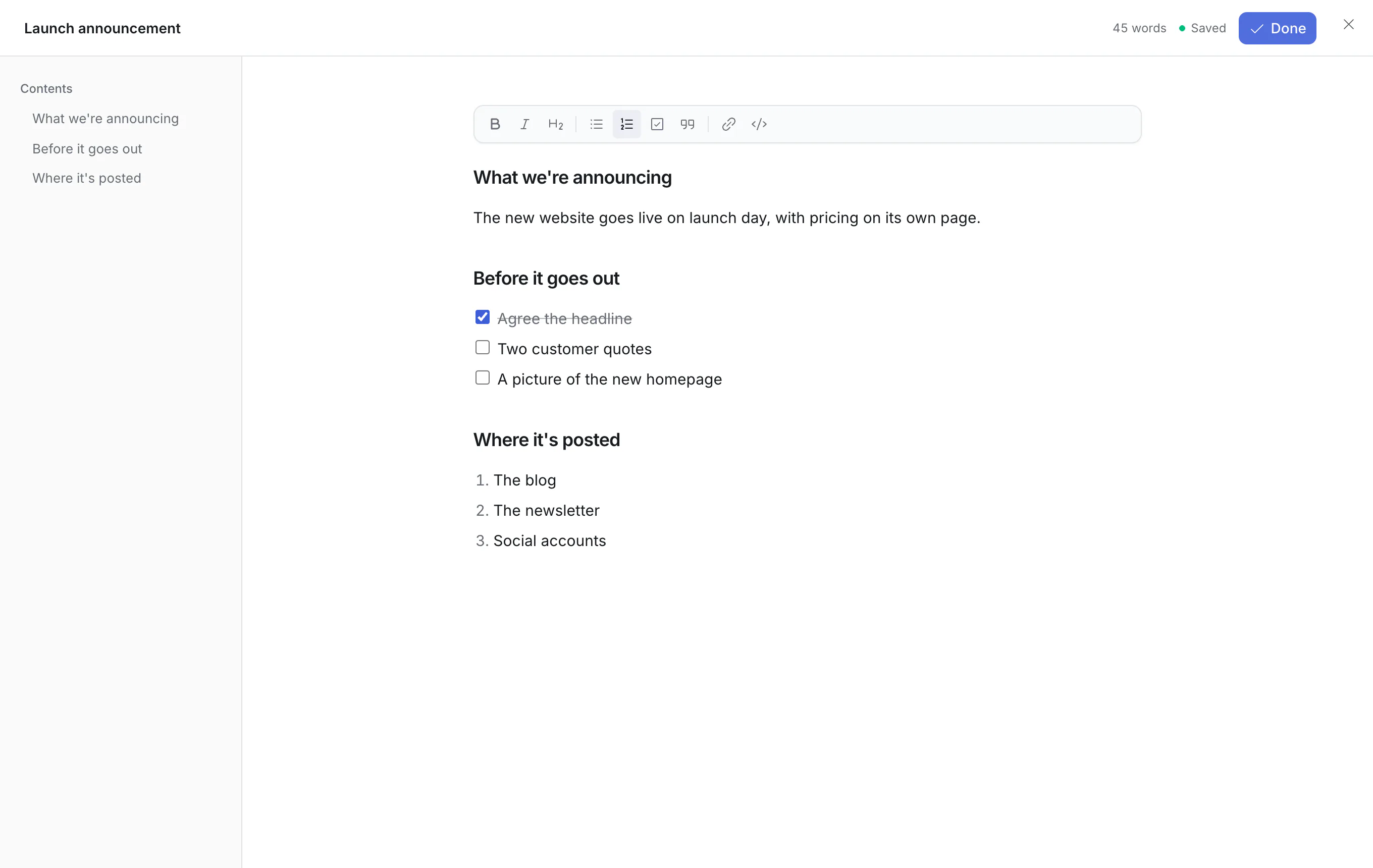
- From an empty description, or from the middle of writing, it opens ready to type, with your text and cursor where they were.
- From a finished description it opens to read. Click Edit to write; the cursor starts at what you were reading.
- Contents on the left lists your headings and follows them as you add more. Click one to jump there.
- The top right shows the word count and whether it is saved.
- Esc or Done finishes writing. Esc again closes the page.
Good to know
- A draft lives in the browser you wrote it in. It does not follow you to another computer.
- Other people see your description when it is saved, not while you type.
- If two people edit the same description at the same time, the one who finishes last replaces the other's version. There is no history of earlier versions, so agree who is writing.
- The
##and- [ ]marks are called Markdown: a plain way of writing formatting that AI assistants read and write well. You never have to type them; the toolbar and the "/" menu do the same.