
Telegram: a bot for a board
A board can have a Telegram bot of its own. The bot is connected to one chat:
- the chat gets the board's news, as sentences ("Ann moved “Deploy” to Done on Launch"),
- what is sent in the chat can become cards on the board.
Connect it to your own chat with the bot and it is personal: send it a thought and it is a card. Connect it to a group and it is the team's: everyone sees the news, and anyone adds a card. A bot in your own chat also tells you your reminders and mentions on that board; one on your Inbox takes whatever you send it into your Inbox.
This page has two halves. Setting it up is for the board's owner, once. Using it in the chat is for everyone in the chat.
Setting it up
Before you start
- You own the board. A bot is added in Board settings, by the board's owners.
- The site allows it. On a server of your own, a platform admin turns on Platform console → Integrations → Boards can have a Telegram bot (off to start). While it is off, the Telegram box in Board settings says so.
- One bot serves one board. Telegram lets only one place read a bot's messages. A second board needs a second bot: it takes a minute.
1. Make the bot, at @BotFather
- In Telegram, search for @BotFather (it has a blue tick), open it and press Start.
- Send
/newbot. - It asks for a name: what people see in the chat. For example,
Launch board. - It asks for a username: it has to be unique and end in
bot. For example,acme_launch_bot. - It answers with the bot's token, which looks like
123456789:AAH…. Copy it.
The token is the bot: whoever has it can read what people send the bot and write as it. Keep it like a password. Leave the bot's other settings as they are.
2. Add it to the board
- Open the board, then ⋯ → Board settings → People & apps.
- In the Telegram box, paste the token and click Add.
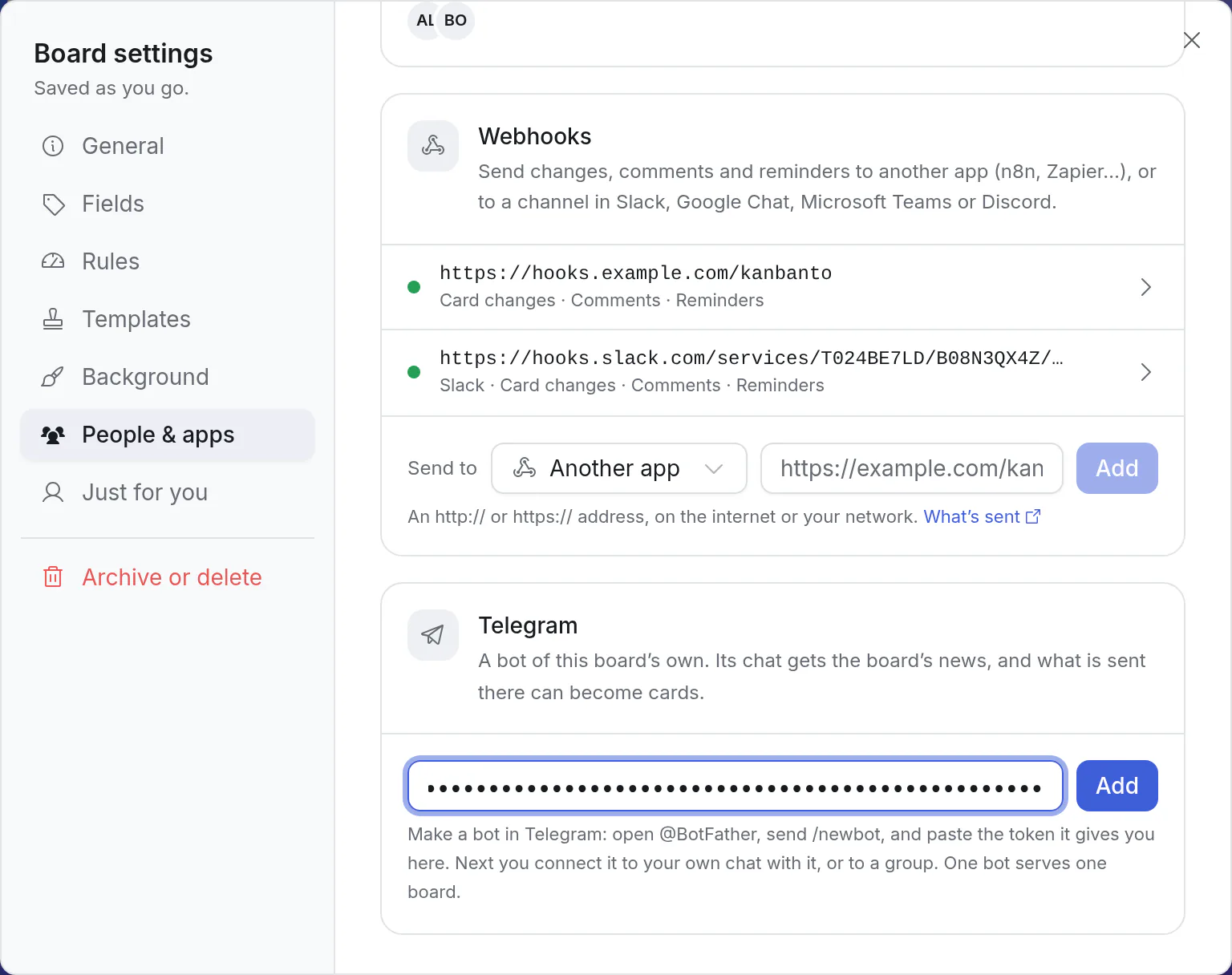
Kanbanto asks Telegram whose token it is, and keeps it encrypted. It is never shown again.
3. Connect a chat
The bot's page opens with a code, good for ten minutes. The chat that sends the bot this code becomes the board's.
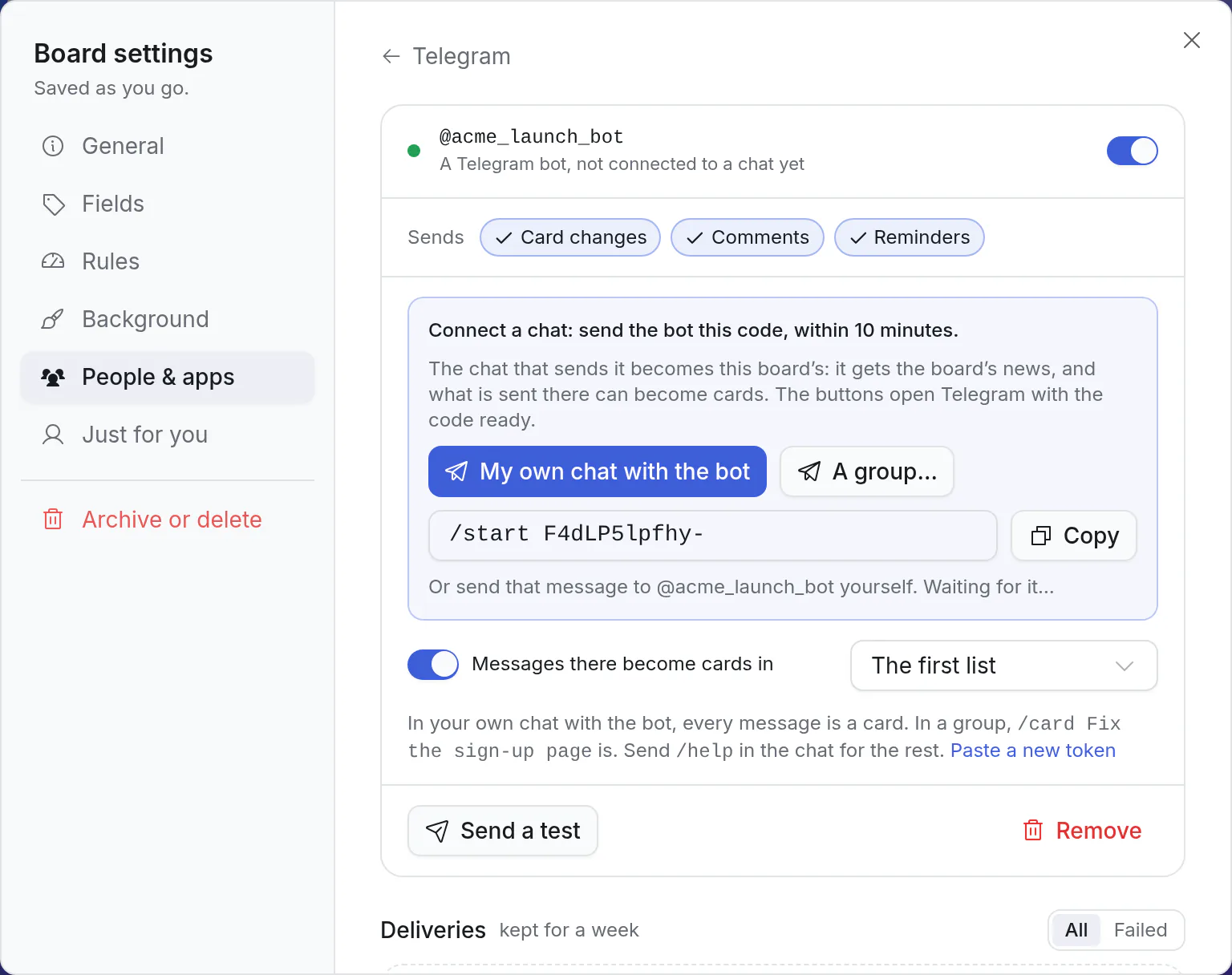
- My own chat with the bot opens Telegram on the bot with the code ready: press Start.
- A group… lets you pick a group to add the bot to, and sends the code there.
- Or send the message shown (
/startand the code) to the bot yourself. In a group, add the bot first and send/start@your_botand the code.
The bot answers in the chat: "Kanbanto will post news from Launch here." The page in Kanbanto then says which chat is connected.
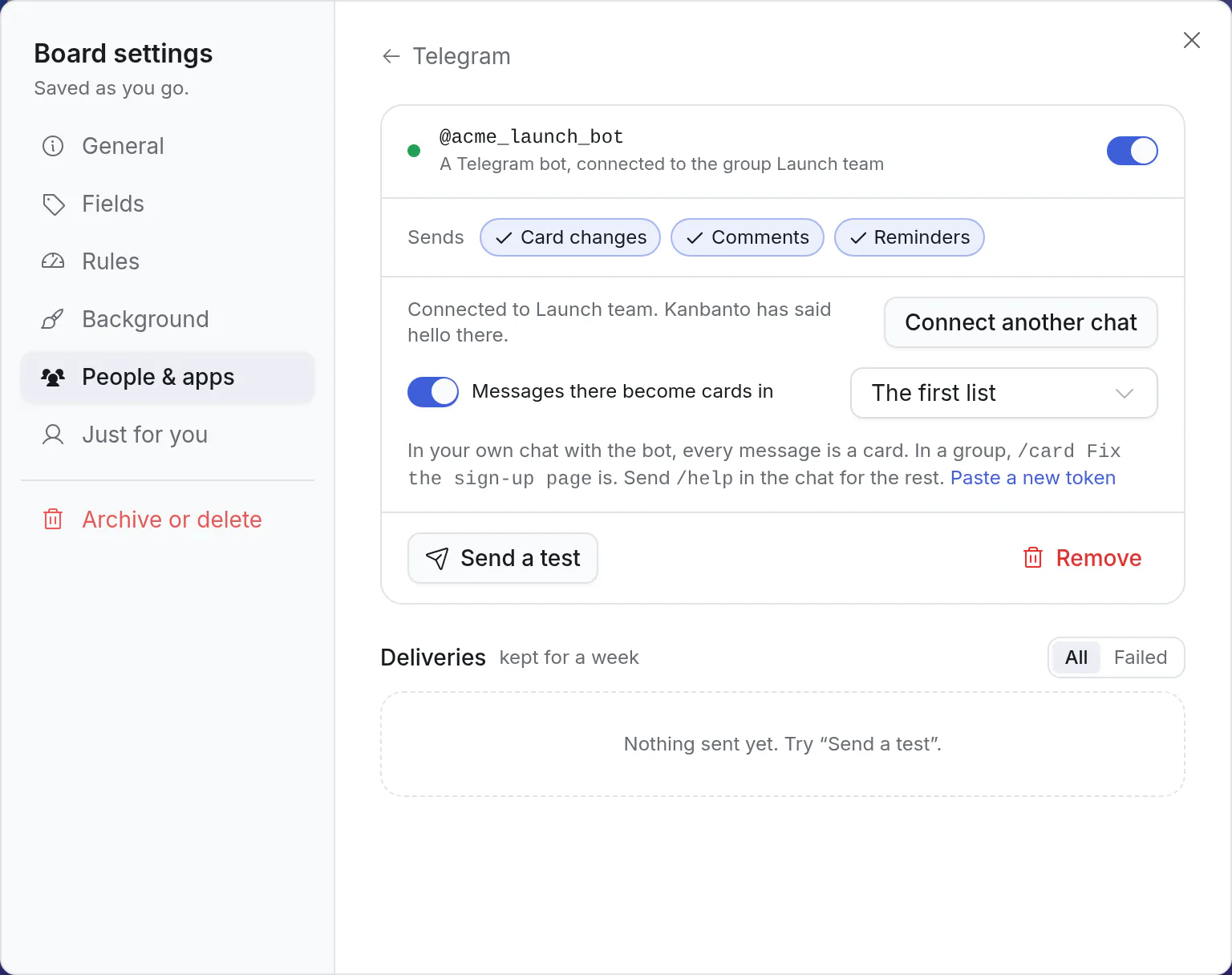
Connect another chat makes a new code; the chat that sends it takes the place of the one before. A bot has one chat at a time.
What the bot's page lets you choose
| Sends | Card changes, Comments and Reminders: what the chat is told, as for any webhook. |
| Messages there become cards | On to start. The list beside it is where new cards go: the board's first list, or one you pick. Switch it off for a bot that only posts news. |
| The switch at the top | Pauses the bot: nothing is sent, nothing is read. |
| Send a test | Posts "A test from Kanbanto for Launch." in the chat. |
| Paste a new token | For when the token got out: send /revoke to @BotFather, pick the bot, and paste the new token here. The chat stays connected. |
| Remove | Takes the bot off the board. (To remove the bot from Telegram altogether: /deletebot at @BotFather.) |
Your own reminders and mentions
A bot you connected to your own chat with it also tells you your own news on its board, as it happens:
- your reminders,
- when someone @mentions you,
- and, if you switch it on, comments and changes on the cards you follow.
Choose which under Account settings → Notifications → Telegram: reminders and mentions are on to start, the cards you follow are off. A reminder says when the card is due by your clock (the time zone in your Account settings).
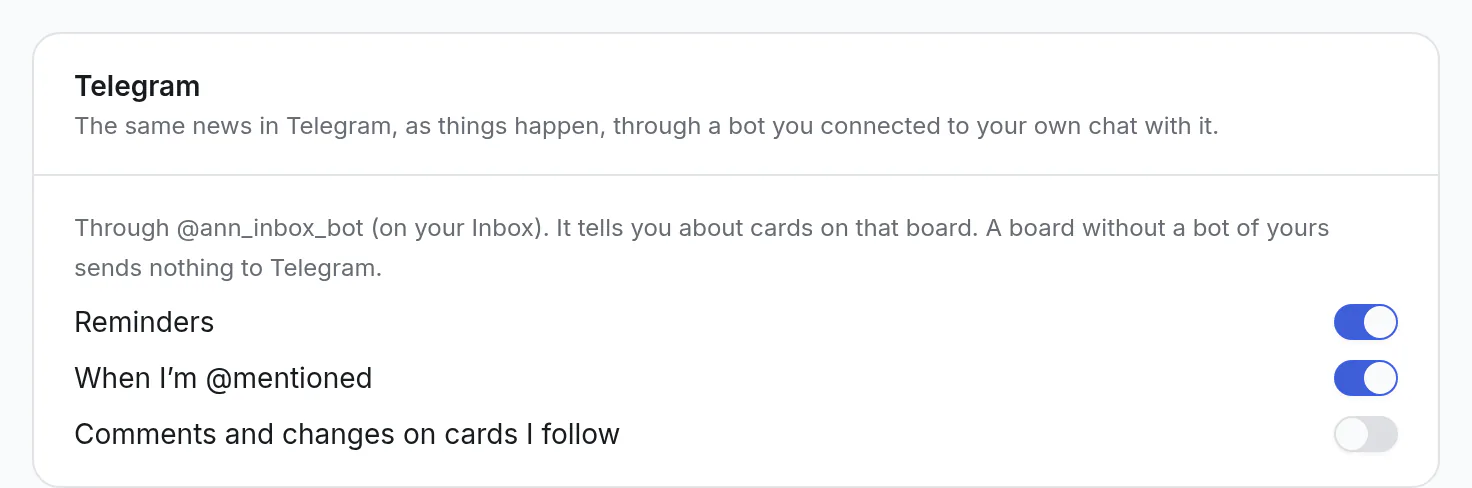
Each bot speaks for the board it is on, and only that one. News about a card reaches you through your bot on that card's board; a board where you have no bot sends nothing to Telegram (the bell, email and desktop notifications still tell you). To hear from several boards, add a bot to each. Nothing is said twice: when the bot tells you a reminder or a comment as your own news, its chat isn't also sent it as the board's news.
A bot connected to a group tells nobody their own news: a group is the board's.
A bot on your Inbox
Your Inbox is a board too. Open it as a board (the Inbox panel's Open as a board), add a bot there the same way, and connect your own chat with it. Whatever you send the bot then lands in your Inbox.
A bot on your Inbox starts with only Reminders switched on under Sends: card changes and comments there would only tell you what you just did yourself. Switch them on if you want them.
Having a bot in your own chat also means a team's bot knows you: see whose name a card is in.
Using it in the chat
In your own chat with the bot
There is nothing to learn:
- Send me a message and it becomes a card. The first line is the title, the rest is the description.
- Say when in the first line ("call Sam tomorrow 3pm") and the card is due then.
- Send a photo or a file and it is attached; its caption is the title.
You   Call Sam about the invoice tomorrow 3pm

Bot   Added to your Inbox
      Call Sam about the invoice
      Due Wed 7 Oct, 15:00
      Open ›
      [ Undo ]  [ No date ]
In a group
Telegram shows a bot only what is addressed to it in a group, so a card starts with /card:
- Send /card and a title to add a card: /card Fix the sign-up page
- Reply to anyone’s message with /card to make a card of that message.
- Send a photo or a file with /card as its caption and it is attached.
Typing / in the group offers the bot's commands, so nobody has to remember them.
Ben   the signup page is broken on iPhone
Ann   ↪ (replying to Ben)  /card

Bot   Added to Launch by Ann
      the signup page is broken on iPhone
      From Ben
      Open ›
      [ Undo ]
After a card is made
- Under my answer: Undo takes the card back, No date removes a date I read by mistake.
- Edit your message and the card changes with it.
- Reply to my answer and your words are a comment on the card.
The menu
Tap Menu beside the message box, or type /, and Telegram lists the bot's shortcuts for that chat:
- Send /list to see the cards waiting in the list, and /board for a link to the board.
- Send /today for what is due today and tomorrow, what is overdue, and your reminders in the next 24 hours, on this board.
/list shows the list new cards go to: up to 15 cards, in the board's order, each opening its card. A group's menu also has /card.
/today is in your own chat with a bot, on any board. It lists what is yours on that bot's board, and only there: cards assigned to you, and cards with nobody assigned when you are the board's only person (your Inbox, for one). A bot on another board answers for that one. In four parts: Overdue, Due today, Due tomorrow, and Reminders in the next 24 hours.
These two put card titles in the chat, for everyone in it to read. The rest of the board can't be read from the chat.
You do → what happens
| You do | What happens |
|---|---|
Send a message (in a group: /card and the message) | A card. The first line is its title. |
| Write more than one line | The lines after the first are the card's description. |
| Say when in the first line: "tomorrow 3pm", "friday", "next monday 9:00" | The card is due then, by your clock (the time zone in your Account settings), and those words leave the title. A day with no time is the whole day. |
| Send a photo, a file, a video or a voice message | A card with it attached. The caption is the title; with no caption, the file's name, or "Photo" and the time. |
| Send several photos together | One card, with all of them. |
| Forward a message to the bot | A card that says who it was forwarded from. No date is read from it: you didn't type it. |
Reply to someone's message with /card (in a group) | A card of that message, saying who wrote it. Words after /card become the title, with their message under it. |
| Tap Undo under the bot's answer | The card is archived. It can be brought back from the board's archive. |
| Tap No date | The date is taken off, and the words that were read as a date are back in the title. |
| Edit your message | The card's title, description and date change with it. |
| Reply to the bot's answer with words | A comment on that card. |
| Reply to the bot's answer with a photo or a file | The file is added to that card, in a comment. |
Send /list | The cards waiting in the list new cards go to, with a link to each. |
Send /board | A link that opens the board in Kanbanto. |
Send /today (your own chat with a bot) | What is overdue, due today and due tomorrow, and your reminders in the next 24 hours, on that bot's board. |
Send /help | The short version of this page. |
| Send a sticker, a location or a poll | "I can take words, photos and files." |
How long, and who
- Undo, No date and editing your message work for a day after the card was made.
- A reply to the bot's answer becomes a comment for a week.
- In a group, only the person who added a card can take it back with Undo.
- An edit is no longer followed once the card was changed in Kanbanto: the bot says so, with a link to the card.
Files
- Up to 20 MB (Telegram's limit for bots), or the site's largest file if that is smaller.
- The board's file space and the kinds of file Kanbanto refuses apply as everywhere.
- A file that is refused never loses the card: the card is made first, and the bot's answer says why the file wasn't attached.
Whose name a card is in
- In your own chat with the bot: yours.
- In a group: the person who connected the bot, and the card says who wrote it ("From Ben").
- If the writer has connected their own chat to a bot of theirs (on any board, or their Inbox), Kanbanto knows which person that Telegram account is: their cards go in their own name, when they can edit the board.
No codes for labels, people or lists: those are set on the card, in Kanbanto.
When the bot can't do something
| The bot says | What it means, and what to do |
|---|---|
| "A file wasn’t attached: it is bigger than 10 MB." | The card was made, without the file. Attach a smaller one on the card, or reply to the bot's answer with it. |
| "A file wasn’t attached: …" with another reason | The board's file space is full, or it is a kind of file Kanbanto doesn't take. The card is there. |
| "This card was changed in Kanbanto since, so I left it as it is." | Your edit wasn't applied, so nobody's change is lost. Open the card with the link. |
| "That was a while ago. Change the card in Kanbanto." | The buttons work for a day. |
| "Only the person who added it can do that." | In a group, a card is taken back by whoever added it. |
| "Cards can’t be added here right now…" | The person who connected the bot can no longer edit the board. Another owner connects a bot. |
| "This bot only posts the board’s news." | "Messages there become cards" is switched off for it. |
| "That’s a lot at once. Try again in a minute." | A chat can add 20 cards a minute and 200 a day. |
| Nothing at all | The chat isn't the one connected to the bot, or the bot is paused. In a group, check that the message starts with /card. |
What the bot can see
- In your own chat with it: everything you send it.
- In a group: only messages that start with
/and replies to its own messages. Telegram doesn't show it the rest of the conversation. (That is a setting of the bot at @BotFather, "group privacy", on unless changed. Even with it off, Kanbanto ignores everything else.) - Other chats: anyone can find a bot by its name and write to it. Only the connected chat counts: everyone else gets no answer, and nothing they send is kept.
Good to know
- Everyone in the chat can read the board's news there, including people who aren't on the board, and it stays in the chat's history. Pick the chat with that in mind.
- Everyone in the chat can add cards to that board, and comment on or take back the cards the chat added.
- What can be read from the chat: the board's news as it happens, and, with
/list, the titles of the cards waiting in one list. In your own chat with a bot,/todayshows the titles of your cards on that board that are due. Nothing else of the board: descriptions, comments and the other lists stay in Kanbanto, and the links the bot gives open only for people who can sign in and open the board. - A bot that only posts news ("Messages there become cards" switched off) has no menu and answers nothing.
- On a Kanbanto on your own computer (an address like
localhost), Telegram doesn't turn addresses into links. The bot then shows the address itself: tap it to copy. - Everything passes through Telegram. Bot chats aren't end-to-end encrypted.
- If the token gets out, its holder can read what is sent to the bot from then on and write to the chat as the bot. They can't add cards or read the board: Kanbanto only listens to the connected chat. Send
/revoketo @BotFather and paste the new token. - Nothing a card says can mention anyone in the chat: "@someone" in a title arrives as those characters.
- The server asks Telegram for new messages, so a Kanbanto on your own network needs no address Telegram can reach. A message sent while the server was down is picked up when it is back (Telegram keeps it for a day).
- The group removed the bot? It is paused, and its page says so. Add it again, or connect another chat.