
Done cards and the archive
Finished work piles up. Kanbanto keeps it out of your way in two steps: older done cards are tucked behind a line, and when you no longer need them on the board at all, you archive them.
The Done list shows recent cards
A list for finished work shows only the cards finished or touched in the last 14 days. The rest sit behind a line at the top of the list.
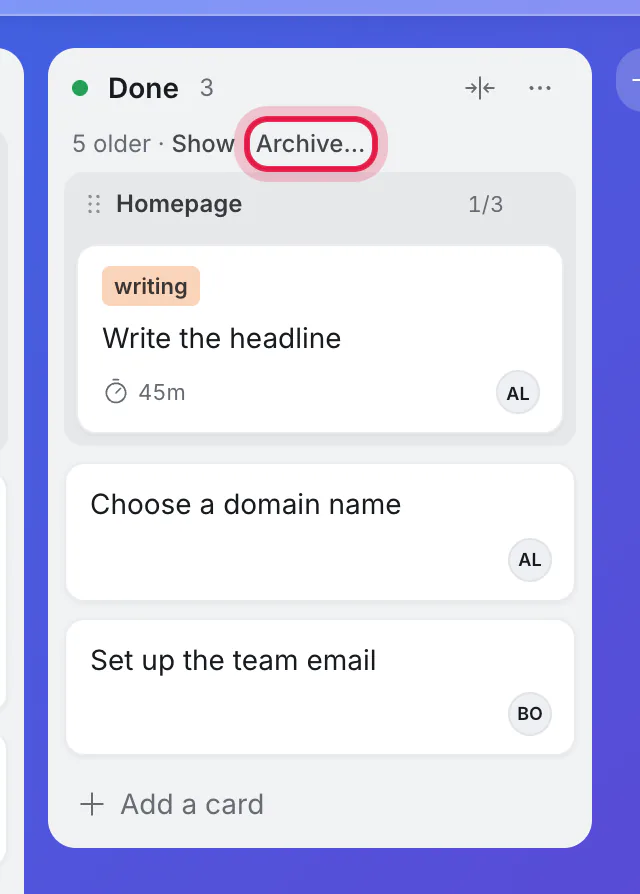
(The ring in the picture is on Archive…, which is used further down this page.)
- Show reveals the older cards for now. Hide tucks them away again.
- To change the number of days, or always show everything: Display → Done lists → All or Recent.
The Outline and Timeline do it differently: one Hide done switch covers both of them (a button on the Timeline, and in Display on the Outline), with a line saying how many are hidden.
Archive a card
Archiving puts a card away without deleting it. It leaves the board, its counts and its searches, and keeps everything: description, comments, files and subtasks.
Open a card's ⋯ menu:
- Archive puts it away as it is.
- Complete and archive finishes it and its subtasks first, so it is remembered as completed.
An Undo button appears for a few seconds.
Archive older done cards in one go
- Open the Done list's ⋯ menu and choose Archive older cards…, or click Archive… beside "older".
- Choose how long ago: "Cards done more than 14 days ago". Change the number to suit.
- Check the count, then click the button, which says how many: "Archive 5 cards".
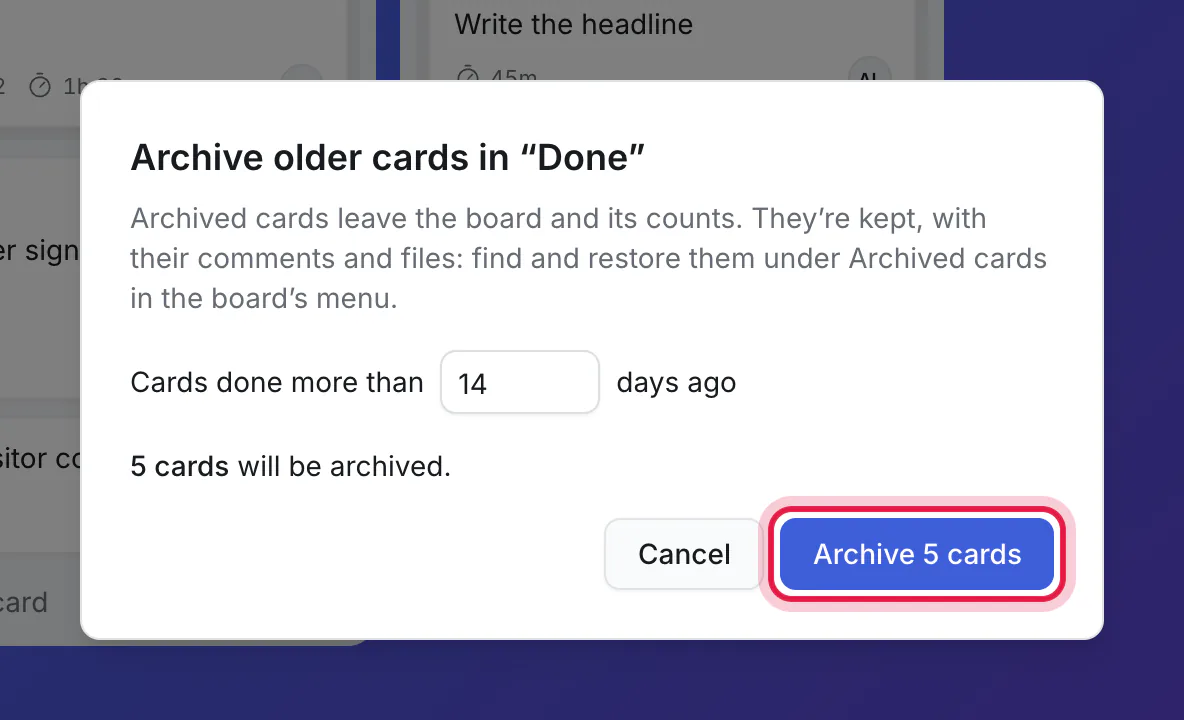
The dialog tells you how many cards will go before anything happens. Undo brings them all back.

Two things to know about what it picks:
- It counts from the day a card was done.
- It archives whole finished cards with their subtasks. A finished subtask whose parent is not finished yet stays where it is, so the unfinished work keeps its history. The dialog says how many of those there are.
Find and restore archived cards
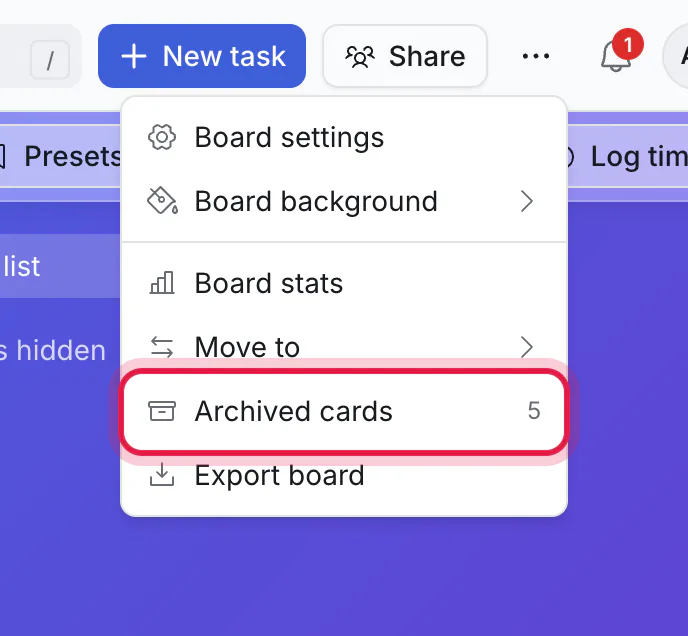
Open the board's ⋯ menu and choose Archived cards. The number beside it is how many the board has.
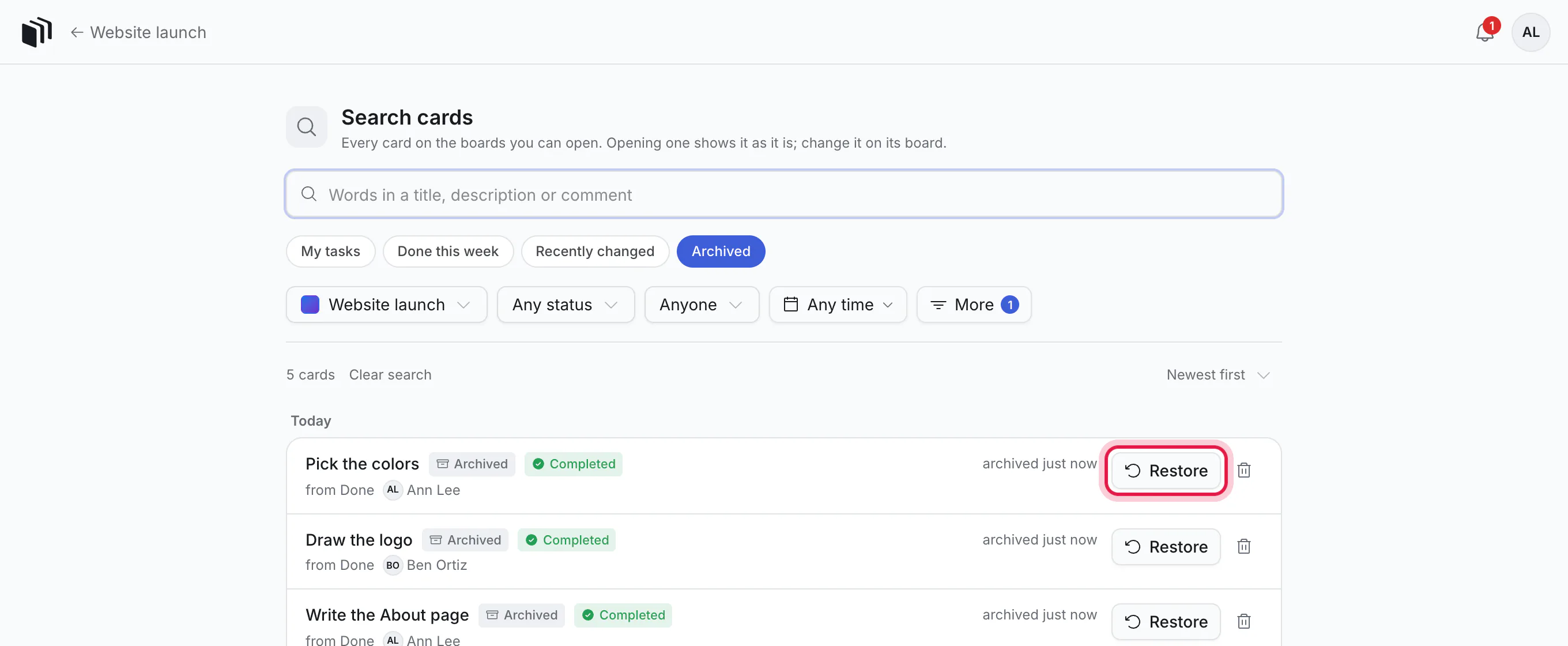
- Each card says when it was archived, from which list, and whether it was completed.
- Click one to read it, with the subtasks archived with it.
- Restore puts it back where it was. If its list has since been deleted, it goes to the first list of the same kind.
- The bin at the end of a row deletes the card for good. This is the one action here that cannot be undone.
This is the same page as Search all cards, with Archived switched on. So you can search by words, narrow with Any status (Done, or Not done), and use the first box to look at another board, or all of them at once.
Archive a whole board
A board's owner can archive it from ⋯ → Board settings. It leaves the boards page (it is kept under "Archived boards" at the bottom), becomes read-only for everyone, and can be restored any time.
Good to know
- Archiving makes a big board quicker to open.
- Anyone who can edit the board can archive and restore cards.
- Board stats still count archived cards, so your history stays whole.
- Your AI assistant can still find archived cards when you ask what was done in a period.