
Your Inbox
Your Inbox is the place for things that have no board yet: a thought in the middle of other work, something to do later, a note from a call. It is one click away beside whatever board is open, and only you can see it.
Open it
Click the tray in the top bar, or press I. The Inbox opens at the left and the board moves over: both stay usable. The number beside the tray says how many cards wait in it.
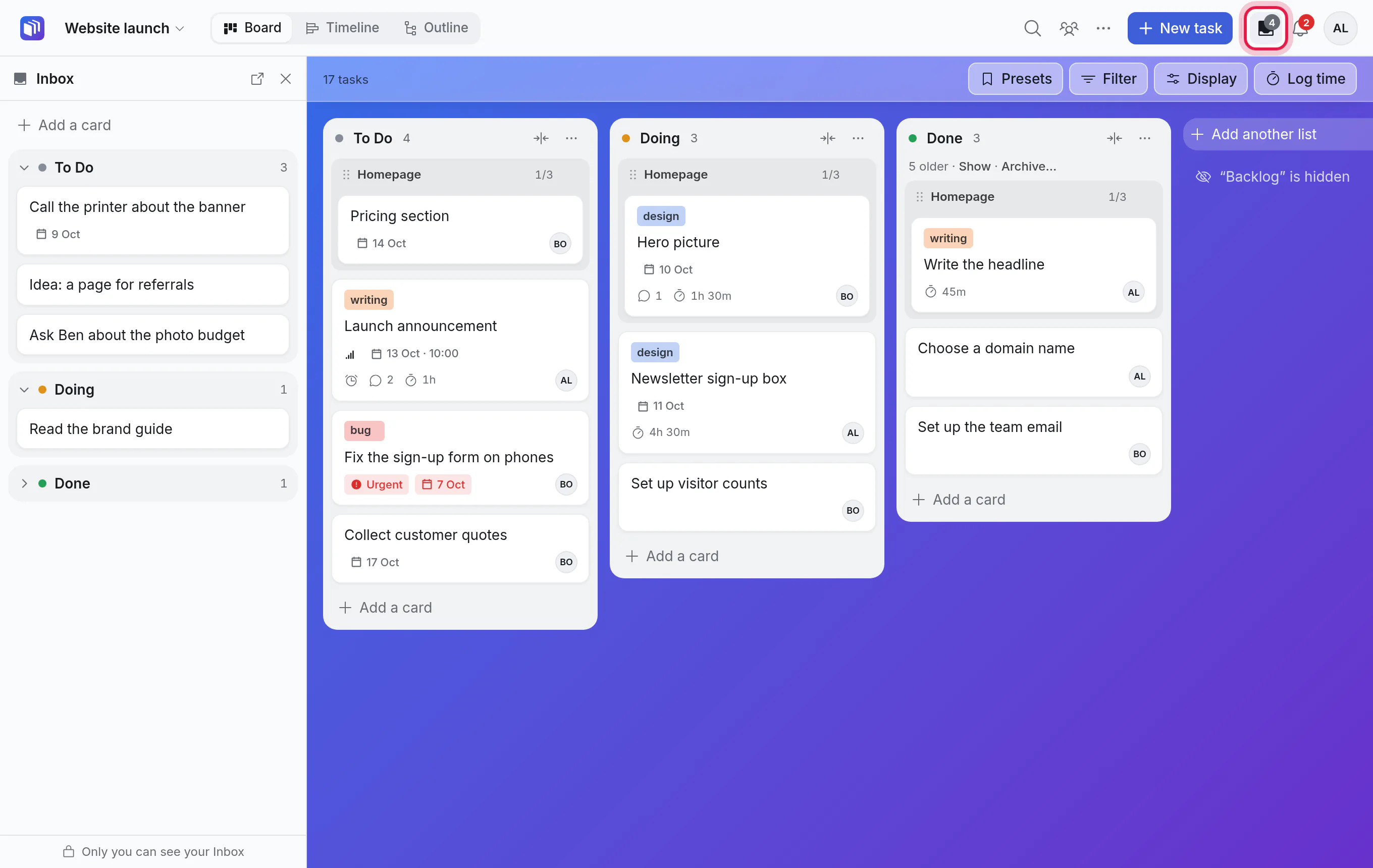
It stays open as you go from board to board, and on your boards page, until you close it with ✕ or click the tray again. Each device remembers whether you left it open.
Add a card
Click Add a card, type a title and press Enter. The box stays open for the next one. Pressing I puts the cursor there, so a note takes a second: I, type, Enter.
A date typed in the title is understood here too ("call the bank tomorrow 10am"), as when you add a card to a list.
An Inbox card is a card like any other. Click it to open it: it has a description, a due date, reminders, subtasks, files and comments.
Its lists
The Inbox is a board of your own, shown as a stack: a section for each of its lists, To Do, Doing and Done to begin with.
- Click a section's name to fold it away, or open it again. Done starts folded.
- Drag a card to another section to change its list, or up and down to put it in order.
- The ⋯ at a card's corner does the same without dragging, and has Complete and archive and Archive.
So a small thing never has to go on a board: note it, do it, finish it, all from here.
To rename the lists, add one, or see the Inbox as a Board, a Timeline or an Outline, click Open as a board (the arrow at the top of the panel). There it works like any board of yours.
Put a card on a board
Open the board, then drag the card out of the Inbox onto one of its lists. It lands where you drop it.
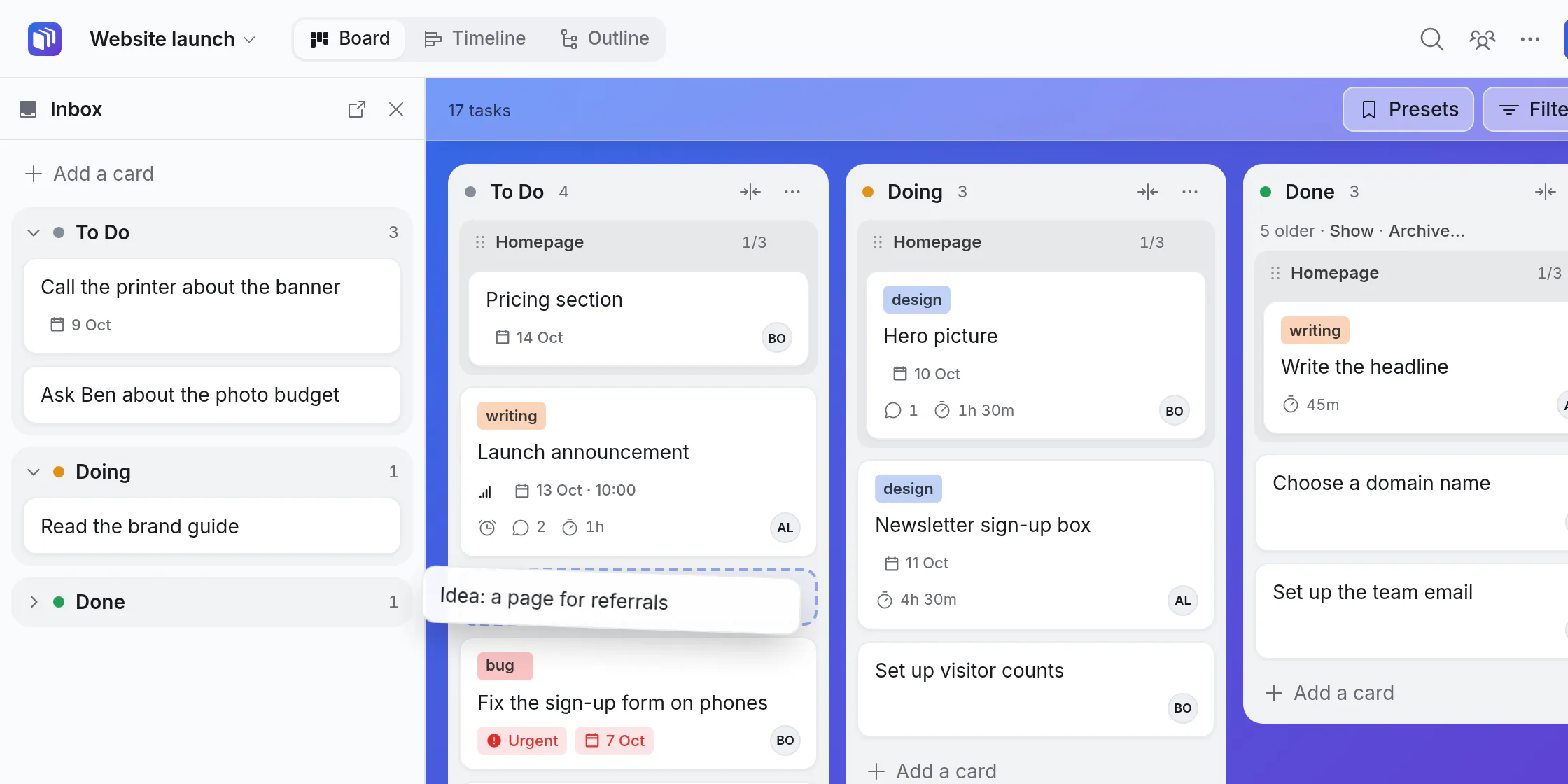
- On the Timeline, the Outline, or a Board tab that is not showing lists as its columns, drop the card anywhere on the view. It goes to the list with the same name as the one it was in, or else the first list of the same kind (not started, in progress, done).
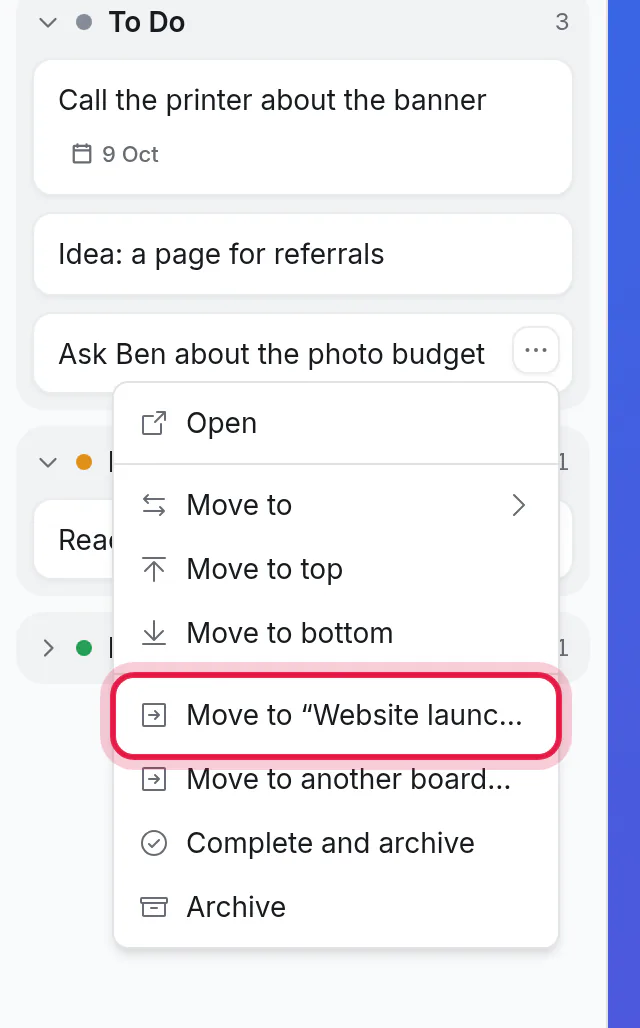
- Without dragging: click the card's ⋯, then Move to “the open board”… to choose the list first, or Move to another board… for any board you can add to.
The card takes its subtasks, comments and files with it. Its labels are matched by name, and added to the board when it has none by that name. A value in one of your own fields comes along only if the board uses that field: when something is left behind, the message that follows the move says what.
A move to another board is not undone with ⌘Z. To take it back, move the card again: its ⋯, Move to another board…, Inbox.
Send a card to the Inbox
From any board: click the card's ⋯, then Move to another board…. Your Inbox is first in the list.
From any page, or your phone
A button in your browser's bookmarks bar, and Share on an Android phone, put a page or a link in your Inbox in two clicks. See Add from anywhere.
From Telegram
Give your Inbox a Telegram bot and whatever you send that bot is a card here: a thought, a photo, a forwarded message. The same bot tells you your reminders and mentions. See a bot on your Inbox.
On a phone
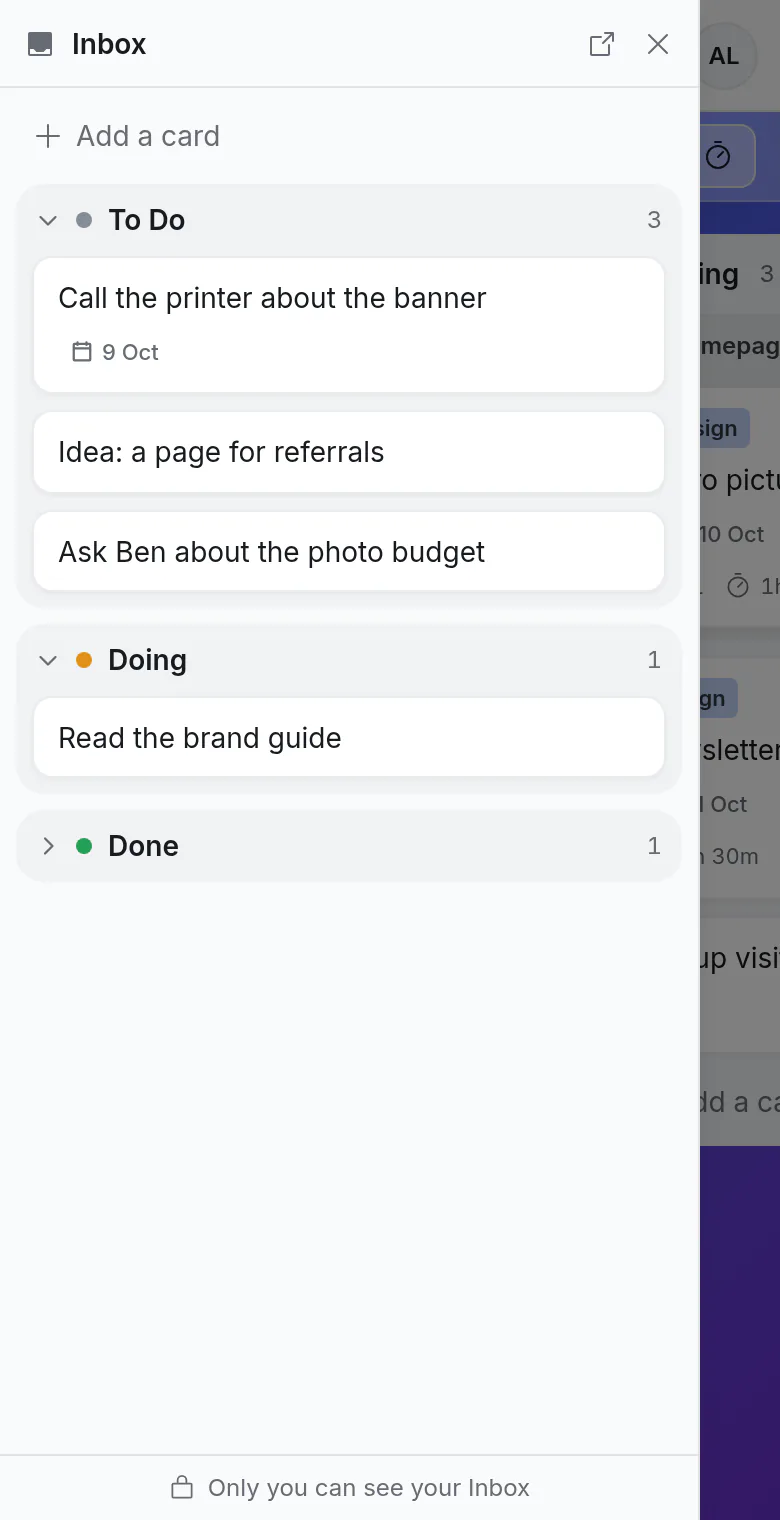
The tray opens the Inbox over the board. Press and hold a card to drag it between sections. To put a card on the board behind it, use the card's ⋯ and Move to “the open board”….
Good to know
- Only you. The Inbox cannot be shared, moved to a workspace, archived or deleted, and nobody else can open it. You can rename it; the tray and the panel still say Inbox.
- Everyone has one. It is made the first time you open Kanbanto.
- It is not a tile on your boards page. The tray is its place. Star it (the board's name → Add to favourites) and it shows with your favourites too.
- Assistants use it. Ask an assistant to "remind me to call the bank" without naming a board, and the card goes to your Inbox. See what to ask.
- Search cards and My week include its cards, with those of your other Personal boards.
- Undo. ⌘Z takes back your last change, whether you made it on the board or in the Inbox.