
Bring your work in
You don't have to start from an empty board. There are two ways to bring in what you already have:
- A whole board from Trello, with its lists, cards, checklists and comments.
- Rows of a spreadsheet, each row becoming a card on a board you already have.
(A board exported from Kanbanto itself comes back the same way as a Trello board, and a spreadsheet saved with Export board… is read by Import cards… as it is: see Export and import.)
A Trello board
- In Trello, open the board, then its menu (••• at the top right) → Print, export, and share → Export as JSON. Save the file.
- In Kanbanto, on the boards page, open the ⋯ menu → Import a board… and choose that file.
- Kanbanto shows what will come over and what won't. Nothing has been made yet.
- Check the Lists: for each one, say what its cards are (Backlog, Not started, In progress or Done). Kanbanto reads this from the list's name where the name says ("Doing", "Done", "เสร็จแล้ว"), and calls the rest Not started. You can change it later from the list's own menu.
- Press Import board.
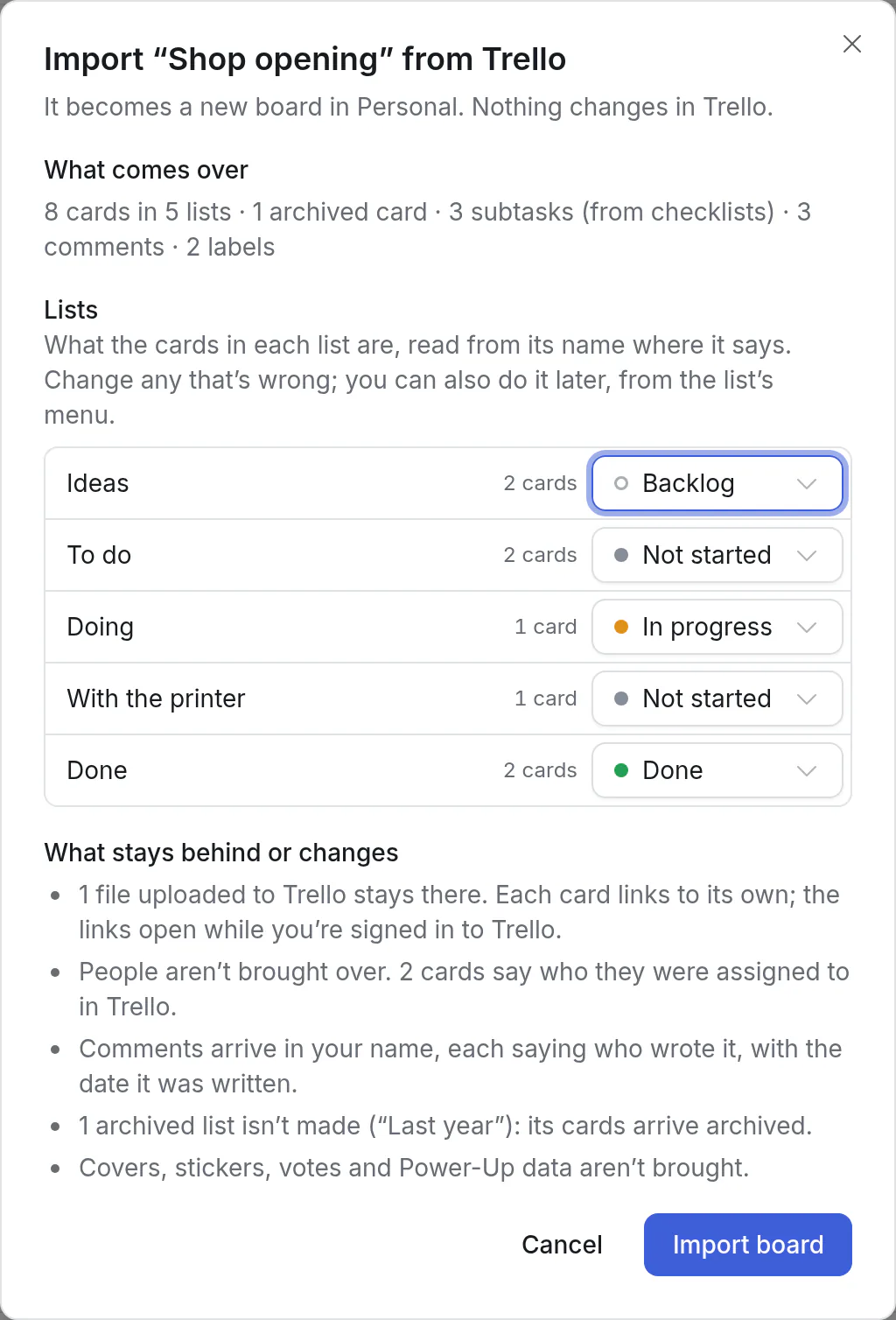
The file is read in your browser, and only the parts Kanbanto uses are sent. Nothing changes in Trello.
What comes over
| In Trello | In Kanbanto |
|---|---|
| Lists, in their order | Lists, in the same order |
| Cards: name, description, due date, start date, labels | The same. A label gets the nearest colour |
| A checklist | Subtasks of the card. Ticked items are done |
| Several checklists on one card | A subtask for each checklist, with its items under it |
| Comments | Comments, with the date each was written. They are in your name, and each starts with who wrote it in Trello. Nobody is notified |
| Custom fields | Fields of your own: text, number, date, checkbox, and a dropdown as a choice |
| Archived cards, and the cards of archived lists | Archived cards (⋯ → Archived cards). Archived lists themselves are not made |
| Links attached to a card | Written under the card's description |
What stays behind
- People. They are not accounts in Kanbanto, so nobody is assigned. A card that had people on it says so under its description: "Assigned in Trello: Ann Lee". Invite them with Share, then assign the cards.
- Uploaded files. They stay in Trello. Each card lists links to its own files, which open while you are signed in to Trello: download the ones you need and attach them.
- Older comments. Trello's export only holds a board's latest activity (about the last 1,000 things that happened). When comments are missing, the screen says how many before you import.
- Covers, stickers, votes, Power-Ups and automation.
Good to know
- The board arrives in Personal, visible to you alone. Move it to a workspace with ⋯ → Move to, or share it.
- A ticked checklist item goes to the first list that counts as Done. If the board has none, a Done list is added for them.
- A card marked complete in Trello that isn't in a finished list keeps its list, and gets the label Complete in Trello, so you can find those cards and decide.
- A board can show 20 fields. Trello fields beyond that are written on the cards as text.
- A card with subtasks keeps the list it was in: the board's "parent status" is set by hand. You can change that in Board settings.
- Importing the same file twice makes two boards.
Cards from a spreadsheet
For a list you keep in Excel or Google Sheets: tasks, clients, orders, leads. Each row becomes a card.
- Open the board the cards should go on, then ⋯ → Import cards….
- In the spreadsheet, select the rows (with the row of column names) and copy them. Paste into the box. Or choose a .csv file.
- Kanbanto shows the columns with a few rows under each, and what it took each column for. Change any that is wrong.
- Read The check: how many cards will be added, and what couldn't be read.
- Press Add … cards.
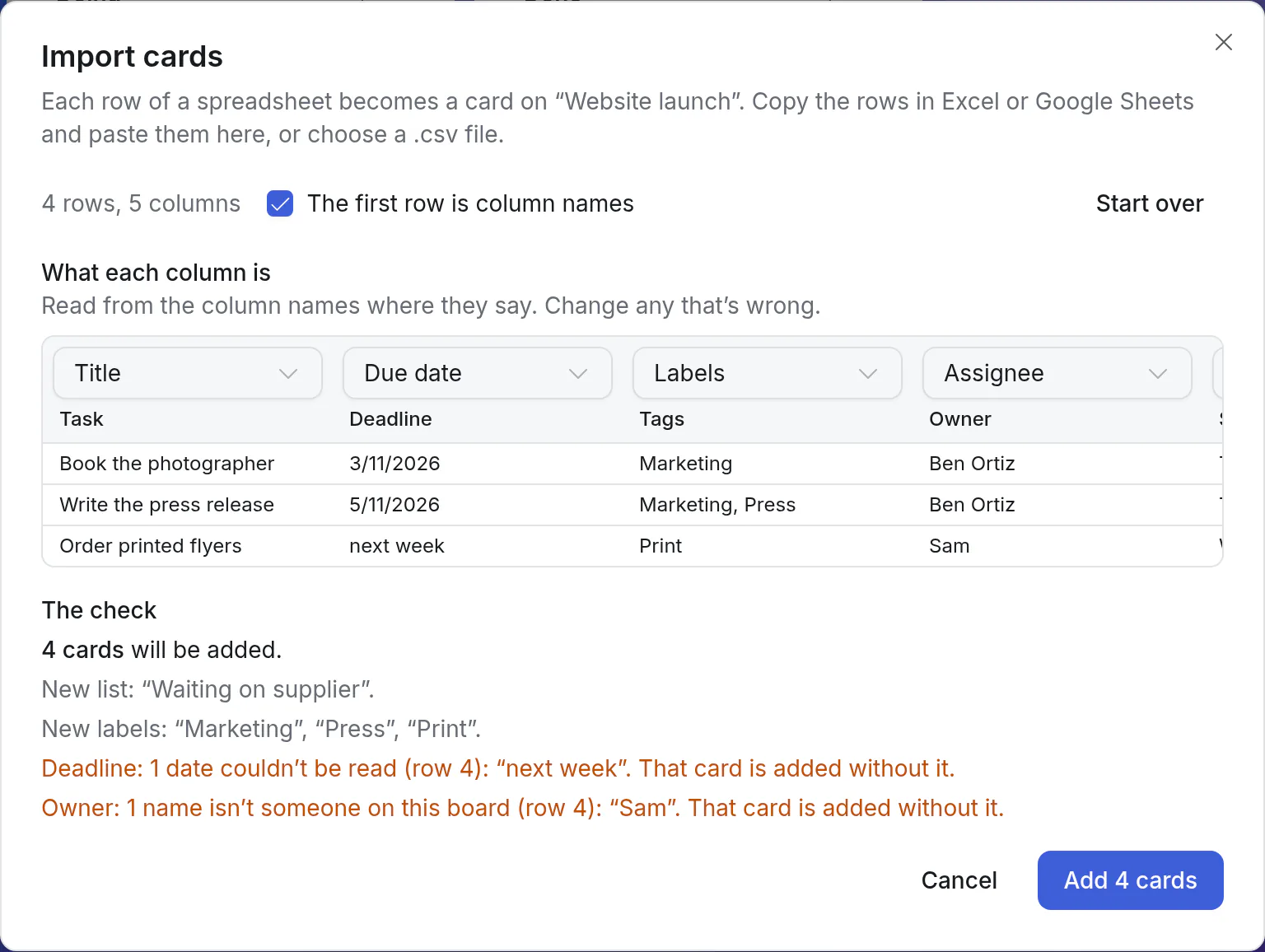
Nothing is added until you press the button. Afterwards, Undo (or Ctrl/⌘+Z) takes all of them away again in one go.
What a column can be
| Column | What goes in the cells |
|---|---|
| Title | The card's name. The only column you must have. A row without one is left out |
| Description | Any text |
| List | The name of a list. One the board doesn't have is made |
| Due date, Start date | A date, with a time if you like: see Dates |
| Labels | Label names, with commas between them. New ones are made |
| Assignee | The name of someone on the board. A board's owners can also give an email address (only owners see addresses); anyone can give their own |
| Priority | Urgent, High, Medium or Low |
| Parent card | The title of another row, or of a card already on the board: the row becomes its subtask |
| One of the board's fields | Text; a number ("1,200", "฿40"); a date; yes or no for a checkbox; an option's name for a choice; a person; for a card link, the title of the card |
| Leave out | The column is ignored |
Kanbanto reads the column names to guess: "Task" or "Name" is the title, "Deadline" the due date, "Tags" the labels, "Owner" the assignee, and a column named like one of the board's fields is that field. Thai names work too ("ชื่องาน", "กำหนดส่ง", "สถานะ").
No row of names? Untick The first row is column names and set the columns yourself.
Dates
These all read as 15 October 2026:
2026-10-15 · 15/10/2026 · 10/15/2026 · 15 Oct 2026 · Oct 15, 2026 · 15 ต.ค. 2569 · 15/10/2569
- Years in the Buddhist era (2569) are understood.
- A time can follow the date:
15/10/2026 14:30,15 Oct 2026 2:30 PM. It is read on your own clock. - Day first or month first?
3/4/2026could be 3 April or 4 March. Kanbanto looks at the whole column: if any date in it only works one way (25/4/2026), the column is read that way. If nothing decides, it asks you once, showing both readings.

The check
| It says | What it means |
|---|---|
| 12 cards will be added | The rows that have a title |
| New lists, New labels | Names in your rows that the board doesn't have yet. They are made with the cards |
| New in Stage: … | Options added to a choice field. Only when you manage that field; otherwise those cells are listed as not read |
| Left out, with no title | Those rows are skipped |
| Left out, already a card on this board | A row whose title is the title of a card on the board is skipped, so importing the same sheet twice doesn't double everything. Tick Add rows that are already cards to add them anyway |
| Due date: 2 dates couldn't be read (rows 17 and 40) | Those cards are still added, without that value. Fix the cells and paste again, or fill them in on the cards |
Row numbers are the ones in your spreadsheet: the row of column names is row 1.
Good to know
- One change. The board's activity says "imported 12 cards" once, and a webhook or chat channel hears it once.
- Each person is told once about the cards assigned to them ("assigned “Call Acme” and 3 more cards to you"), and follows those cards. You don't start following the cards you import.
- Undo takes away the cards, and the lists and labels that were made with them. Options added to a field stay.
- Subtasks: give the sheet a Parent card column. The parent can be further down the sheet than its subtasks. When two cards share that title, Kanbanto can't tell which is meant, and the row goes to the top level.
- A new list counts as what its name says ("Done" is a finished list), and Not started otherwise.
- Up to 2,000 rows and 40 columns at a time. Split a bigger sheet in two.
- An Excel file (.xlsx) can't be chosen. Copy and paste the rows, or save the sheet as CSV first.
- Strange letters after choosing a .csv? It was saved in an older encoding. Kanbanto then asks how to read it: pick Thai or Western until the words look right.
A contact list as a board of clients
A sheet with Name, Email and Phone fills a Clients board (the one that comes with the sales, support, shop and bookings starters) with nothing to set up: Name is the title, and Email and Phone are that board's fields.
From a script
Both imports are calls in the API: POST /api/boards/import for a Trello file, and POST /api/boards/<board>/tasks/import for rows, with a check that changes nothing (dryRun). Your site's own page at /api/docs shows them.