
Your own fields
Every card has a title, a list, dates and labels. Fields let you add what your work needs on top of that: a client, an amount, a stage, a link, a yes or no.
A field is made once, then switched on for the boards that need it. So "Client" means the same thing on every board that uses it.
In a hurry? A starter board comes with its fields already made.
Make a field
Where you make it depends on where the board lives:
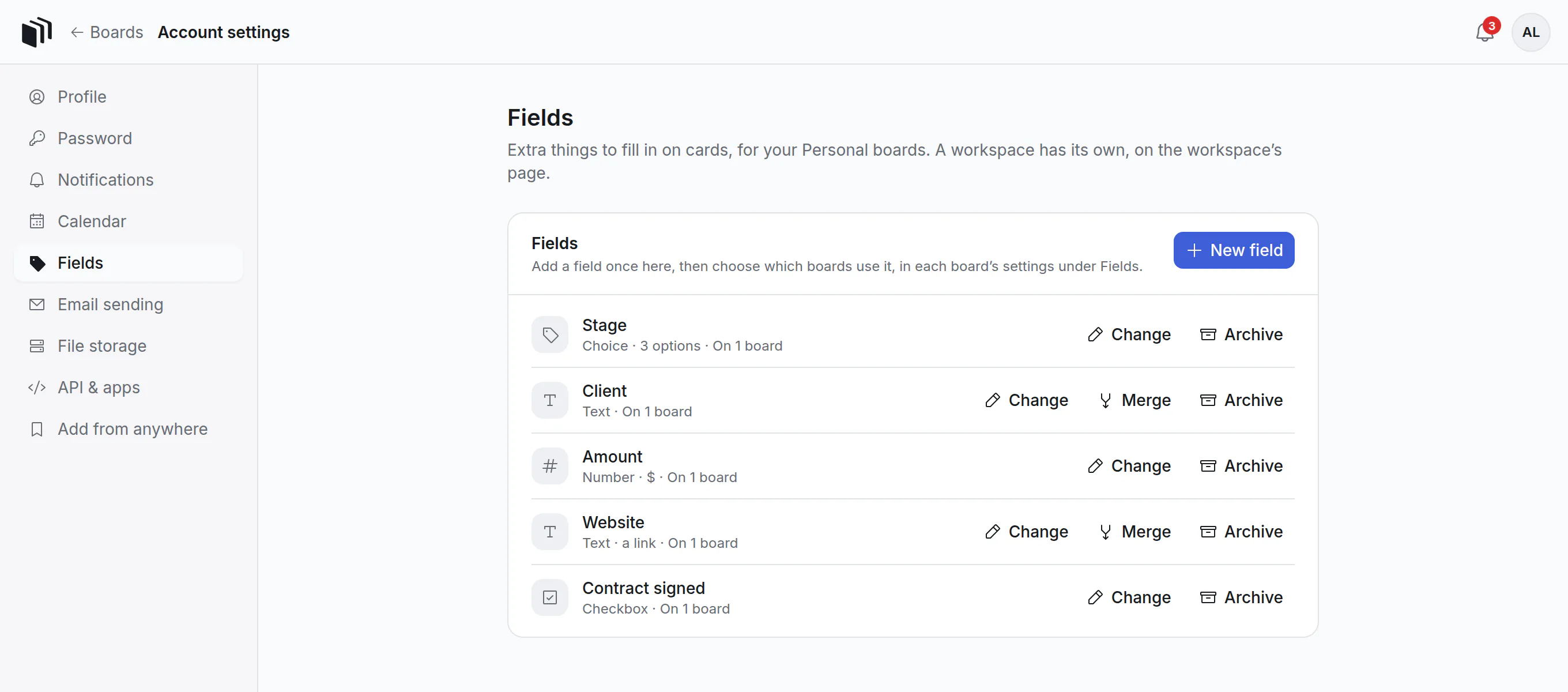
- For your own (Personal) boards: open your initials → Account settings → Fields, and click New field.
- For a workspace's boards: on the boards page, beside the workspace's name, click 2 people (it shows the number), then the Fields tab, then New field. Only the workspace's admins can do this; everyone else in the workspace sees the list. Set up fields for the workspace shows it step by step.
Give it a name and pick its kind. If the name is taken, or there is already a field that looks like the same thing ("Company" when you type "Company name"), it says so under the name before you save:
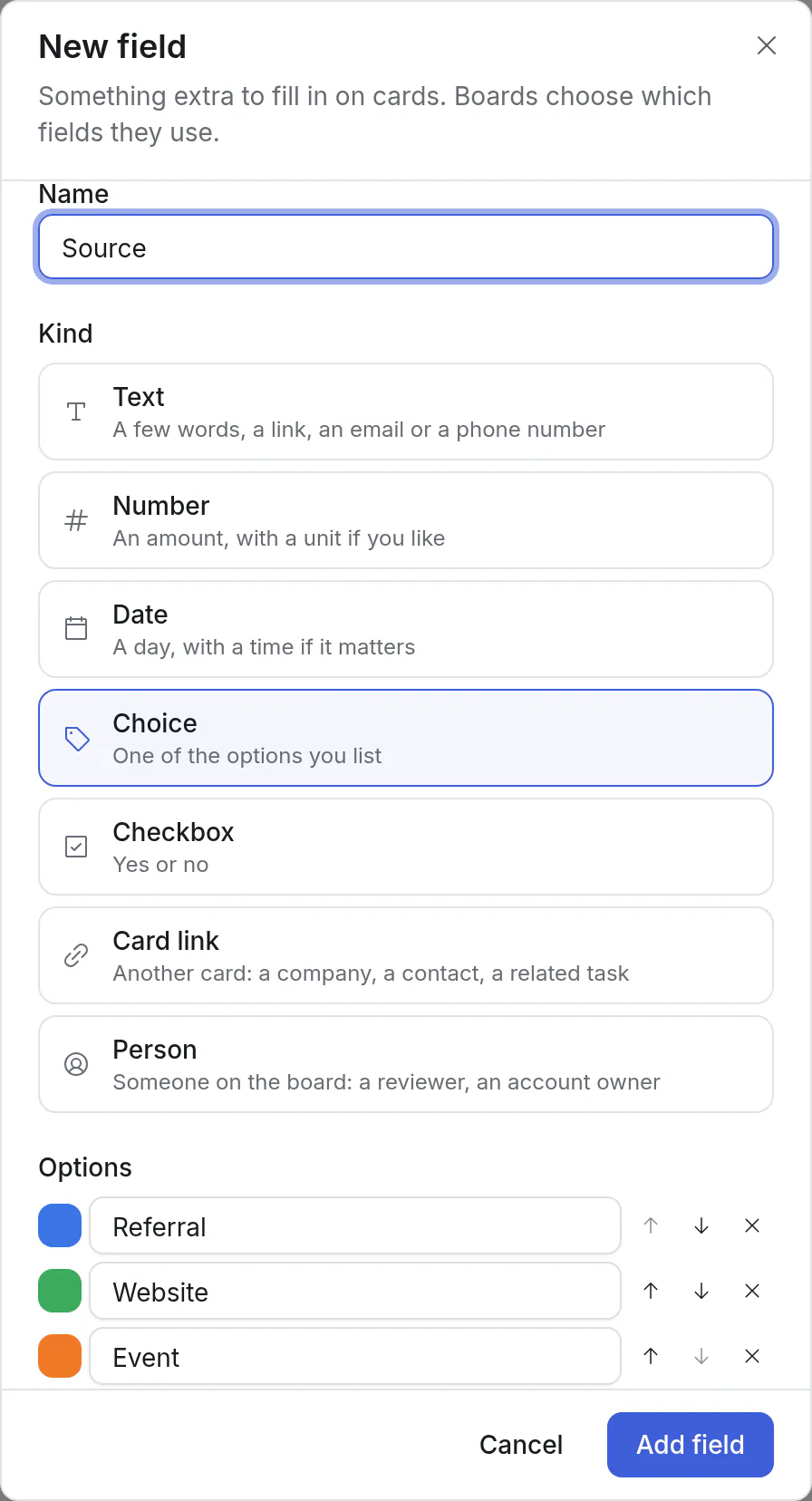
| Kind | Holds | For example |
|---|---|---|
| Text | A few words, or a link, an email address or a phone number you can click | Client, Website |
| Number | An amount, with a unit if you like | Amount in $, Hours |
| Date | A day, with a time if it matters | Close date |
| Choice | One of the options you list, each with a colour | Stage: Lead, Proposal sent, Won |
| Checkbox | Yes or no | Contract signed |
| Card link | One or several other cards | Company, picked from your Companies board |
| Person | One or several people of the board | Reviewer, Account owner |
A field's kind can't be changed afterwards, so pick the one that fits. Its name, and a choice's options, can be changed whenever you like.
Put it on a board
- Open the board, then ⋯ → Board settings → Fields.
- Click Add a field and pick it. A board in a workspace offers the workspace's fields; a Personal board offers your own.
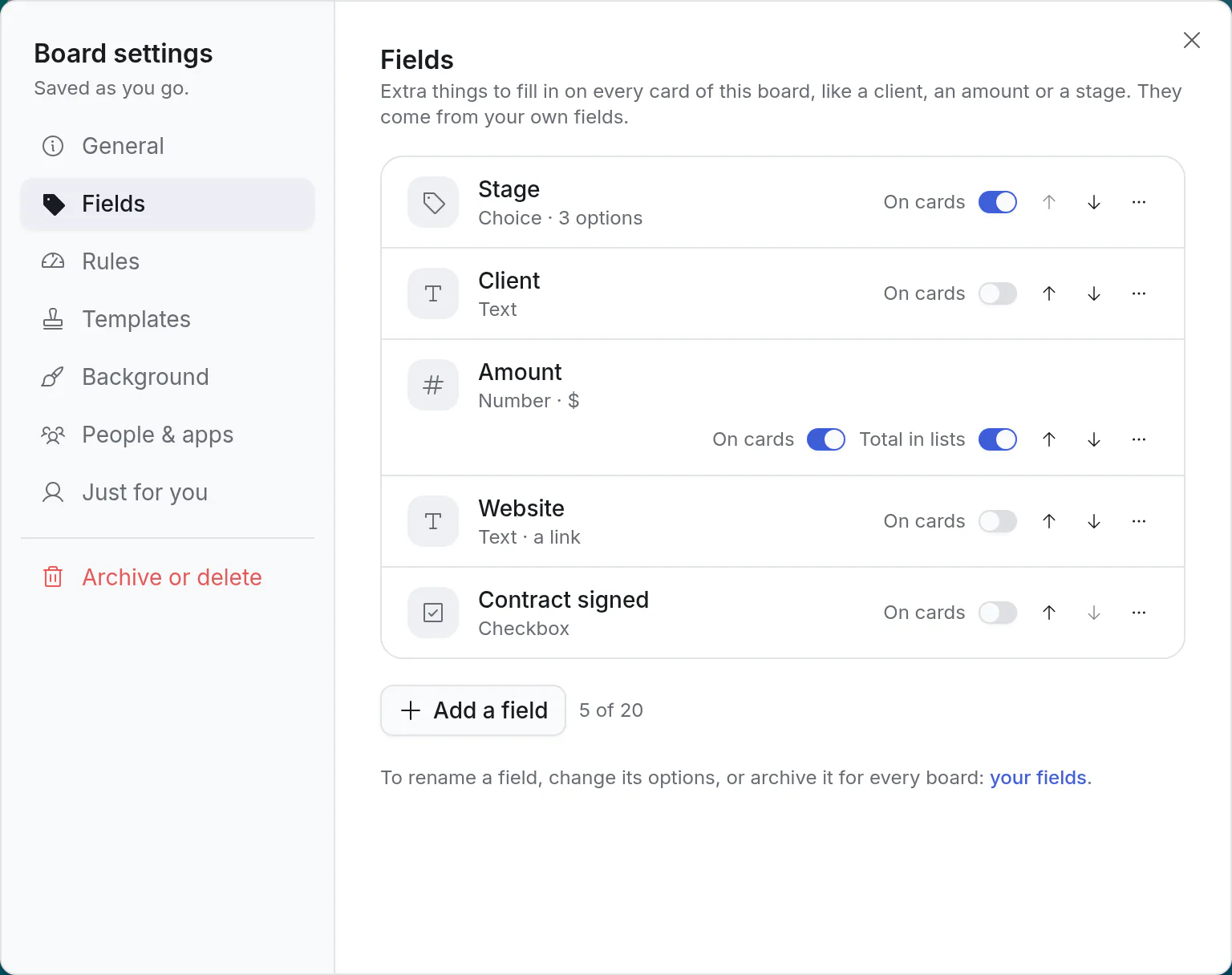
Here the board's owners also:
- put the fields in order, with the arrows,
- switch On cards on for up to three of them, so their values show on the board,
- switch Total in lists on for up to three numbers that add up, so each list says what its cards come to,
- take a field off the board again, under ⋯.
A board can use up to 20 fields. Every card on it gets them, subtasks too.
Fill it in
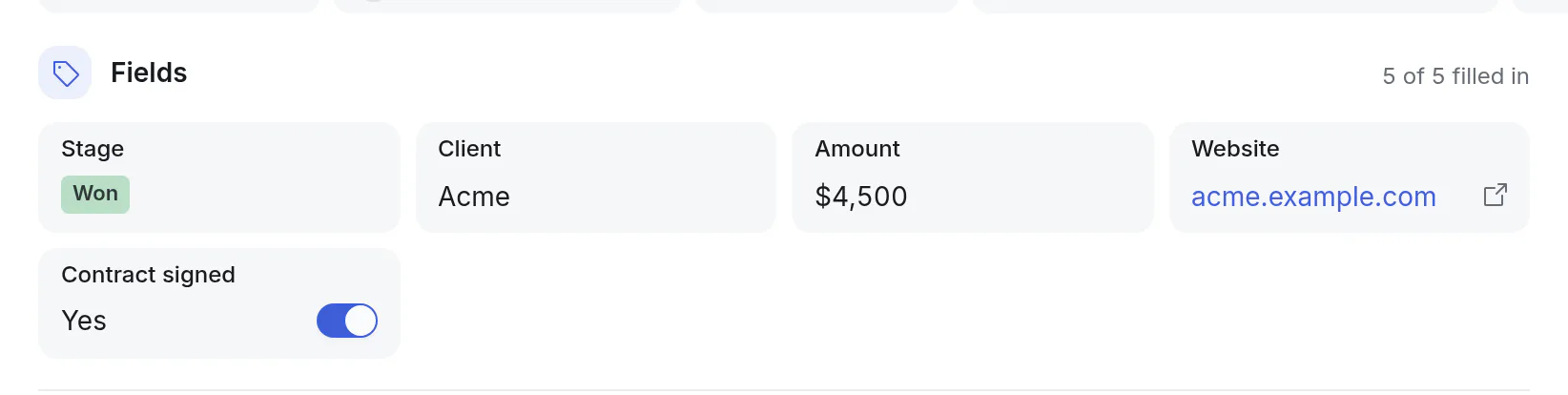
Open a card. The board's fields are its first section, under the row of boxes at the top: a box for each. Click one and type, pick, or switch it on.
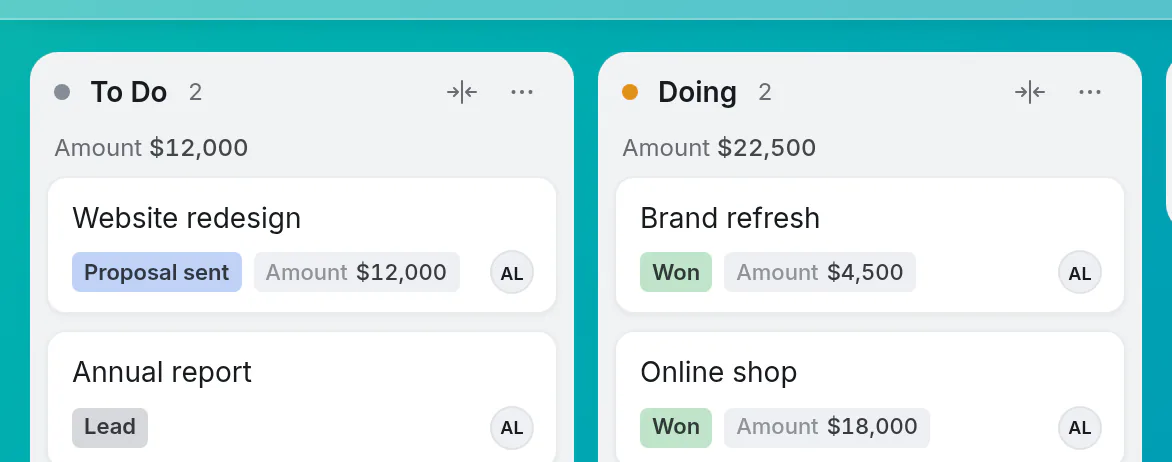
Fields switched On cards show on the board once a card has a value. A number with Total in lists on is added up under each list's name:
Anyone who can edit the board can fill fields in. Viewers see them.
Work on many cards at once: the Outline
In the Outline, every field of the board is a column.

- Change a value right in the table: click the cell and type, pick, or tick. No need to open the card.
- Sort by a field: click its heading. Click again for the other way round. Cards without a value come last.
- Group the rows by a choice, a person or a tick field: Display → Group by. Each value becomes a heading with its cards under it. See group the rows.
- Hide columns you don't need: Display, then untick them, or switch Fields off to hide them all.
Filter by a field
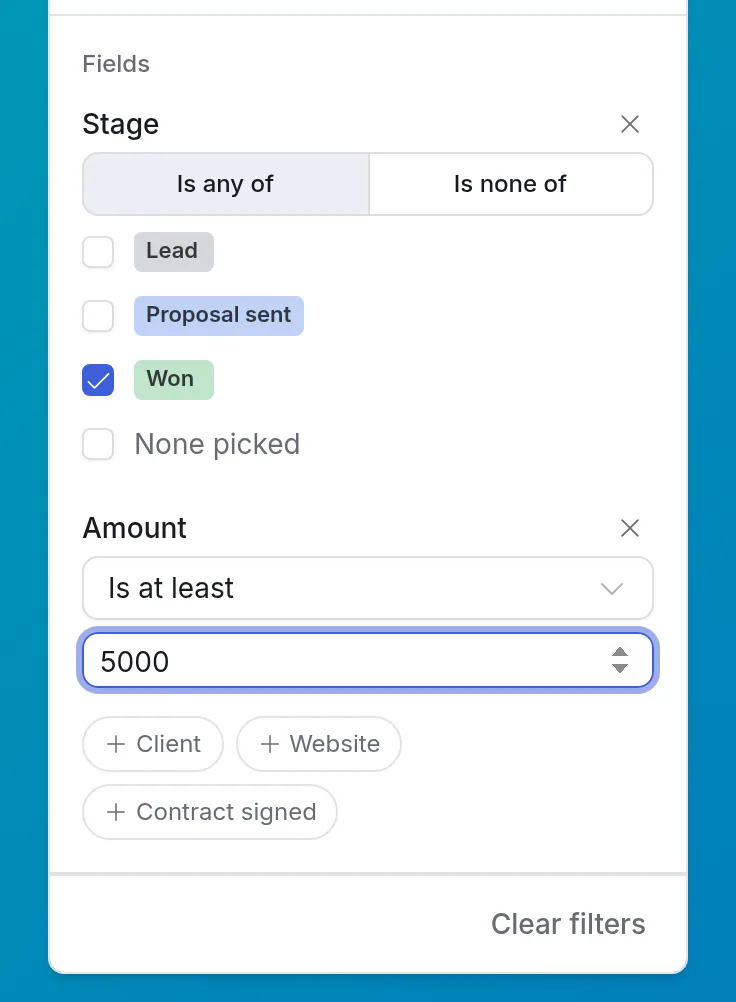
Click Filter, go down to Fields, and pick the field.
| Kind | You can ask for |
|---|---|
| Text | Contains a word, doesn't contain it, is exactly, isn't, is filled in, is empty |
| Number | Is an amount, at least, at most, between two. Or has a number, is empty |
| Date | Today, this week, next month, the next 30 days, between two days, and more: the same choices as Due |
| Choice | Any of the options you tick, none of them, or none picked |
| Checkbox | Yes or No |
| Card link | Any of the cards you tick, none of them, has a link, or none linked. Type part of a title to find a card among the ones linked on this board |
| Person | Me, any of the people you tick, none of them, someone, or no one |
One test per field. Set tests on several fields and a card has to pass them all: deals of 10,000 and up that close this month and aren't from a referral.
A few to try:
- A sales pipeline: Close date this month, Deal value at least 10,000.
- A support desk: Severity any of High, Critical; Reported on in the last 7 days.
- A salon's bookings: Due today; Deposit paid No.
- Fundraising: Stage none of Passed; Lead partner (a Person field) Me.
Filters work in all three views, and a preset remembers them, along with the Outline's columns and their order.
The board's search box looks in text fields too: type a company's name or a tracking number.
To look through every board at once, open Search cards, then More → Field. Each card then shows its value, and you can narrow the list with the same tests.
Totals
A number field can be one that adds up (an amount, hours). Switch that on when you make the field.
- In the Outline, the bottom row adds up everything shown. A filter or a search changes it with the rows.
- A task with subtasks shows what they come to together, marked Σ. Its card says the same: "$12,000 with subtasks".
- On the Board, with Total in lists on (Board settings → Fields), each list says what its cards come to.
Each number is counted once, on the card it's written on. So write an amount on a task or on its subtasks, not on both: the task's total would count it twice.
Link cards together
A Card link field points at other cards. A deal points at its company; a ticket at the customer who sent it. It is what lets separate boards work as one: keep companies on one board and deals on another, and join them.
When you make the field, say:
| Setting | What it means |
|---|---|
| Its cards come from | One board (Company picks from Companies), any board of the workspace (or any of your own boards), or the board that uses this field (cards of the same board: "Related to", "Duplicate of"). |
| A card links to | One card, or several. |
| On the other card, call the list | The name the linked card uses for the cards that point at it, such as "Deals". |
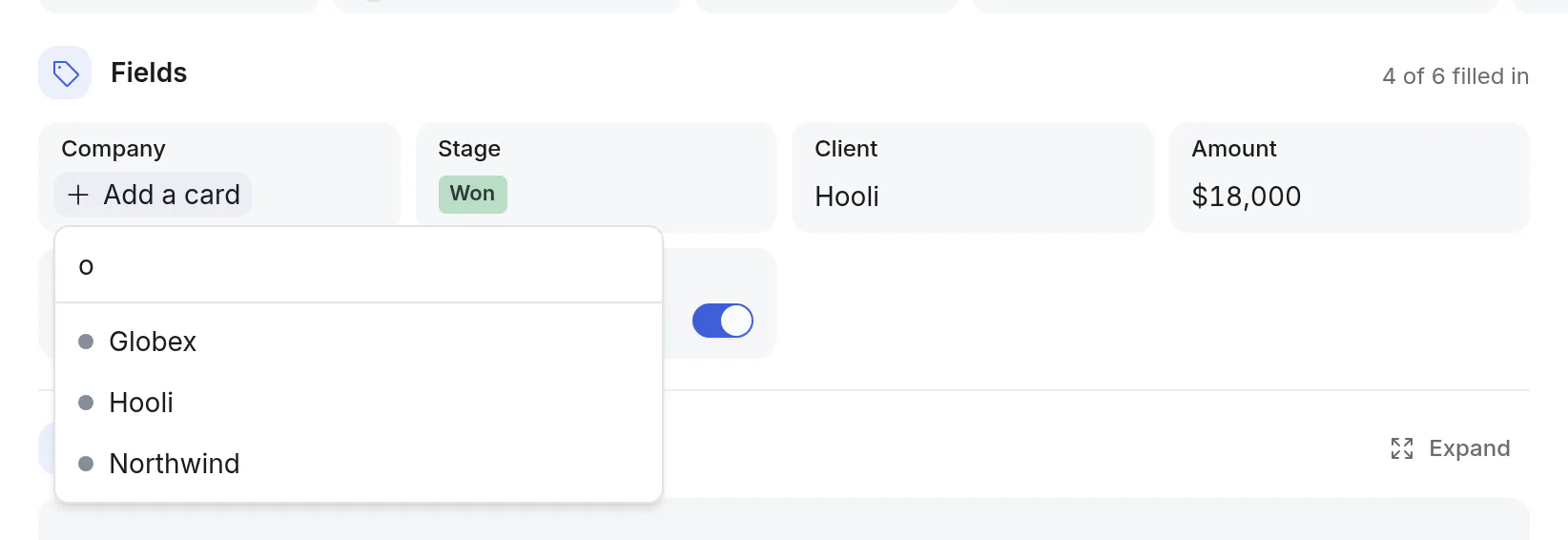
On a card, click Add a card in the field and type part of a title. Click the linked card's chip to open it. A card on the same board opens as usual. A card on another board opens on top, to look at, with Open on board to go and change it.
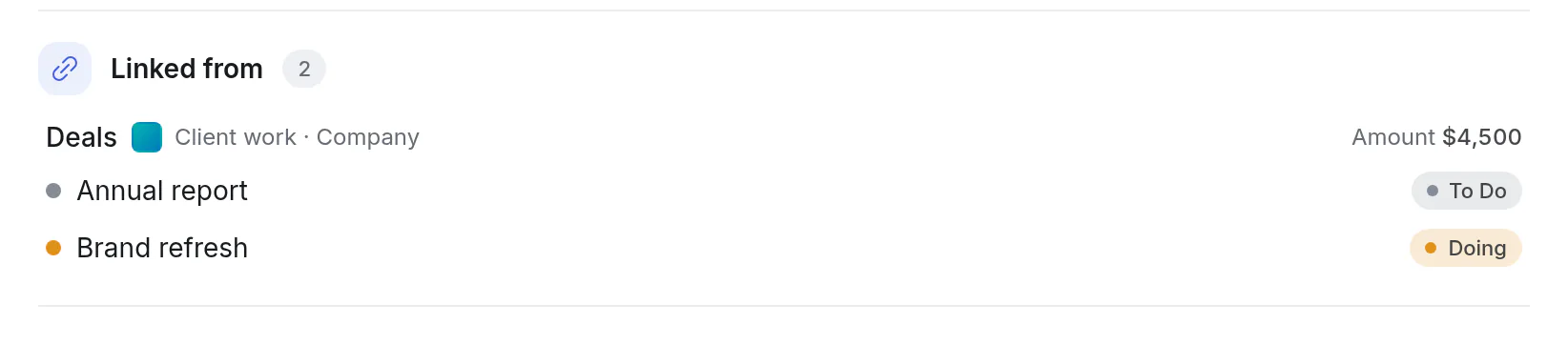
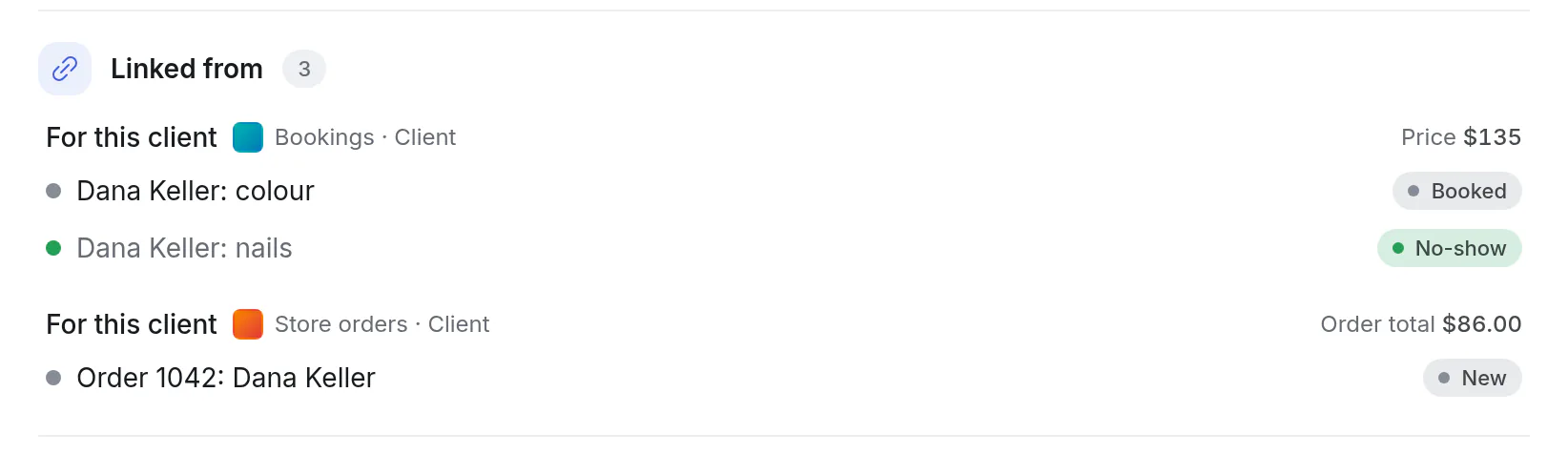
The linked card shows who points at it, under Linked from, with what their numbers add up to:
What to expect:
- You see a linked card's title only if you can open its board. Otherwise it reads "A card you can't open". You can only link cards you can open.
- Links stay inside one workspace, or between your own boards. They never reach another workspace.
- The linked card is archived: the link stays, greyed.
- It moves to another board of the same workspace: the link follows it. Out of the workspace: the link is removed, and the move tells you first.
- It is deleted: the link reads "A deleted card", and goes the next time someone changes that field. Undo the delete and the link is back.
- Its whole board is deleted: the links to its cards are removed.
- In the Outline a link is a column like any other: sort by it, change it in the cell, and Filter by the cards linked.
People on a card
Every card has an Assignee: the one person whose job it is. A Person field is for everyone else who matters to it: a reviewer, an account owner, the people in a deal's team.
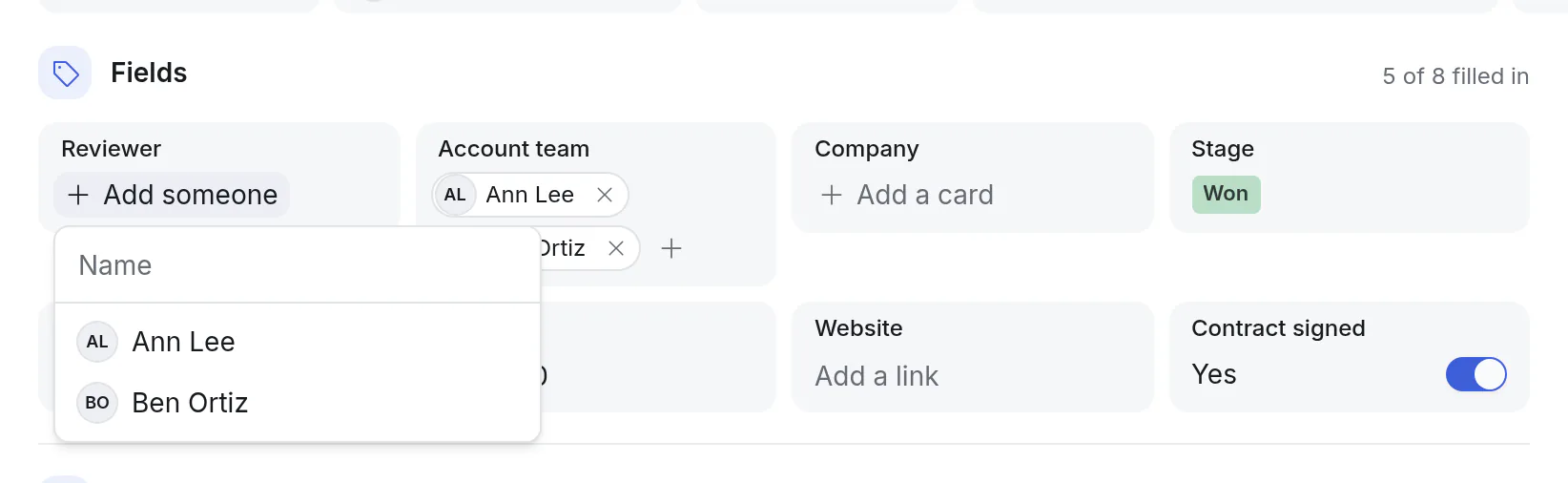
When you make the field, choose One person or Several people. On a card, click Add someone and pick from the people on the board.
- Nobody is told when they are put in a Person field, and the card does not show up in their week. That is what Assignee is for. A Person field is something to read, sort and filter by.
- Filter by a person, by Me (whoever is looking), or by No one. In the Outline, Display → Group by gathers cards under each person.
- Someone who leaves the board is taken out of its Person fields, as they are unassigned from its cards. Where a name can no longer be shown, it reads "Someone who left", and goes the next time that field is changed.
- A card moved to another board keeps the people who are on that board too. The move tells you who is left behind.
Start from a ready-made board
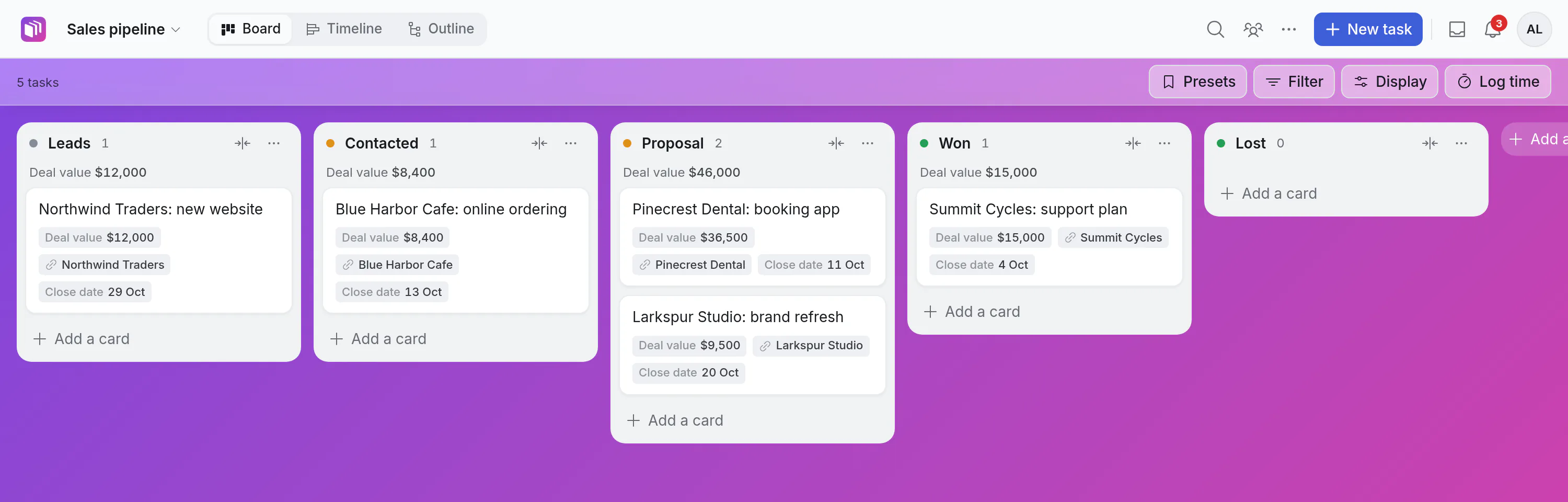
Create board offers four starters under Start with. Each is a board for one kind of work, with its lists, its fields, a few saved filters and five example cards to show how it is meant to be filled in.
| Starter | Lists | Fields | Saved filters |
|---|---|---|---|
| A sales pipeline | Leads, Contacted, Proposal, Won, Lost | Deal value (totalled under each list), Client, Contact email, Close date, Source | Closing in the next 7 days; Deals of 10,000 and up |
| A support desk | New, In progress, Waiting on customer, Solved | Severity, Client, Customer email, Channel, Reported on | High and critical; Most severe first (Outline) |
| Store orders | New, Packing, Packed, Shipped | Order total (totalled under each list), Shipping, Client, Tracking number | Leaves today; Late; By ship-by date (Outline) |
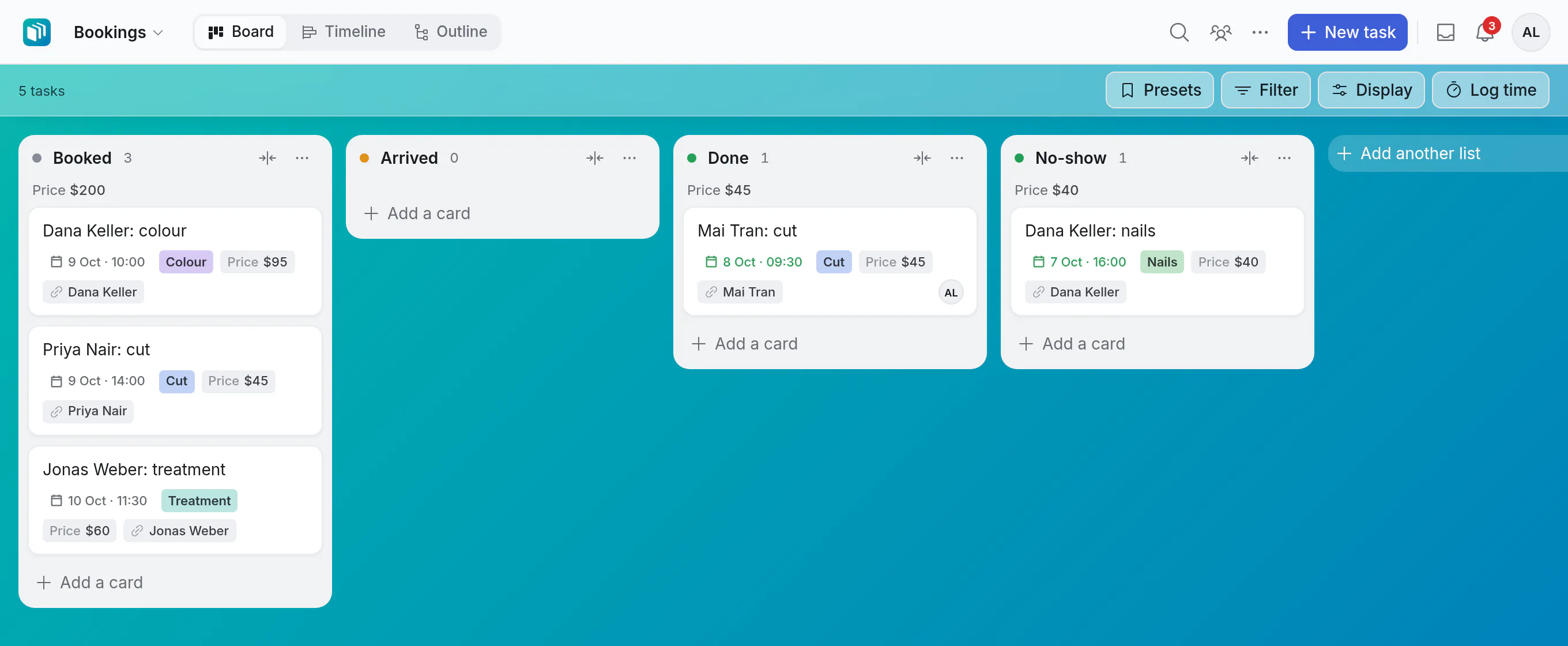
| Bookings | Booked, Arrived, Done, No-show | Service, Price (totalled under each list), Client, Deposit paid | Today; This week; Mine; The day in order (Outline) |
How the two newest are meant to be used:
- Store orders: an order's due date is the day it has to leave, so late orders turn red and the Timeline shows the week. Its subtasks are what is in it: tick them as you pack and the card counts "2/3". You move the order itself from list to list.
- Bookings: a booking's due date and time are when it is, and its assignee is who it is with, so it shows in that person's week and calendar. The services are a salon's to start with: rename them for a clinic, a studio or a restaurant's tables.
The Clients board
Every starter card has a Client field: a card link to a card on a board called Clients.
- The first starter you make brings the Clients board with it, with a card for each example client, an email and a phone number on each. A message says so.
- The starters after it share that board. A deal, a request, an order and a booking for the same client all point at the same card.
- Open a client's card and scroll to Linked from: everything that is for them, board by board, with what the amounts come to.
- Add a card on Clients for each of your own clients, then pick it in the Client field. A later starter never adds cards to your Clients board: its example cards link only to the clients that are there by name.
- Have them in a spreadsheet already? Open the Clients board, then ⋯ → Import cards…, and paste the rows: a Name, Email and Phone column are all it needs. See Bring your work in.
- In a workspace, the Clients board belongs to the workspace like its other boards. Personal starters get one of your own.
The fields are ordinary fields, in your own fields or the workspace's:
- It uses what is already there. A field with the same name and kind is used as it is, and never changed. The starter adds only the ones that are missing, so a second board from the same starter adds nothing.
- A field you archived stays off the new board. The message after creating says which.
- In a workspace, only its admins can add fields. If you are not one and the fields are not there yet, nothing is made, and it says which fields are missing. Ask an admin to make the first board from that starter, or make yours in Personal. After that, anyone in the workspace can make more.
On a starter board a card's list is set by hand (a deal's stage is where you drag it), and a card with subtasks stays one card. The example cards have real dates, counted from the day you make the board. None that is still open is assigned to you and none has a reminder, so they send you nothing. Delete them when you are ready.
Merge two fields
Sooner or later a library has two fields for one thing: "Company" and "Company name". Merge one into the other.
On the Fields page, click Merge next to the field that should go, and pick the one to keep. Both must be the same kind, and in use (restore an archived one first).
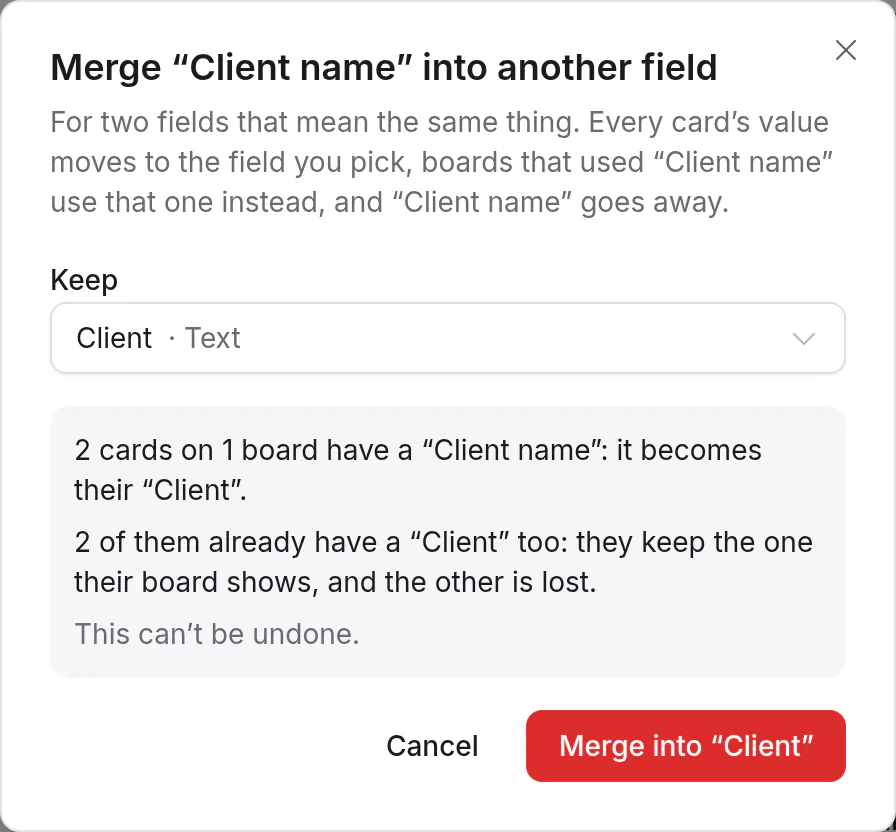
Before anything changes it says how many cards on how many boards get a value moved. Then:
- Every card's value moves to the kept field.
- A card that has both keeps the one people can see on its board: the kept field's, unless that board only shows the other one. Fields that hold several cards or several people keep them all; a checkbox stays ticked if either was.
- A choice's options are matched by name. The ones the kept field does not have are added to it.
- Boards follow: a board that used the field that goes now uses the kept one, in the same place. Saved filters that named it name the kept one.
- Two Card link fields merge only when their cards come from the same place.
A merge can't be undone. An Undo of something done before the merge may be refused afterwards, with "This board's fields changed since": the card it would put back no longer fits.
Stop using a field
There are three steps, each stronger than the last. The first two lose nothing.
| What you do | Where | What happens |
|---|---|---|
| Take it off this board | Board settings → Fields → ⋯ | It is hidden on this board. Its values are kept, and are back if you add the field again. |
| Archive | The Fields page | It is hidden on every board. Its values are kept, and Restore brings it back where it was. |
| Delete (archived fields only) | The Fields page, under Archived fields | The field is gone, with its values on every card. It tells you how many cards first. This can't be undone. |
To empty a field without removing it: Board settings → Fields → ⋯ → Clear on all cards. Anyone who can edit the board can do this, and Undo appears right afterwards.
A choice's options work the same way. Archive an option and the cards that have it keep it, but nobody can pick it any more. Delete an archived option and it is cleared from those cards.
Good to know
- Moving a card to another board takes a value along when that board uses the same field (or one with the same name and kind). The move tells you which values won't come along before you confirm.
- Moving a board to a workspace, or back to your own boards, brings its fields with it. Fields the other side doesn't have are added there if you manage its fields; otherwise the move lists what would be lost and asks first.
- An exported board carries its fields. Importing it adds them to your own fields. Links between its own cards come along; links to cards on other boards don't.
- A name can be used once among your fields (or a workspace's), and can't be something every card already has, like Due or Status.
- There can be 50 fields in one place, plus archived ones.
- A list's total counts its cards. When subtasks are grouped under their parent on the Board, the parent is a heading, not a card, so a number written on it isn't in a list's total. The Outline counts it. To count it on the Board too, choose Display → Show → Only projects: each card then counts with its subtasks.
- Your assistant can read and fill in fields, and find cards by them: "Set the stage of Website redesign to Won", "Which cards are at the proposal stage?", "Link the Online shop deal to Hooli", "Which deals are Acme's?", "Which cards am I the reviewer of?"
- It can set fields up too, where you could: "Add a Stage field with Lead, Won and Lost, and put it on the Deals board", "Make me a sales pipeline board". Deleting a field for good and merging two stay with you, in the app.