
Notifications
Kanbanto tells you when something needs you, in three places: the bell, your email, and your computer.
The bell
The bell at the top right shows:
- comments where someone @mentioned you,
- reminders that have come due,
- being added to a board or workspace.
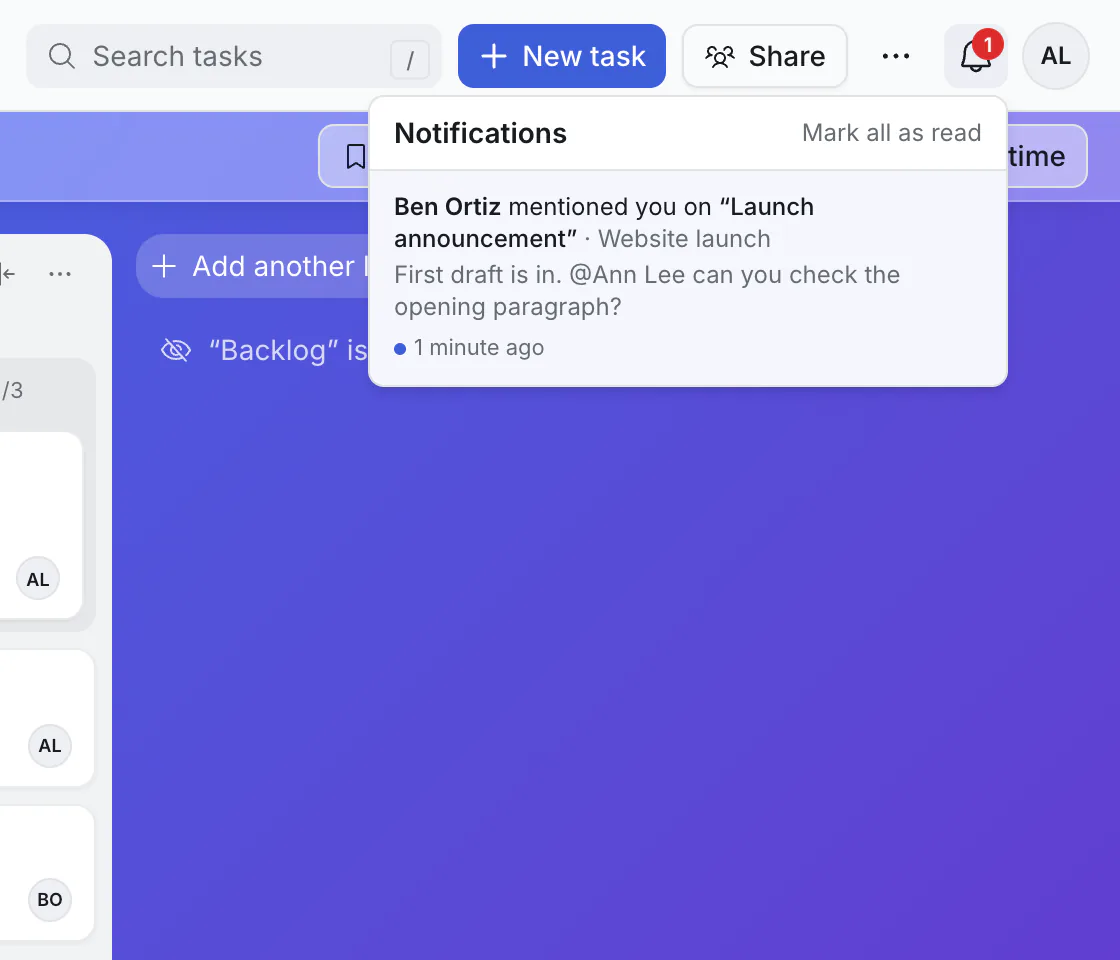
Click one to open the card. Mark all as read clears the count.
The morning summary
Once a day, around 8:00 in your own time zone, Kanbanto emails you:
- cards due today, and overdue ones,
- reminders set for later today,
- mentions you have not seen yet.
It is only sent on days when there is something to say.
Reminder emails
A reminder also arrives by email at the moment you set. See due dates and reminders.
Notifications on your computer
Mentions and reminders can pop up on your screen even when the Kanbanto tab is closed, as long as your browser is running. Clicking one opens the card.
- Open your initials → Account settings → Notifications.
- Turn on desktop notifications, and allow them when your browser asks.
This is set per computer and browser, so turn it on wherever you want it.
Choose what you get
Account settings → Notifications is where you:
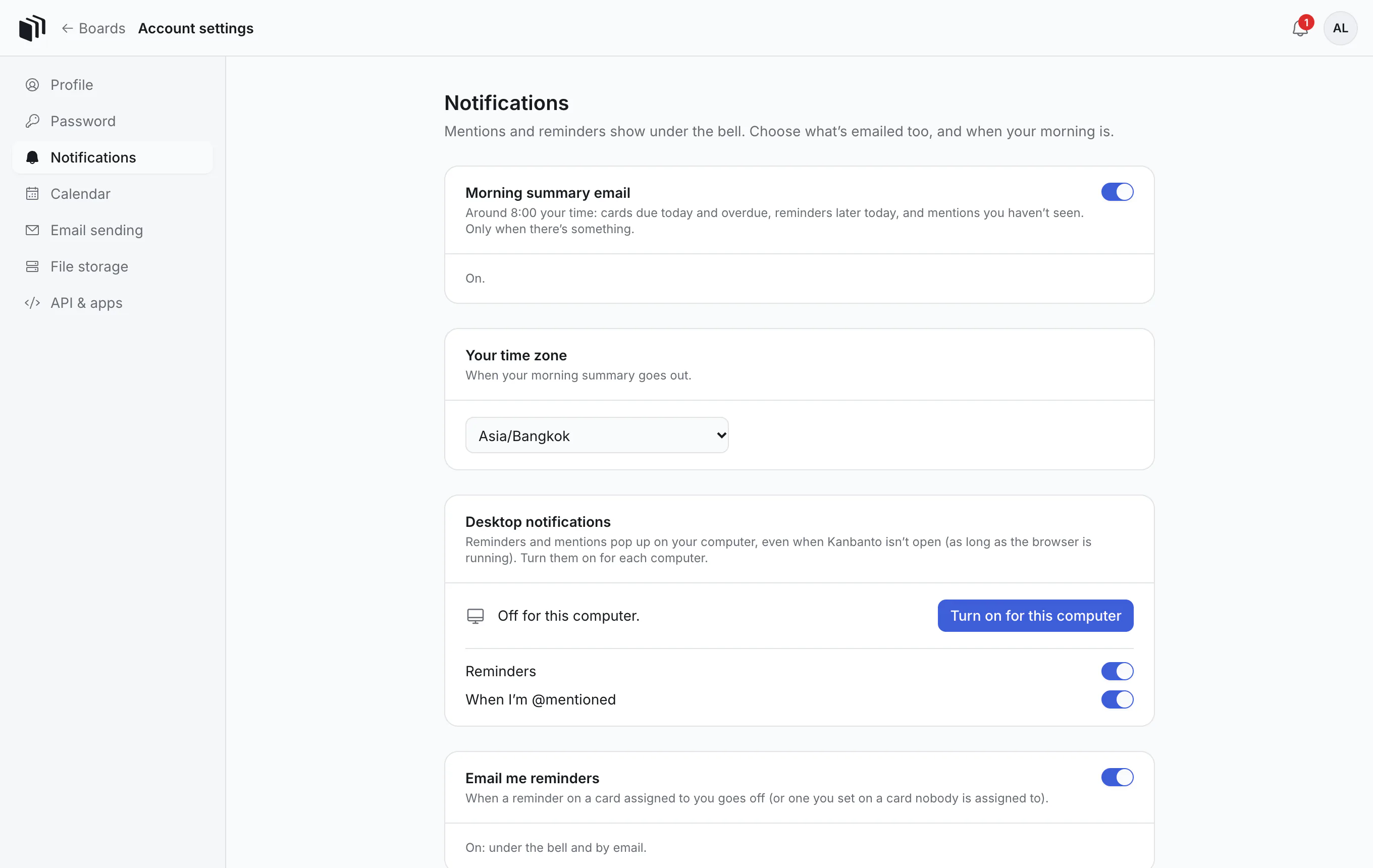
- turn the morning summary on or off,
- turn reminder emails on or off,
- turn desktop notifications on for this computer,
- set your time zone, which decides when your morning is. It is taken from your browser the first time and can be changed.
Good to know
- You are only notified about boards you are on.
- Being assigned a card does not send a notification. If you want someone to notice, @mention them in a comment.
- Email needs to be set up by whoever runs your Kanbanto site. If it is not, the bell and desktop notifications still work.