
Finding your way around
Everything on a board is reached from the two bars at the top.
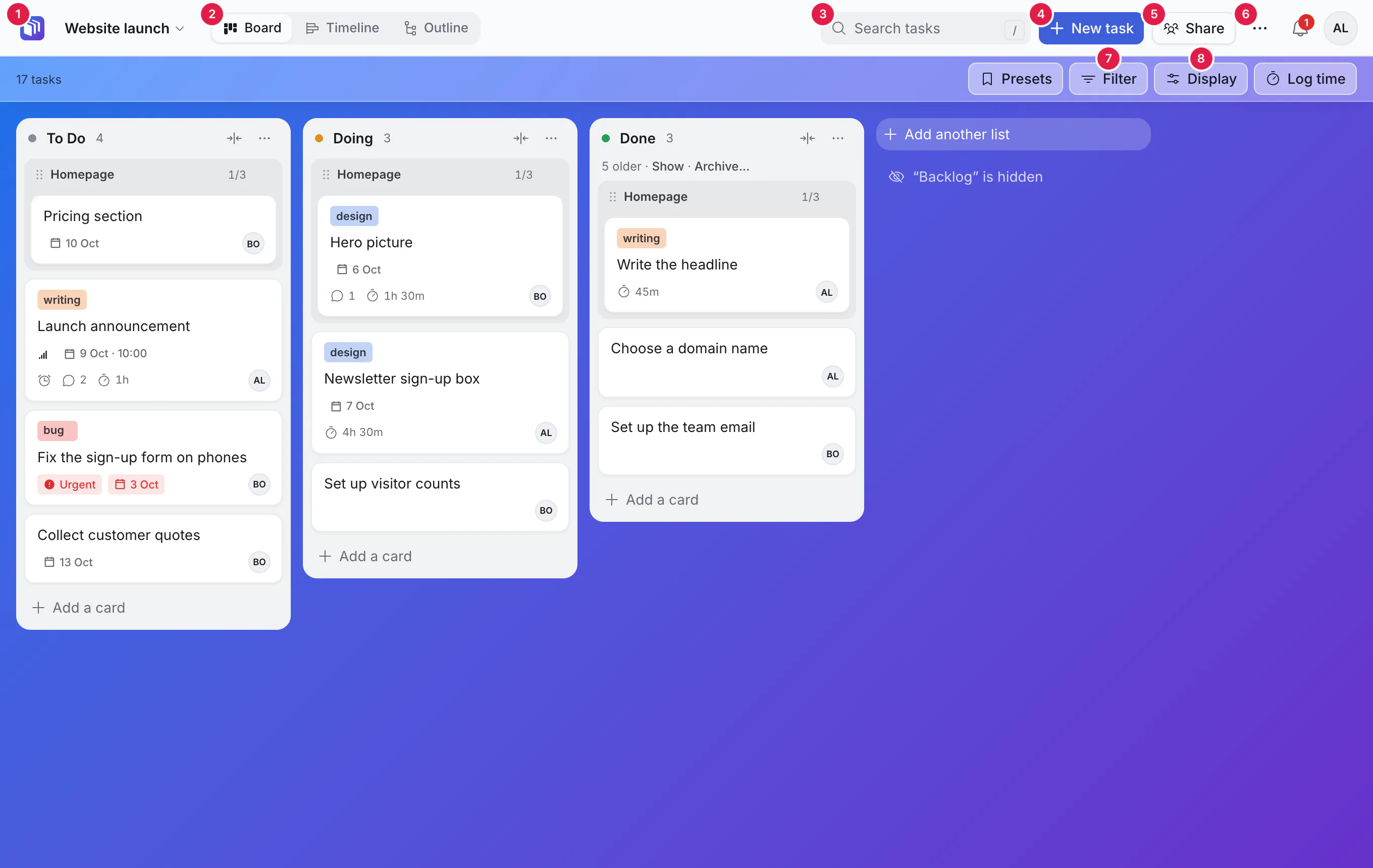
| What it is | What it does | |
|---|---|---|
| 1 | The Kanbanto mark | Back to all your boards. The board's name beside it opens a menu to jump to another board, or to star this one as a favourite (favourites are listed first). |
| 2 | Board, Timeline, Outline | Three views of the same cards. |
| 3 | Search tasks | Finds cards on this board as you type. Press / to jump here. |
| 4 | New task | Adds a card and opens it. The same as pressing N. |
| 5 | Share | Who can open this board, and inviting people. |
| 6 | More (⋯) | Board settings, background, stats, archived cards, export. |
| 7 | Filter | Show only some cards: by person, list, priority, label, or how recently they changed. |
| 8 | Display | How cards look and how they are grouped. |
Also on the bars: Presets (saved combinations of Filter and Display), Log time, the bell (things that need you: mentions and reminders) and your initials (account settings and signing out).
Inside a list
Each list has its name, a count of its cards, a button with two arrows to fold it into a narrow strip, and its own ⋯ menu: rename, color, the order of its cards, move it left or right, what its cards count as, hide or delete it.
A list of finished work may also show a line such as "5 older · Show · Archive…". That is explained in done cards and the archive.
Keys worth knowing
| Key | Does |
|---|---|
| N | New task |
| / | Search this board |
| L | Log time |
| ⌘Z / Ctrl+Z | Undo |
| Shift+⌘Z / Ctrl+Y | Redo |
| Esc | Leave what you are typing; again to close the card |
Keys work when you are not typing in a box. ⌘ is the Command key on a Mac; on Windows use Ctrl instead, here and everywhere in these guides.
On a phone
The same board fits a phone. Press and hold to drag a card, a list or a row. Kanbanto can also be added to your home screen from your browser's menu ("Install" or "Add to Home Screen"), where it opens like an app.