
Share a board
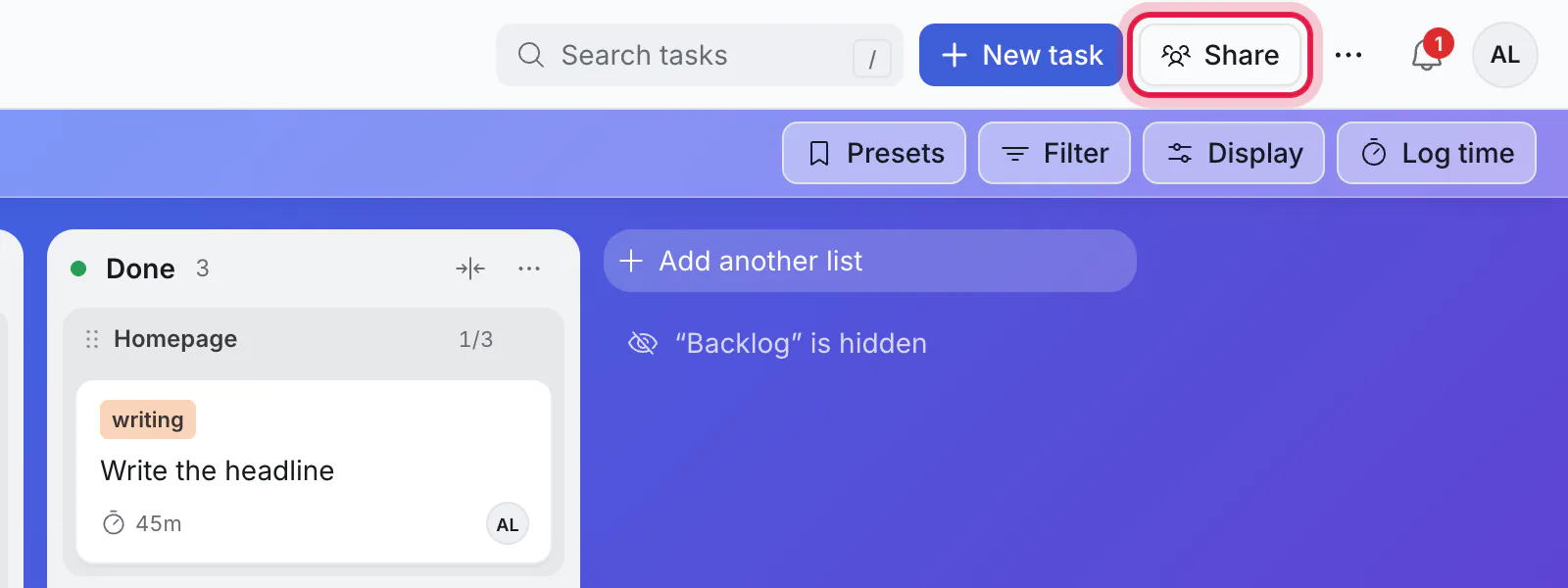
A new board is yours alone until you share it. Click Share at the top of a board.
What people can do
| Role | Can |
|---|---|
| Can view | See the board, and comment. Cannot change cards. |
| Can edit | Add and change cards. |
| Owner | Edit, share and delete the board. |
A board always keeps at least one owner.
Invite by email
- Type one or more email addresses in Add people by email.
- Choose the role.
- Click Invite.
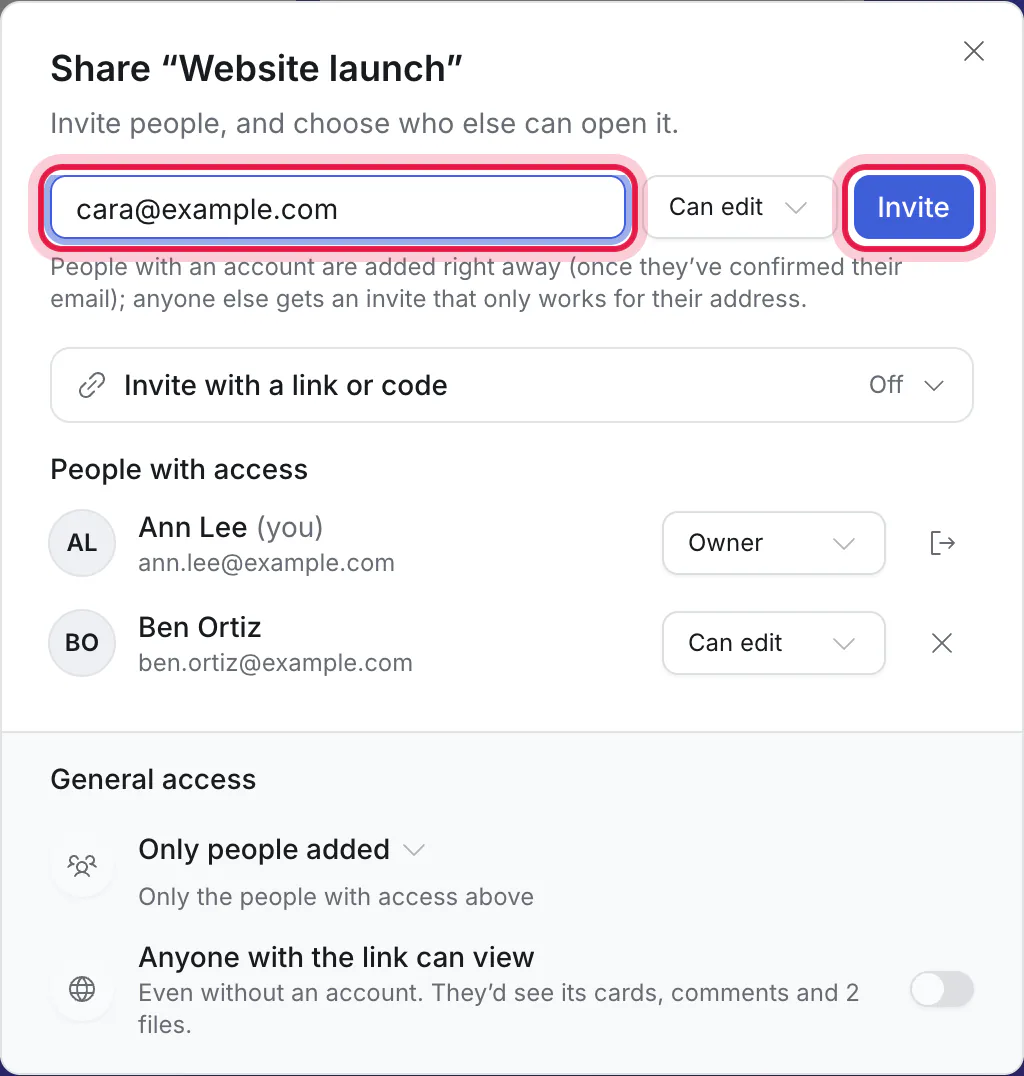
People who already have an account are added right away and told under their bell. Anyone else gets an email with an invite that works only for their address. If your site cannot send email, the dialog shows you that invite as a link, to send to them yourself.
Invite with a link or a code
Invite with a link or code is off to begin with. Click it to open it, then turn on what you need:
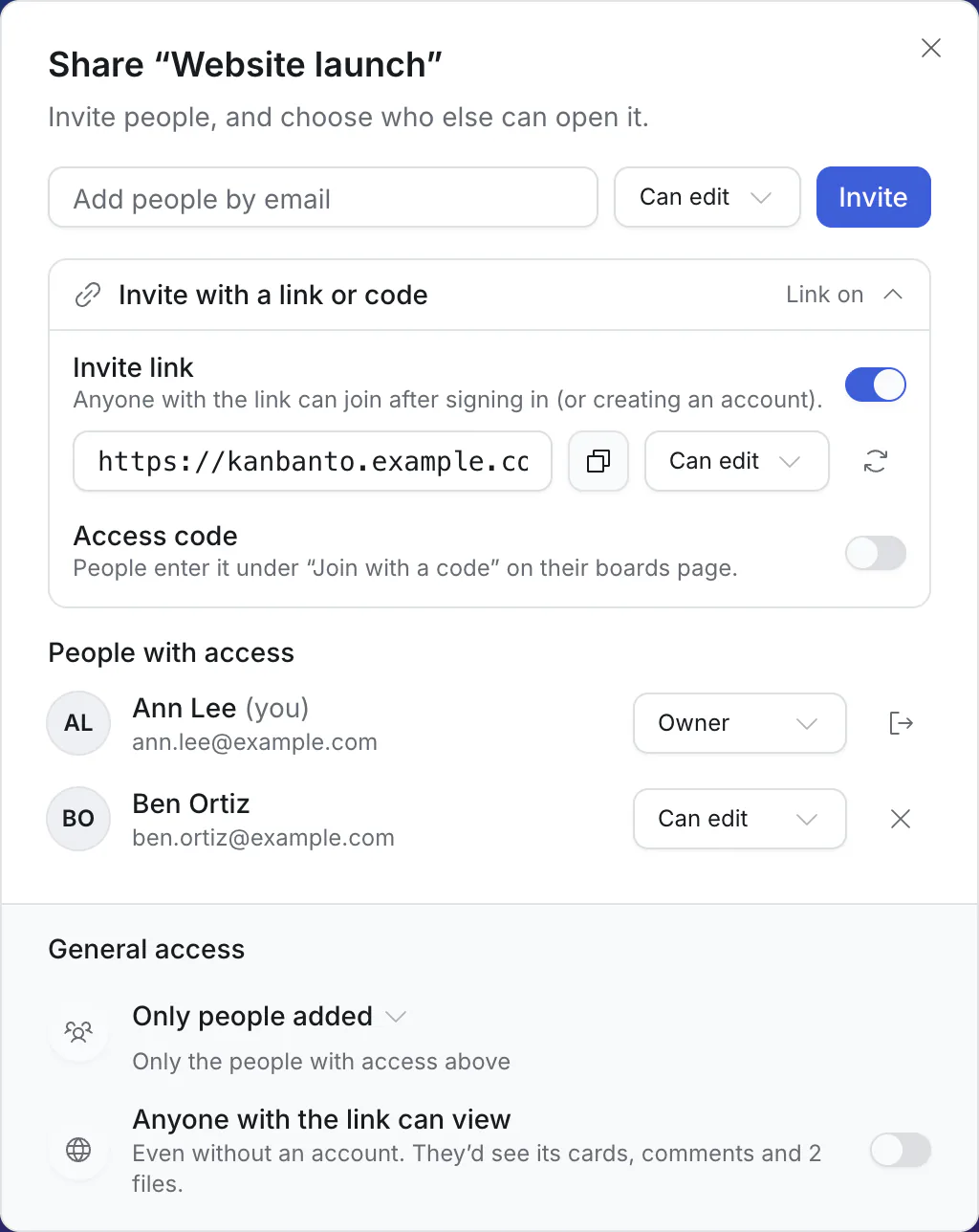
- Invite link: turn on the switch and a link appears, with a button to copy it. Anyone with the link can join the board after signing in or creating an account. Send it in a chat.
- Access code: a short code people type under Join with a code on their boards page. Handy to read out in a meeting.
Beside the link you choose the role people get when they join this way. The round-arrows button makes a new link or code, and the old one stops working. Turn the switch off and the link stops working altogether.
Two different links
The invite link makes people members of the board: they sign in, and they can edit if you chose "Can edit". The "Anyone with the link can view" link, further down, lets anyone look without an account, and nothing more.
Who has access
People with access lists everyone on the board. An owner can change someone's role or remove them. Removing someone unassigns their cards.
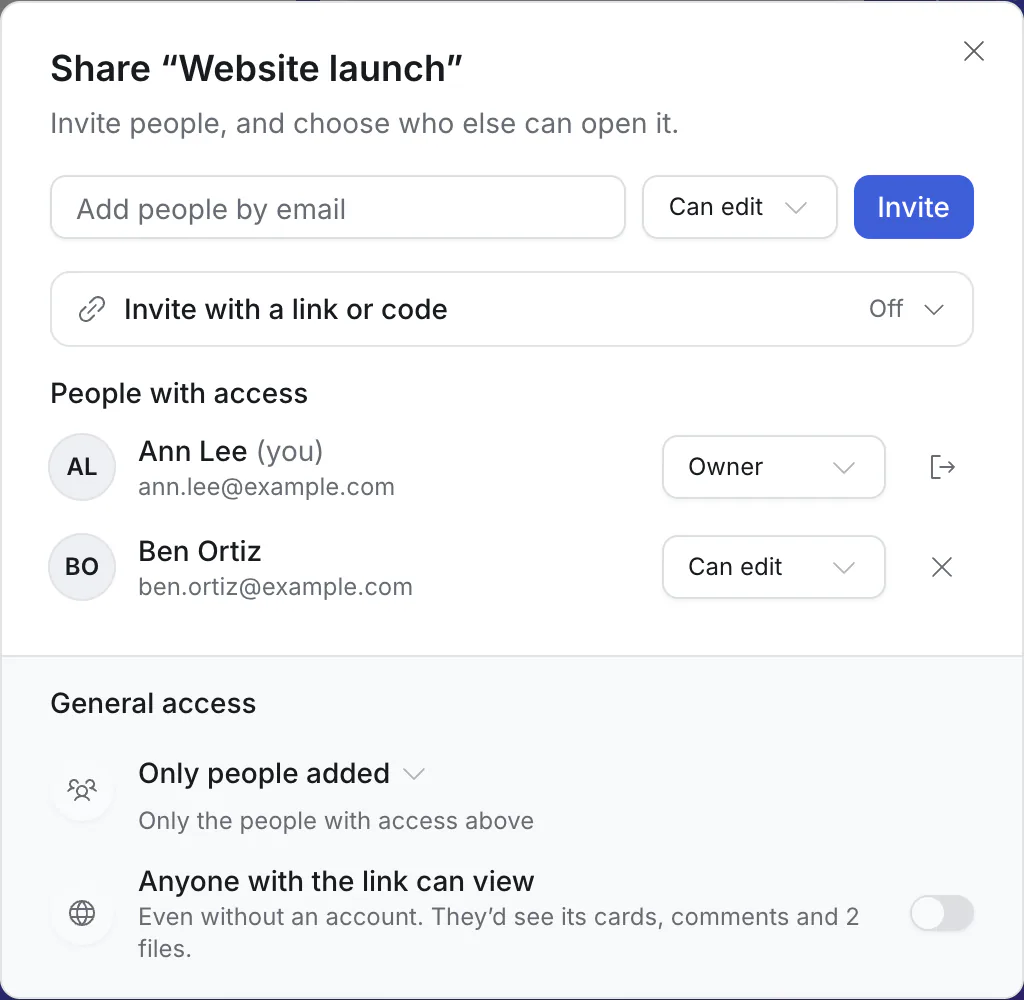
Owners see everyone's email address; others see only names.
General access
The bottom of the dialog has two separate settings.
Who can open it is a choice you pick from a list (click the words to change it):
- Only people added: just the people in the list above. This is how a personal board starts. (The boards page calls it "Invited only".)
- Private: only the board's owners. People you added keep their place, and can open it again when you switch back.
- Everyone in the workspace: only for boards in a workspace. See workspaces.
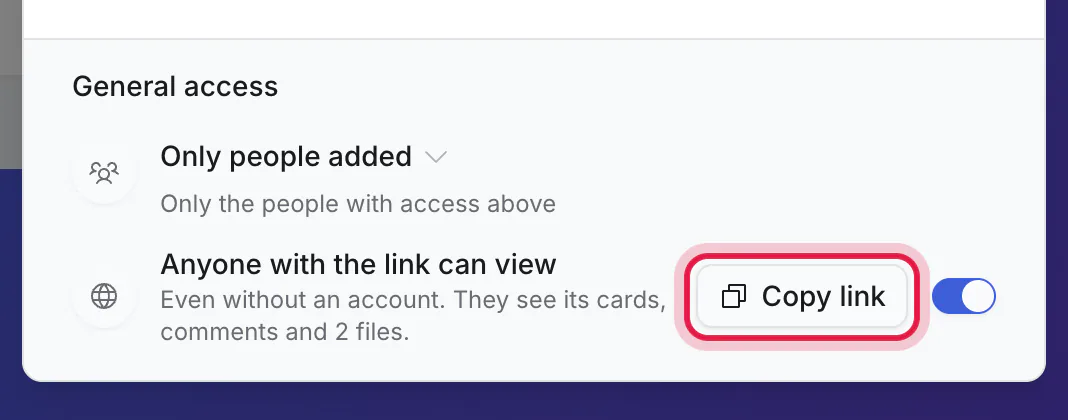
Anyone with the link can view is a switch. Turn it on and a Copy link button appears. Anyone who has that link can look at the board, even without an account. They see its cards, comments and files, and cannot change anything or comment. Use it for a roadmap or a status page, and turn it off again to close the board.
Good to know
- Everyone with the board open sees changes as they happen. There is nothing to refresh.
- People you invite see every card on the board. To keep some work separate, use another board.
- Your AI assistant never shares a board for you. Sharing is always done by a person, here.