
Connect your assistant
Kanbanto works with the AI assistant you already use. Once it is connected, the assistant can read your boards and, if you allow it, work on them: add cards, move them, comment, set reminders.
You do not need to know how it works underneath. You give the assistant an address, sign in to Kanbanto once, and say what it may do.
What you need
- A Kanbanto account.
- An assistant that can connect to other apps. This guide uses Claude. Other assistants call the same thing "connectors", "apps" or "MCP" (the name of the standard way assistants talk to other apps), and work the same way.
- Whoever runs your Kanbanto site has to allow assistants to connect. If the address below is missing from your account settings, ask them.
The steps on the assistant's side are that company's, not Kanbanto's: menus move, and some plans do not include adding your own connectors. If you cannot find the setting, search that assistant's help for "custom connector".
Claude, on the web or in the desktop app
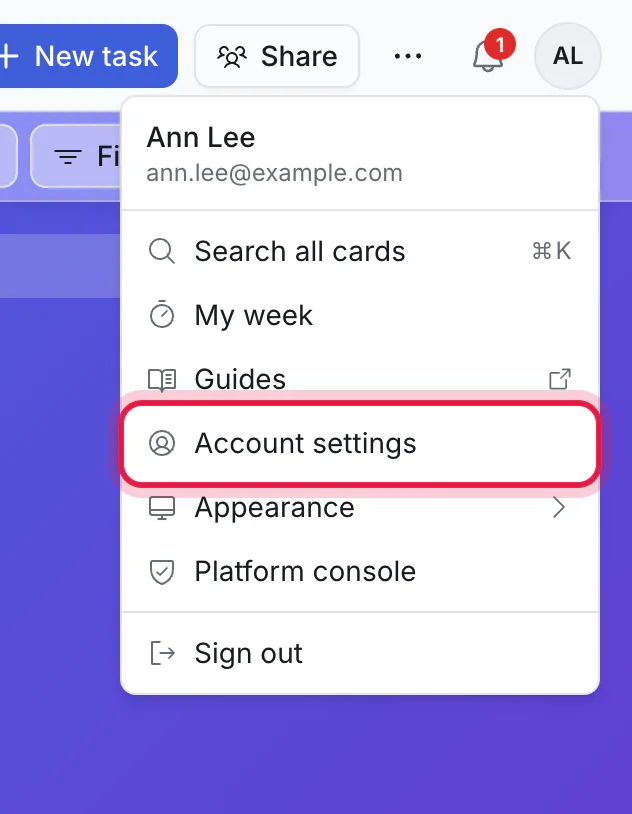
In Kanbanto, open your initials → Account settings → API & apps.
Under Connected apps, copy the address. It ends in
/api/mcp.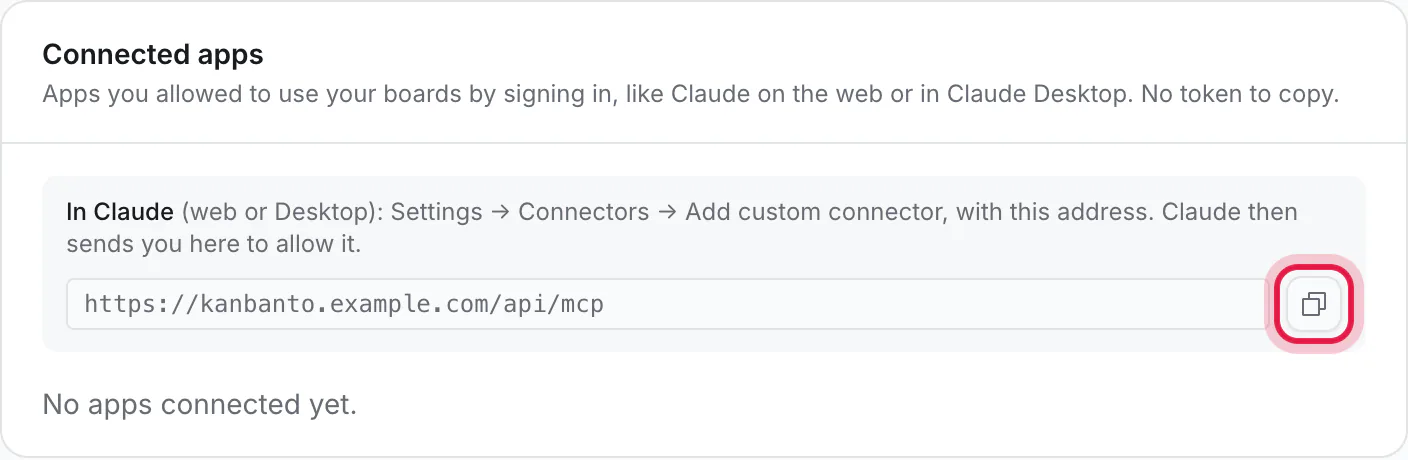
In Claude, open Settings → Connectors → Add custom connector.
Name it "Kanbanto", paste the address, and click Add. Then click Connect beside it.
Claude sends you to Kanbanto. Sign in if asked. You then see this page:
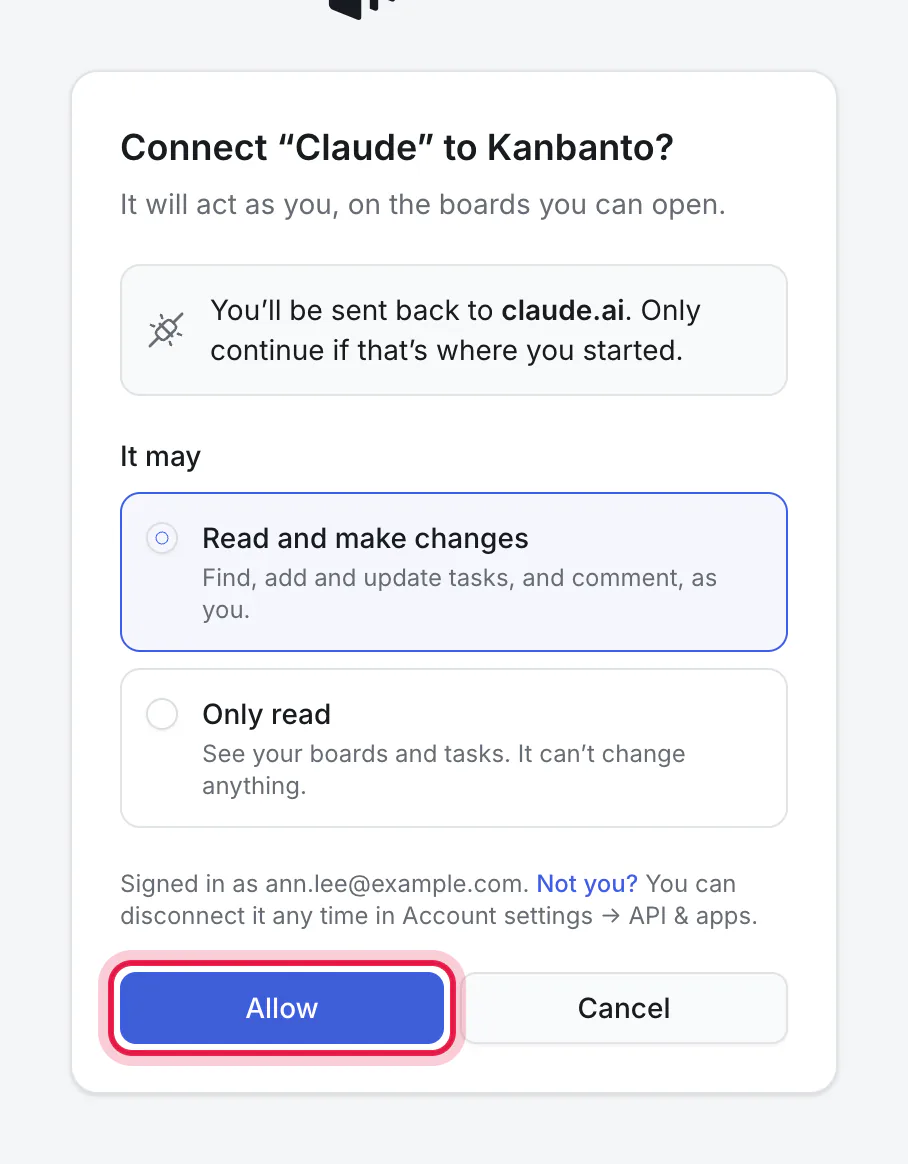
Choose what it may do:
- Read and make changes: find, add and update tasks, and comment, as you.
- Only read: see your boards and tasks, without changing anything.
Click Allow. You are sent back to Claude.
That is it. Start a new chat and ask "What boards do I have in Kanbanto?" to check. The first time, Claude may ask your permission to use Kanbanto; say yes.
What the assistant can and cannot do
It acts as you. It sees the boards you can see, and nothing else. That means all of them: you cannot connect it to one board only.
| It can | It cannot |
|---|---|
| Read boards, cards, comments and recent activity | Share a board or invite people |
| Add cards and break work into subtasks | Delete cards or boards |
| Move cards, set dates, people, priorities and labels | See boards you cannot open |
| Open the files attached to a card, or attach one | |
| Comment, set reminders, log time you tell it about | Change your account or the site's settings |
| Archive cards (they can be restored) | |
| Create a board and set up its lists and labels |
Sharing and deleting stay with people, in the app, on purpose.
Kanbanto records which app made each change, so you can always ask "what did you change on this board today?" and get a true answer.
What the assistant's company sees
To answer you, the assistant reads cards from your boards, and what it reads becomes part of your conversation with it. So that text is handled by the company behind the assistant, under their privacy terms, like anything else you type to it. Kanbanto does not send anything on its own: the assistant only reads when you ask it something that needs your boards. If a board holds things that should not leave Kanbanto, connect with Only read at most, or do not connect at all.
Disconnect it
Account settings → API & apps → Connected apps lists every app you allowed. Disconnect one there and it loses access at once.
Other apps (tokens)
Most people can skip this part. Some tools for programmers and automation services connect with a token (a long password made for one app) instead of a sign-in. On the same API & apps page:
- Under Make a token, give it a name, choose Read and make changes or Read only, and when it expires.
- Click Make token and copy it. It is shown once.
- Paste it where the tool asks. The page shows the exact lines to copy.
Treat a token like a password. Delete it on the same page when you no longer need it.
An Inbox for quick notes
When you tell an assistant "remind me to call the bank" without naming a board, it needs somewhere to put the card. Choose one board as your Inbox: open that board's ⋯ → Board settings and turn on Use as my Inbox. Later, ask the assistant to file Inbox cards where they belong.