
Set up the board
A knowledge board is an ordinary board with five lists, three fields and a few labels. This takes about ten minutes, and only the first two steps are needed to start writing.
1. Make the board
On your boards page, click Create board, choose An empty board, and give it a name people will look for: "Team handbook", "How we work", "Support answers".
Say what it is for in the board's description (⋯ → Board settings). New people read it first.
2. Make the lists
The lists are an article's life. Rename the three a new board has, and add two:
| List | Counts as | What is in it |
|---|---|---|
| Inbox | Not started | Something worth writing down. A title is enough. |
| Drafting | In progress | Someone is writing it. |
| In review | In progress | Written, waiting for a second pair of eyes. |
| Published | In progress | It is what we do. |
| Outdated | Done | It was true once. |
Set what each list counts as from its menu: ⋯ → Cards in this list are. See lists on the Board.
Published counts as In progress, not Done
A list for finished work shows only the cards finished in the last 14 days, and the Outline strikes their titles through. That is right for a task and wrong for an article people should keep finding. A published article isn't finished: it is in use. Outdated is the list that counts as Done, and there the fading is exactly what you want.
A new board also has a hidden Backlog list. Leave it hidden, or delete it.
3. Add three fields
Fields of your own say what a card on this board is about. Make these three and put them on the board (⋯ → Board settings → Fields):
| Field | Kind | Why |
|---|---|---|
| Owner | A person | Who keeps the article right. Not the same as the assignee, who is whoever is writing or reviewing it now. |
| Review by | A date | The day someone should read it again and check it is still true. |
| Topic | A choice | The part of the handbook it belongs to: "Start here", "Customers", "Tools". |
Switch On cards on for Topic, so the Board says at a glance what each article is about.
Keeping the Owner apart from the assignee matters. A published article has an owner for years, and nobody working on it. With the owner in a field, published articles stay out of everyone's "My tasks".
4. Add labels for the kind of article
Labels say what sort of thing an article is, across topics: how-to, policy, decision, faq. Make them from any card's Labels.
5. Save an article to start from
Write one card with the headings you want every article to have, then ⋯ → Save as template… and call it "Article". From then on, click Add a card, then the small arrow beside Add card, to start a new article with those headings. See templates, and the outlines in samples to copy.
6. Save two ways of looking
Presets keep a filter and a view under a name, for everyone on the board.
- Review overdue. Click Filter, go down to Fields, pick Review by, and choose In the past. Save it as a preset. It lists the articles someone should read again.
- By topic. In the Outline, click Display → Group by → Topic, and save that as a preset. It is the handbook's table of contents.
7. Tell the reviewers
A rule can tell people when an article is ready. Open the In review list's menu, choose Tell people when a card arrives…, and tick the people who review. They get a line under their bell each time an article arrives.
8. Share it
Open Share (see share a board):
- Editors write and review.
- Viewers read everything and can comment, and can't change an article.
- Anyone with the link can view is a switch at the bottom. With it on, anyone who has the link reads the board without an account, and can't change or comment. Good for a handbook that new starters should see before their first day.
What you have now
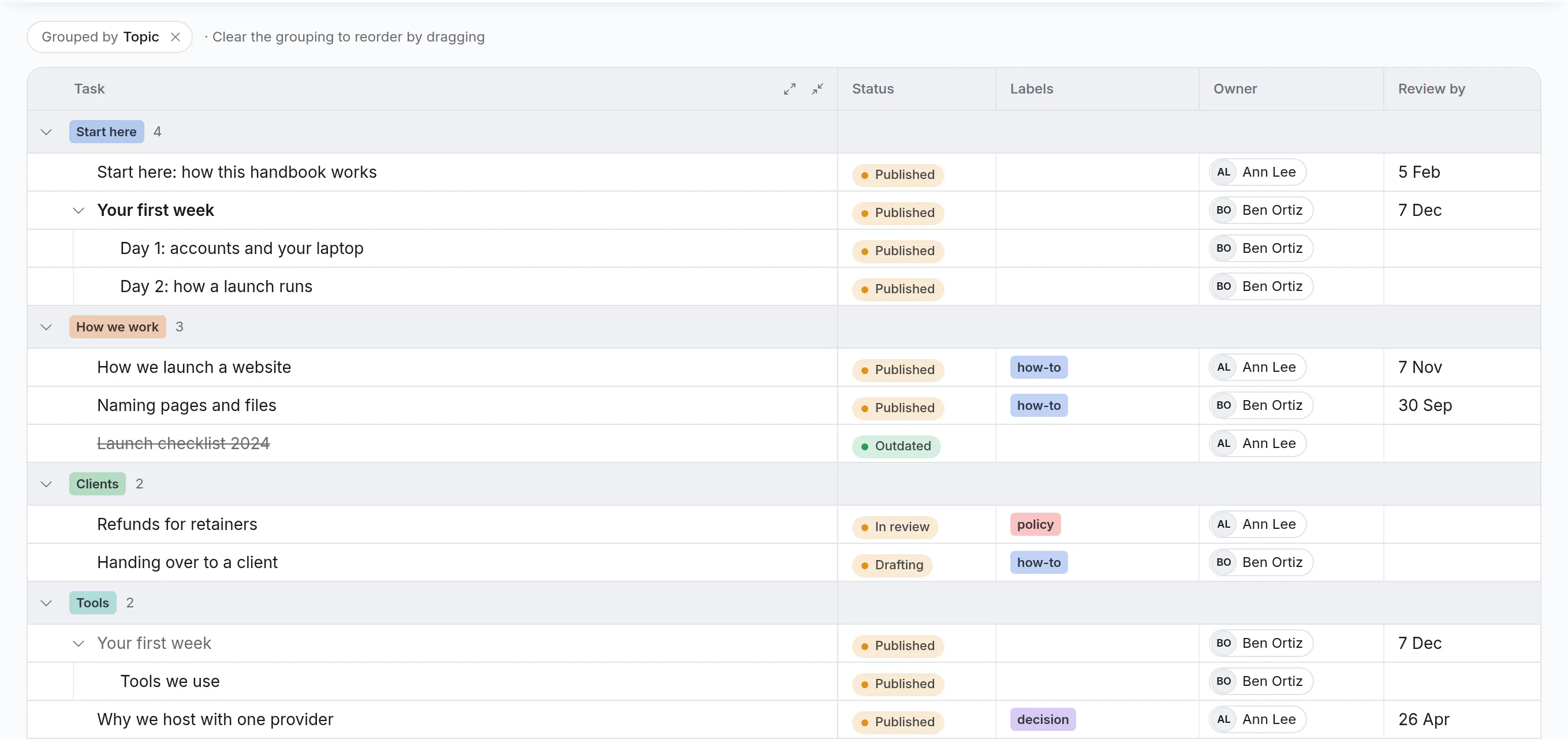
A board with five lists, where every card carries its owner, its topic and the day to look at it again.