
Write an article
An article is a card, and its text is the card's description. Everything on writing a description applies. This page is about what makes a description read like a document.
Start one
Click Add a card in Inbox (an idea) or Drafting (you are writing it now). If the board has an Article template, click the small arrow beside Add card in the box that opens, and start from it.
Give it a title someone would search for. A question or a task works best: "How we quote a job", "What to do when a customer complains", "Why we stopped Saturday visits".
Assign it to yourself while you write. Fill in its Topic now, and its Owner and Review by when it is published.
Write the text
Open the card and click the description. Type / on a new line for headings, lists, a table, a checklist and the rest.
- Headings make the contents. Each heading you add shows in the list on the left of the full page. Use them for the parts a reader would jump to.
- Numbered lists for steps, a table for anything with two sides to it (who to ask about what, a price for each kind of work), a checklist for things to tick off.
- Other articles and tasks by name. Type
/, choose Card, and pick one. Its name (like HB-12) becomes a link, and stays one when the other card is renamed or moved.
Text written elsewhere, by you or by an assistant, can be pasted in: it keeps its headings and lists.
Put pictures in
Drop a picture into the text, or paste a screenshot. It is attached to the card and shown right there, as wide as the text allows.
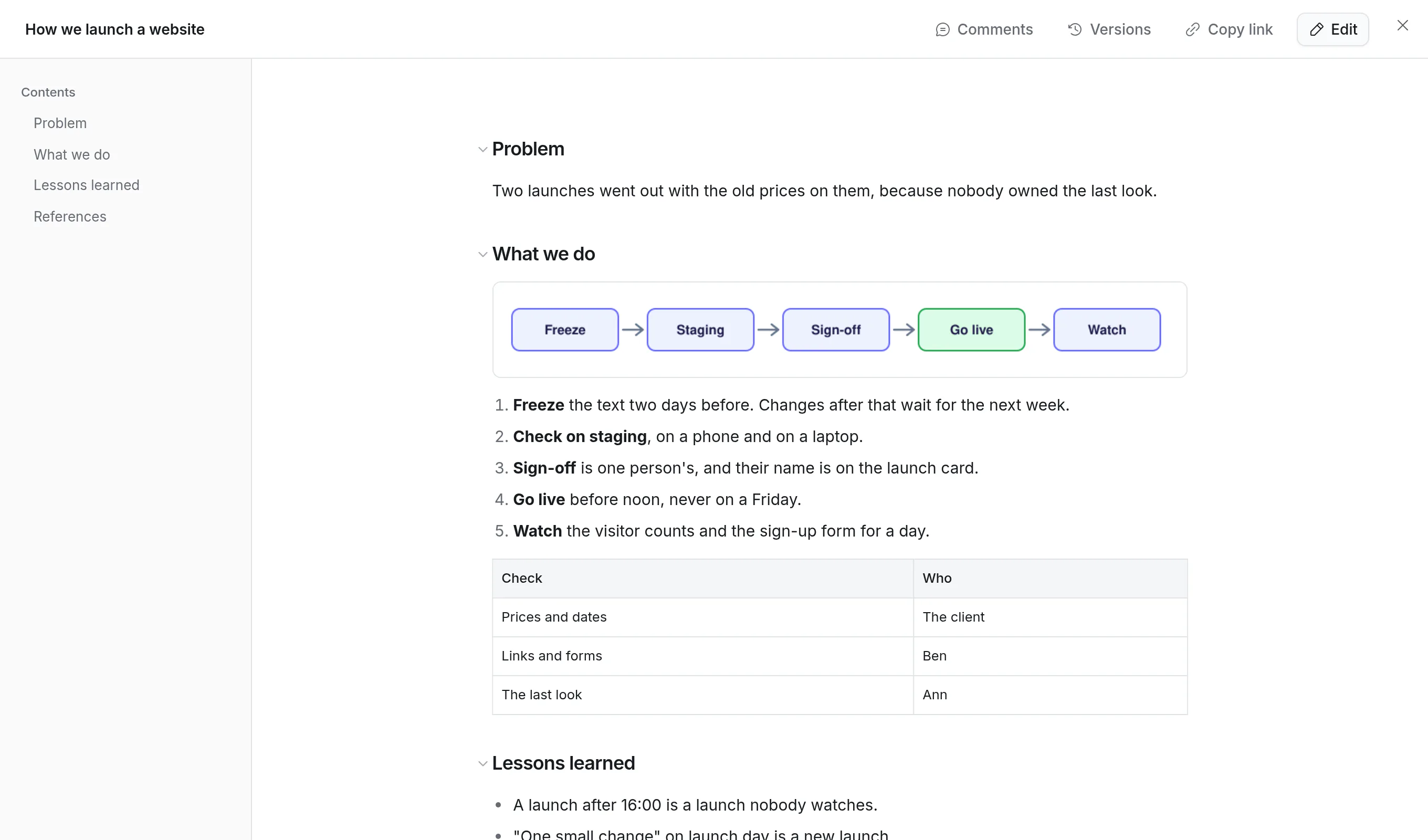
- A picture on a line of its own is shown. Its name, with a paperclip in front of it, is what the text holds, so you can move the picture by moving that line.
- A picture named in the middle of a sentence stays a small link to click.
- To use a picture the card already has, type
#and the start of its name on an empty line. - Click a picture to open it at its full size.
Files that aren't pictures, such as a PDF or a spreadsheet, are always small links.
Read and write it full page
Click Expand above the description. The article opens full page: the text in a reading column, and Contents on the left.
- Edit starts writing where you were reading. Done, or Esc, finishes.
- Copy link copies a link that opens the article full page. Send that one when you want someone to read it: they land on the page, not on the card.
Split a long article
A description holds about 8,000 words. Long before that, an article is easier to read as a few pages. Give it pages inside it: one subtask for each part, each with its own text.
When it is ready
Drag the card to In review. If the board has a rule on that list, the reviewers are told. See review and keep it current.
Good to know
- Your writing is saved as you write, every few seconds. Someone else can open the same article and write with you: see write together.
- An article keeps its earlier versions. Expand, then Versions.
- A reader can tick a checklist item without editing the article. Use that for checklists people work through, and plain bullet points for ones they only read.
- An assistant connected to Kanbanto can draft an article from your notes, and can read every article when you ask it a question. See what to ask.