
Planning people
Planning answers a different question from a board. A board says what needs doing. The plan says who is working on which project, when, and with how much of their time.
The plan belongs to a workspace, a team's home in Kanbanto, so you need a workspace first. Each workspace has one plan. Everyone in the workspace can read it. Its admins, and members they make planners, can change it.
Words used here
- A project in the plan is a piece of work you put people on: a name, a number of days it should take, and the people booked on it. It is not a card and it is not a board. (On a board, "project" means a top-level card. The two are separate things that share a word.)
- A man-day (MD) is one person working one full working day. Half of someone's time for two days is also one man-day. Saturdays and Sundays are not counted.
- "Plan" on this page always means this schedule. It has nothing to do with a price.
Reading the plan
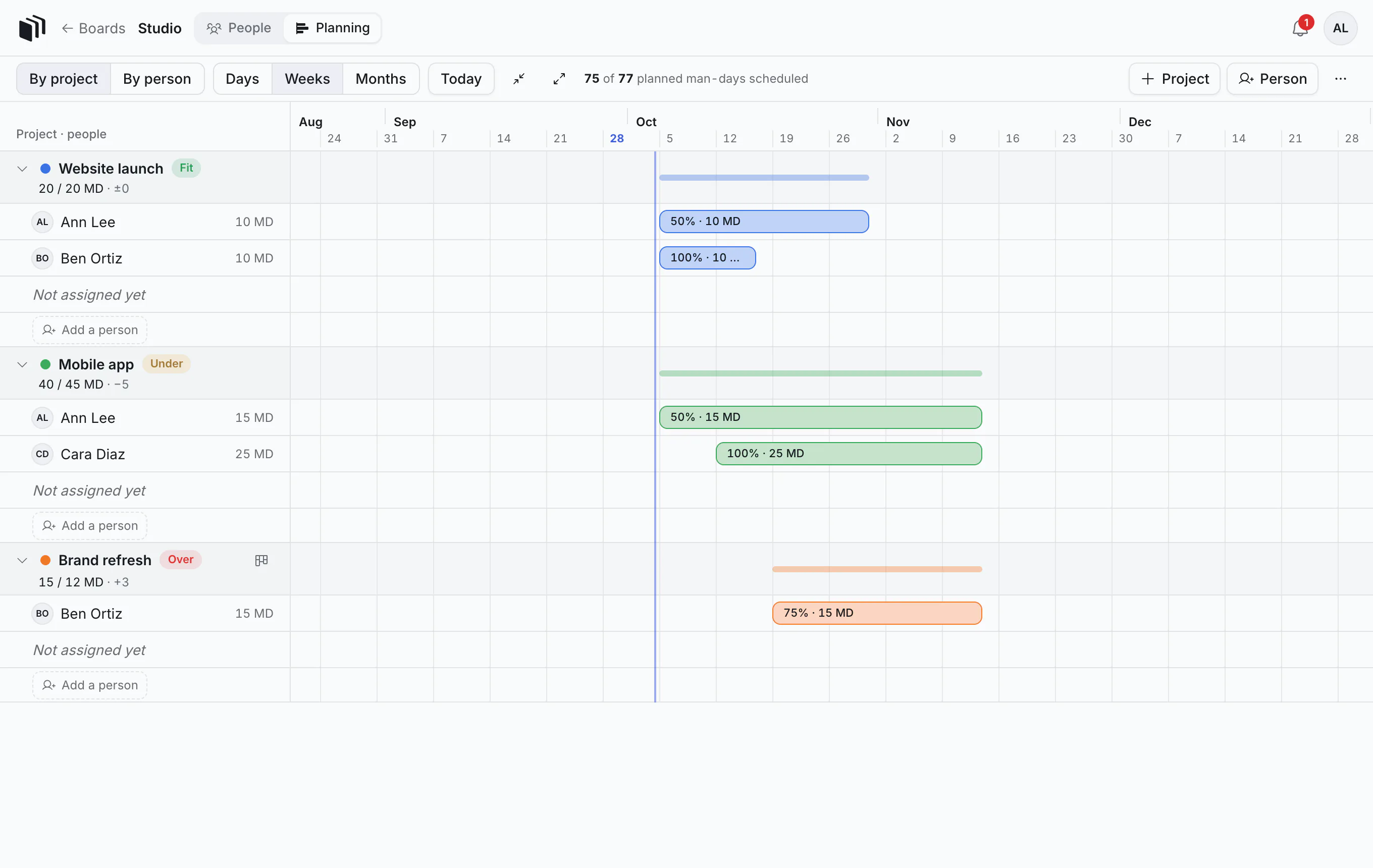
Each project is a heading, with the people on it underneath. Across the page is a calendar.
A colored bar is a person working on that project between two dates. "50% · 10 MD" on Ann's first bar means half of her time, over four weeks (20 working days), which adds up to 10 man-days.
At the right of each person's row is the total they are booked for on that project ("10 MD").
Under each project's name is a line like "40 / 45 MD · −5": 40 man-days are scheduled (all its bars added up), out of the 45 you planned for it, so 5 are still to be given to someone. A plus, as in "15 / 12 MD · +3", means more is scheduled than was planned.
The word beside the project's name says the same thing in short:
Word Means Under Less time is scheduled than the project was planned to take. Fit The bars add up to what was planned (within half a day). Over More time is scheduled than was planned. A project with no planned man-days has no word.
The pale line beside a project's name runs from its first bar to its last.
The line at the top sums it all up: "75 of 77 planned man-days scheduled".
The vertical line is today.
1. Open the plan
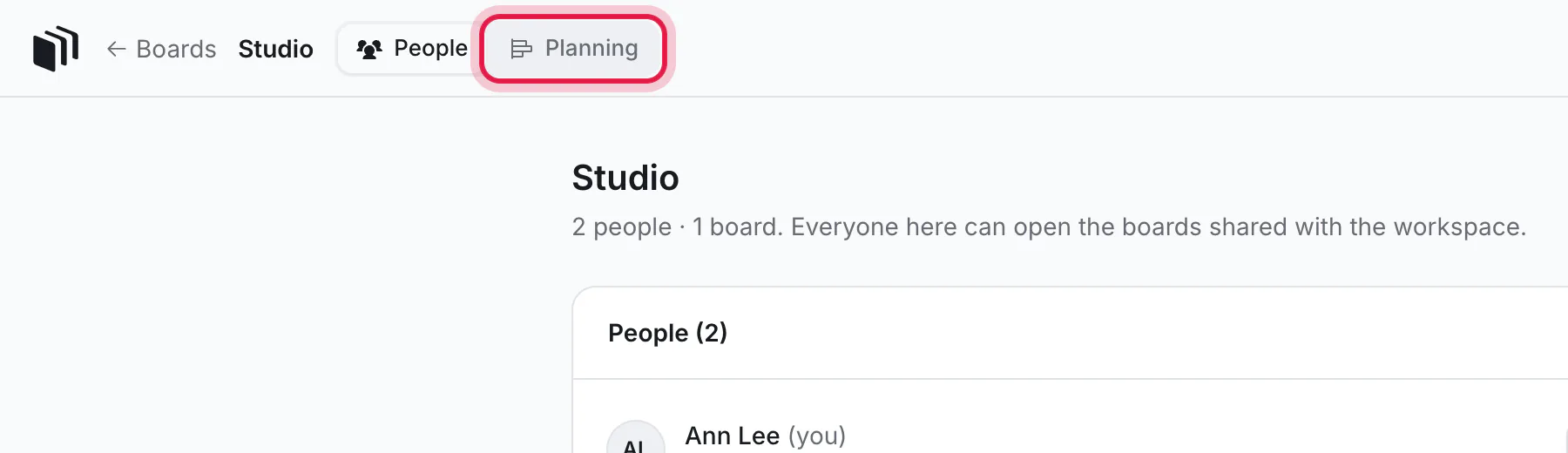
On the boards page, click Planning beside the workspace's name. (From anywhere inside the workspace, it is the Planning tab at the top.)
2. Add a project
Click Project at the top right.
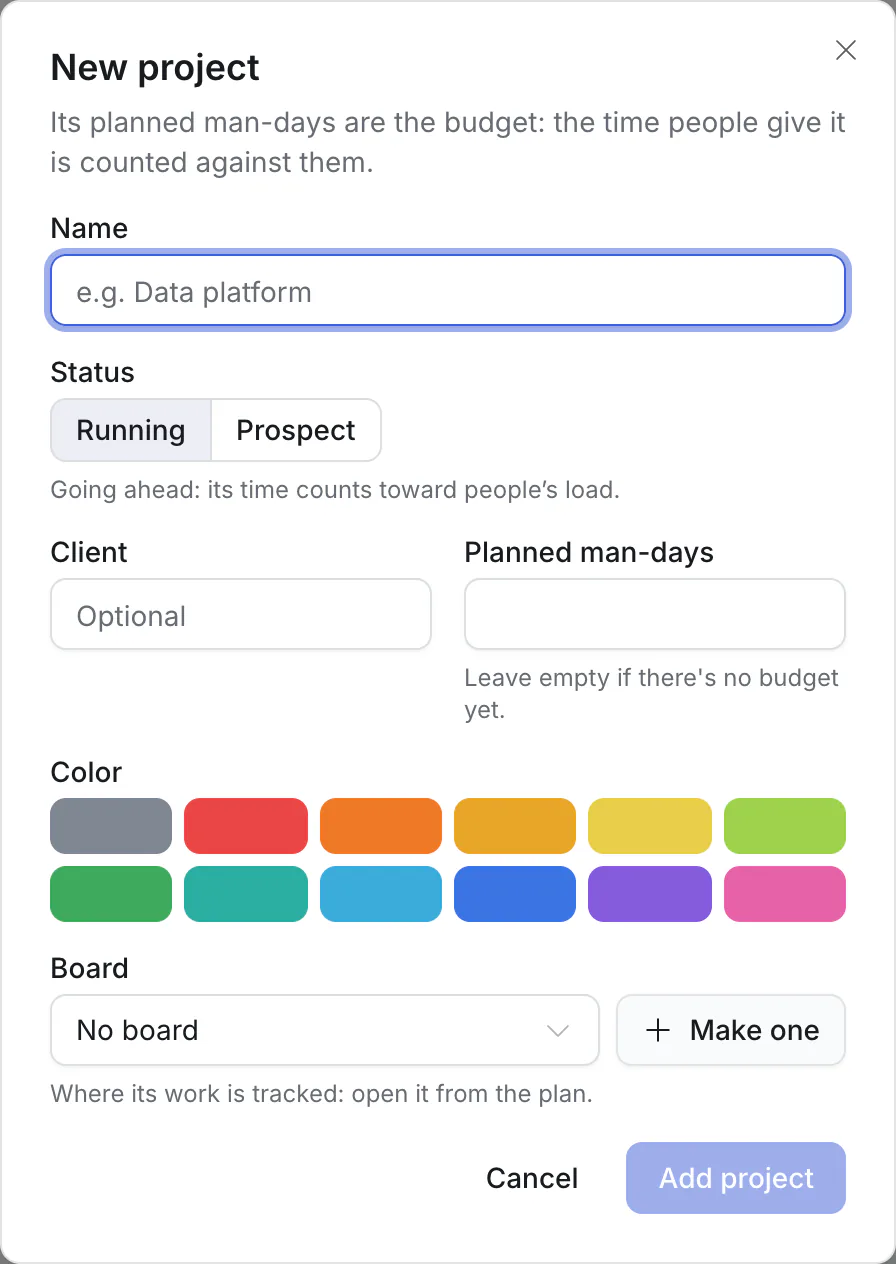
- Name: what the project is called.
- Status: Running means it is going ahead and counts toward people's load. Prospect is for work that might not happen (more on that below).
- Client: optional.
- Planned man-days: how much work you expect the project to be. Two people for three working weeks is 30. The time people are given on the project is counted against it. Leave it empty if you do not know yet.
- Color: the color of its bars.
- Board: where its tasks are. Pick a board in this workspace, make one, or leave it as No board. The project works without one.
Click Add project. It appears as a new heading with a Not assigned yet line and an Add a person button.
3. Put a person on the project
Under the project, click Add a person and pick someone.
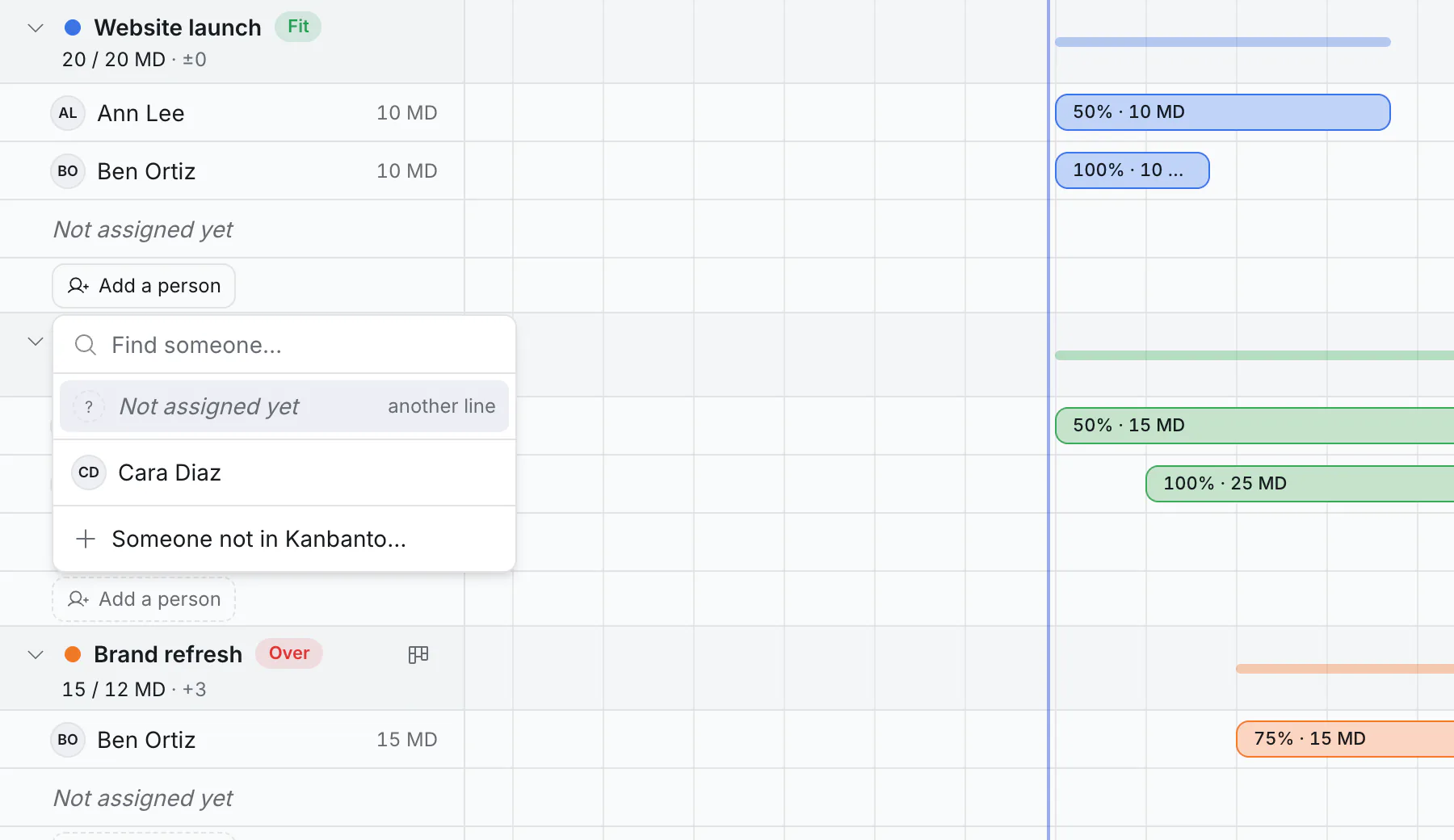
The list has everyone in the workspace, anyone already added to the plan by name (Cara Diaz in the picture), and two more choices:
- Not assigned yet: a line for work nobody has been chosen for. Useful when you know you need "a designer for three weeks" but not who.
- Someone not in Kanbanto…: a person added by name only, such as a freelancer or a hire who has not started.
Nobody is told that they were put on the plan, and being on the plan does not let them open the project's board. Share the board with them as usual.
4. Give them time
Click empty space on the person's line, at the week the work starts. A bar appears there: one working week, at 100% of their time.
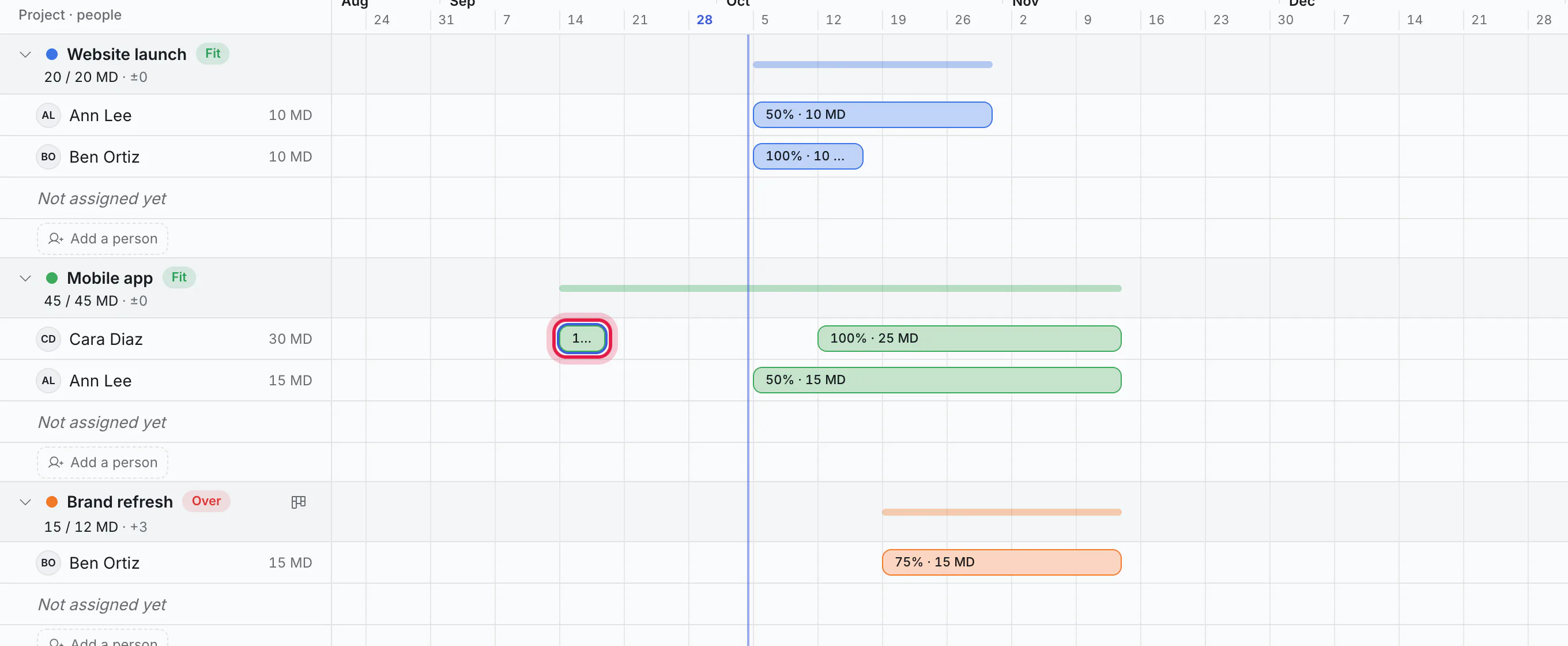
In the Weeks view a one-week bar is small. Drag its end to make it longer, or switch to Days to see it larger.
Then shape it:
- Drag the bar to move it to other dates.
- Drag either end to make it longer or shorter.
- Drag it onto another person's line to hand the work to them.
5. Set how much of their time
Click a bar.
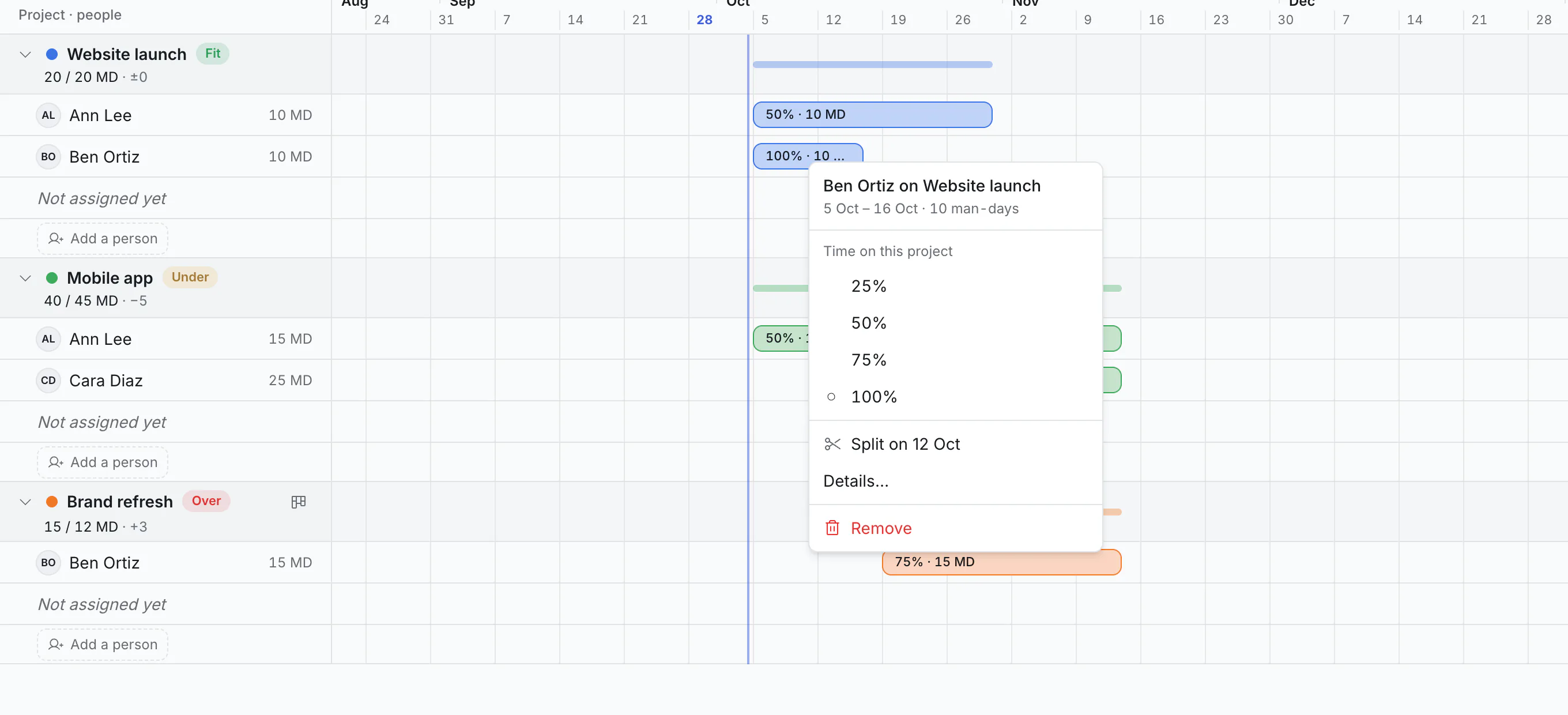
- Time on this project: 25%, 50%, 75% or 100% of their working time. These four are the choices.
- Split on… cuts the bar in two at the day you clicked on, so the two parts can have different shares or a gap between them. To split somewhere else, click the bar at that day.
- Details… sets exact dates. The end can be a date, or after a number of man-days: "this takes 10 man-days, tell me when it ends".
- Remove takes the bar away.
Undo works here as it does on a board.
6. See it by person
Click By person at the top left. Now each person is a heading, with their projects underneath.
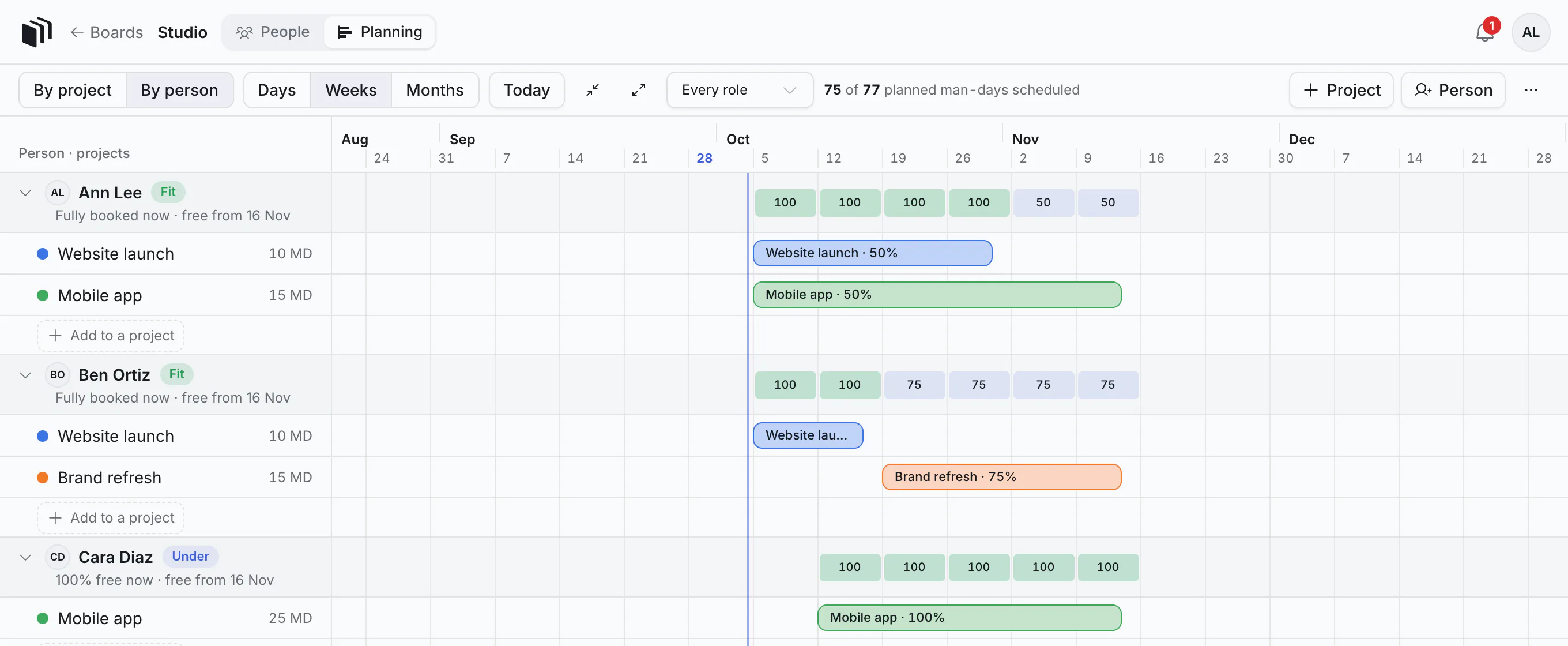
This is the view for the questions a planner is asked most:
Everyone in the workspace is listed here, whether they are booked on anything or not, along with anyone added to the plan by name.
Is anyone overbooked? The boxes along a person's line show how much of their time is booked each week, as a percentage, over all their projects. (It is their busiest day that week.) A green 100 is a full week, a pale box is a week with room left, and a red box above 100 means they are booked on too much at once. No box means nothing is booked.
The line under each name has two halves. The first is about today: "Fully booked now", or "100% free now" when nothing is booked yet. The second is the first day after their last booking: "free from 16 Nov" means nothing is booked from that day on. So Cara, who starts next week, reads "100% free now · free from 16 Nov": free today, then busy, then free again. For the weeks in between, read the boxes.
The word beside a person's name is about their time, not about a project's planned man-days:
Word Means Under They have free time right now. Fit They are fully booked right now, and never above 100%. Over Somewhere ahead they are booked above 100%. Who is free in November? Look down the "free from" dates, then at the boxes for any week you care about: a pale 50 in a week means half of that person's time is still open then.
Add to a project under a person does the same as step 3, from their side.
Useful controls
- Days, Weeks, Months zoom the calendar. Today jumps back to now.
- Every role (when looking by person) shows only people with one role, such as designers.
- Person (top right) adds someone who is not in the workspace, by name. (Workspace members are in the plan already.) Click a person's name to open them: their Role, their Hours a day (8 to begin with; used to turn logged hours into man-days), Link to an account for someone who was added by name and has since joined, and Take out of the plan.
- The two small arrow buttons beside Today fold and unfold every project at once.
- Planners can drag projects and people into the order everyone sees.
Prospects: work that might not happen
Set a project's Status to Prospect. It is then shown dashed and paler, in a group of its own, and is kept out of people's totals. You still see what it would do: "150% if Mobile app happens".
When the work is confirmed, switch it to Running.
Finished projects
Click a project's name to open it, and turn on the Finished switch. It is folded away at the bottom of the plan. Its time still counts.
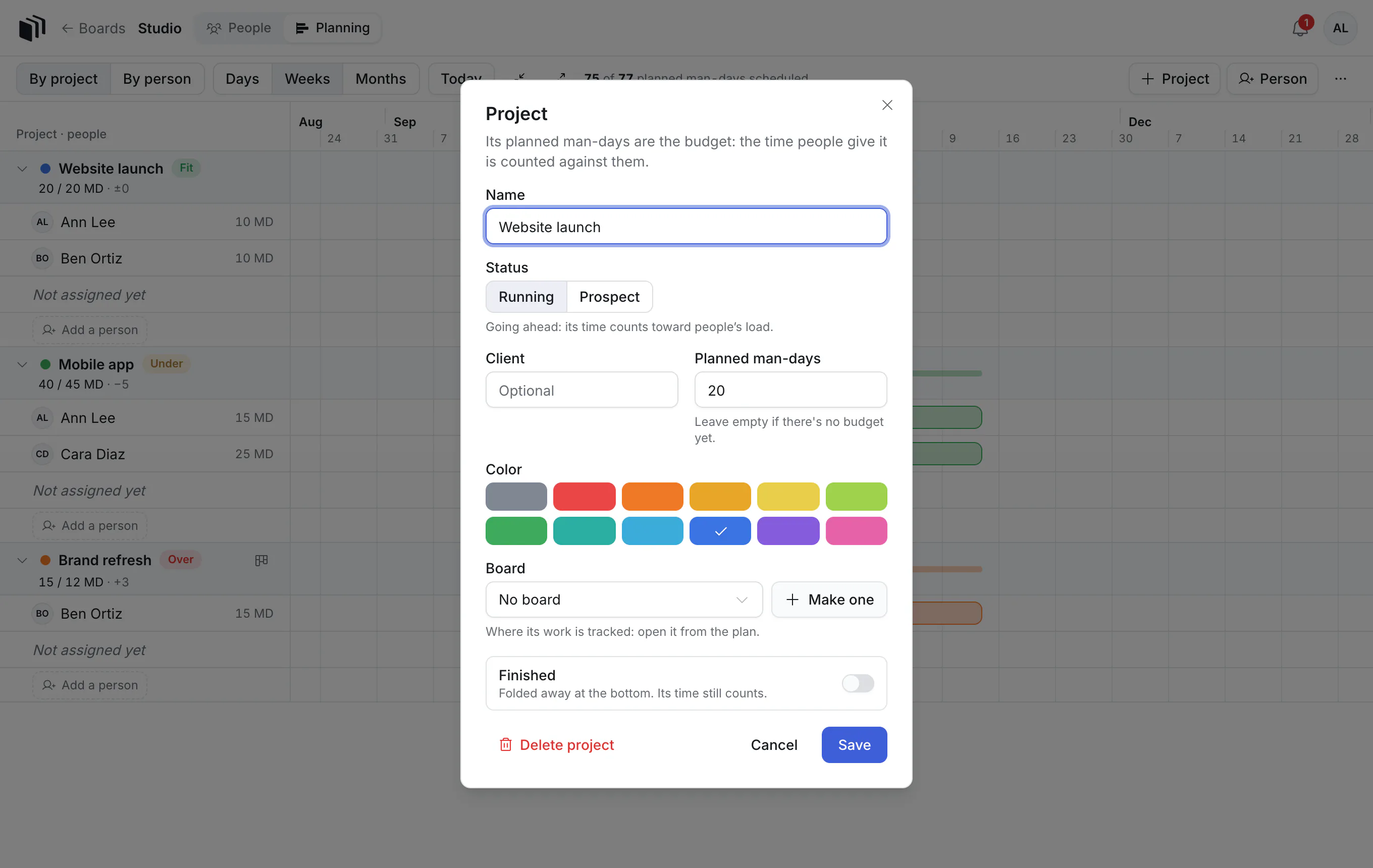
Delete project, in the same place, removes the project and its bars from the plan. A board linked to it is not touched.
Link a project to a board
In the project's Board field, pick a board in the same workspace. Then the board's Timeline shows, above the tasks, who is booked on the project, at what share and until when. In the plan, a small board sign beside the project's name opens the board.
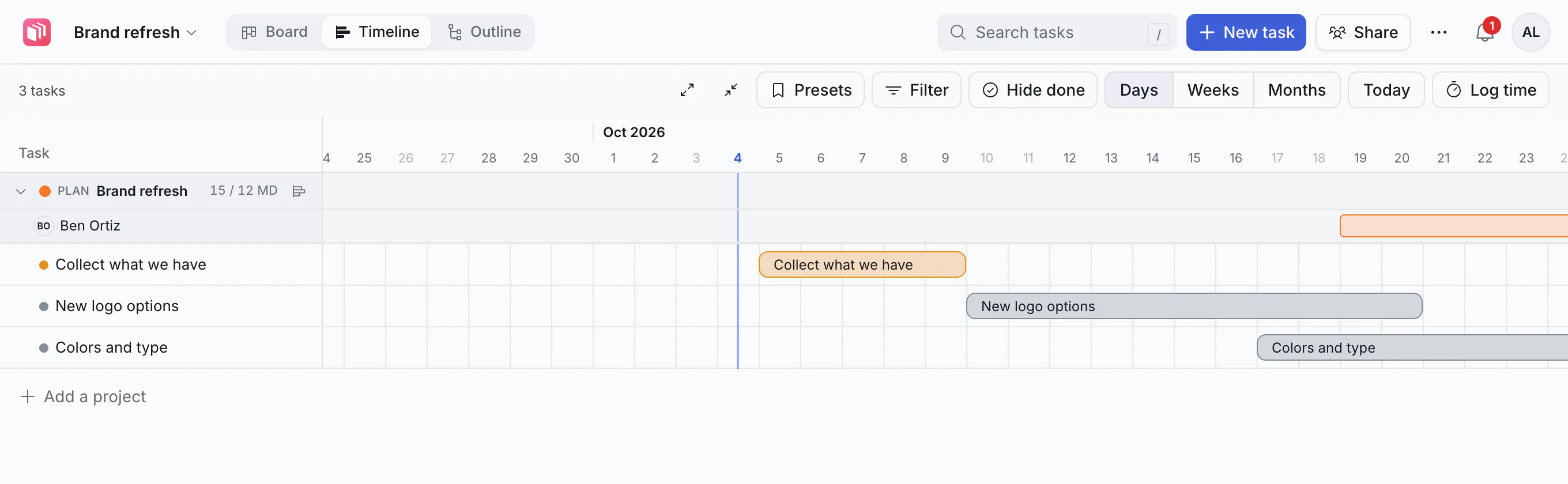
If people log time on that board, the plan shows it beside each person's name on that project: "12.5 of 60 MD" is 12.5 man-days logged out of the 60 they are booked for.
Who can change the plan
- Everyone in the workspace can read it.
- Admins can change it.
- An admin can make a member a planner: on the workspace's People tab, turn on the Plans switch beside their name. A planner can change the plan without being an admin.
Good to know
- The plan is separate from the boards. Changing a bar does not move any card, and moving a card does not change the plan.
- A person's load only counts Running projects.
- Your assistant can read the plan ("who is free in November?") but cannot change it.