
Templates
Start the next card, or the next board, from one you saved. Use a template for work that repeats with the same steps (a new client, a release, a booking), and for boards you make again and again (one per client, event or project).
A template is a copy taken when you save it. It sits apart from your boards: nobody can work in it by mistake, and the card or board you saved it from goes on changing without touching it.
Card templates
A card template is a card with all its subtasks. It belongs to its board, so everyone on the board starts cards from the same set.
Save a card as a template
Open a card that has the shape you want: its title, description, subtasks, labels, priority and fields.
Open the card's ⋯ menu and choose Save as template….
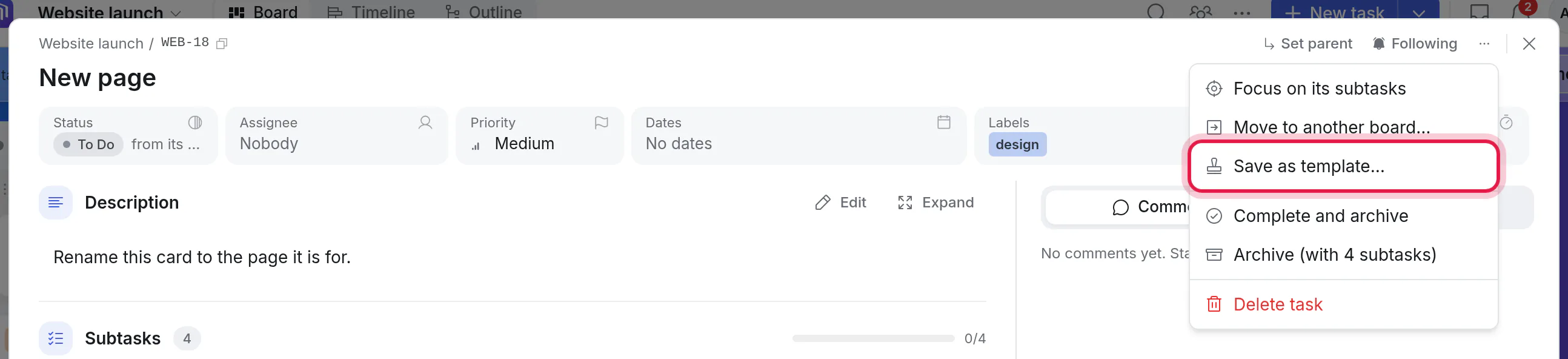
Give it a name, and click Save template.
Anyone who can edit the board can save one.
Start a card from a template
On a board that has templates, Add card has a small arrow beside it.
Click Add a card at the bottom of a list.
Click the arrow, and pick a template.
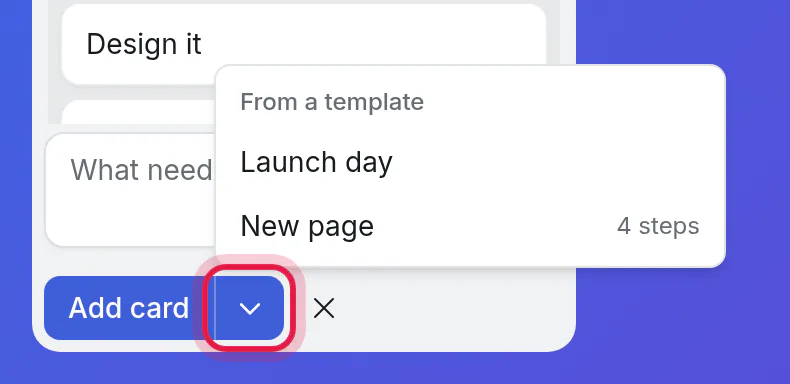
The card arrives in that list with its subtasks. Rename it, set its dates, and hand out the steps. One Undo takes the whole card back.
New task at the top has the same arrow. It adds the card to the first "not started" list and opens it.
What a card template keeps
| Kept | Left out |
|---|---|
| Title and description | Who it is assigned to |
| Subtasks, at every level | Start and due dates, reminders |
| Labels and priority | Comments and files |
| The board's own fields: text, numbers, choices, ticks | Logged time and history |
| Which steps wait on which | Date, person and card-link fields |
Nobody is assigned by a template, so a card started from one tells no one until you assign it.
Change, rename or remove one
Change it: start a card from it, change the card, then Save as template… again and choose Replace "its name".
Rename or remove it: ⋯ → Board settings → Templates.
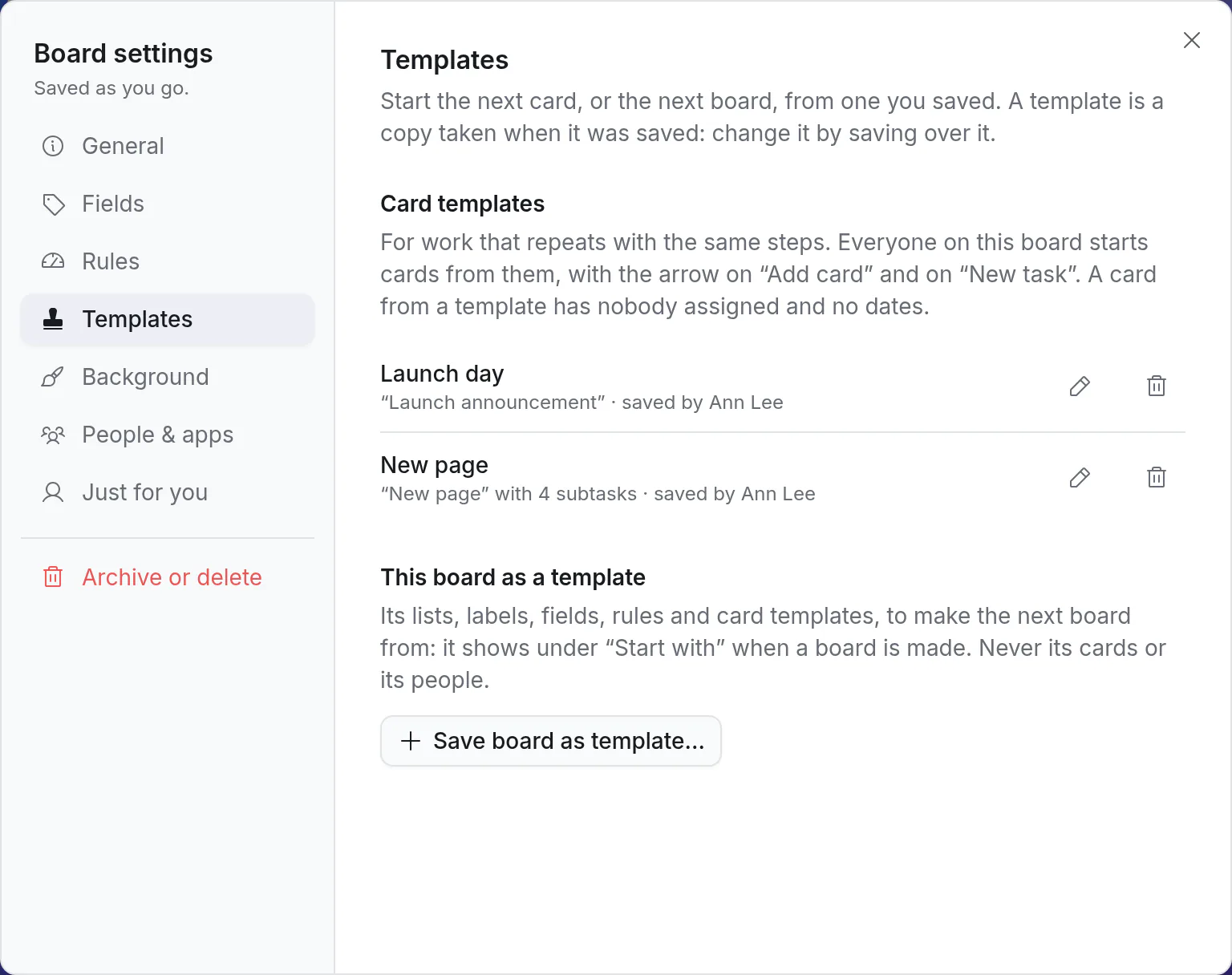
Removing a template leaves the cards made from it as they are.
Board templates
A board template keeps a board's shape: its lists, labels, fields, rules and card templates. It never keeps the board's cards or its people.
Save a board as a template
Open the board's ⋯ menu and choose Save as template…. A board's owners can.
Where it goes follows the board:
- From a board in a workspace, it becomes one of the workspace's templates, for everyone in it.
- From one of your Personal boards, it is yours alone.
Make a board from a template
Click Create board. Your templates are under Start with, after the starter boards. In a workspace, you see that workspace's templates.
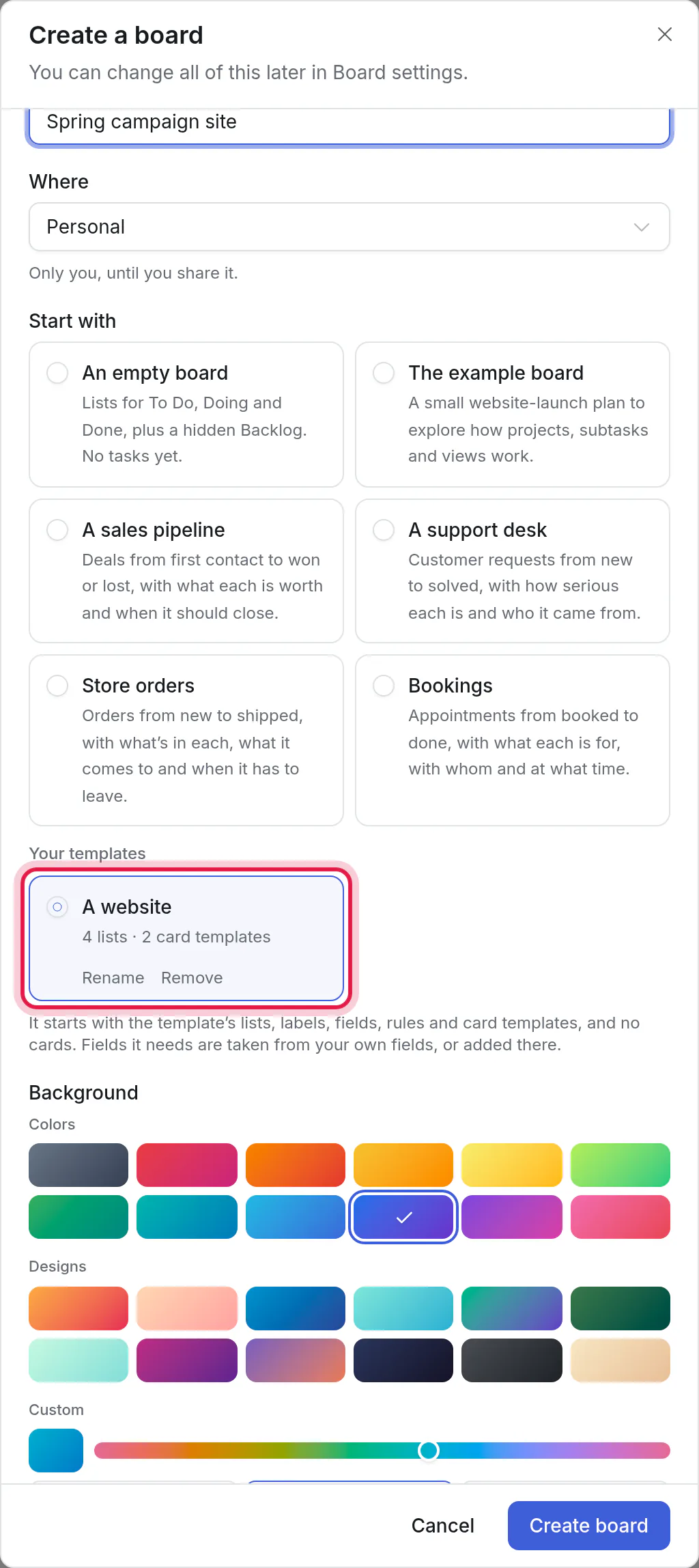
The new board has the template's lists, labels, fields, rules and card templates, and no cards. You are its only person until you share it.
Change, rename or remove one
- Change it: change a board, then Save as template… again and choose Replace "its name".
- Rename or remove it: in Create board, under the template's name.
Whoever saved a template can change it. In a workspace, so can its admins. Boards made from a template stay as they are when it changes or goes.
Good to know
- Fields. A board made from a template uses the fields of where it is made (the workspace's, or your own). A field that isn't there yet is added. In a workspace only admins can add fields: if a template needs one, ask an admin to make the first board from it.
- Rules that name people stay behind. A rule that tells "whoever it is assigned to" comes along; one that tells Dana does not, since a new board has no people yet.
- Nothing connected comes along: no webhooks, no Telegram bot, no calendar.
- If a label or a field is removed later, a template simply leaves it out when a card is started from it.
- A board keeps up to 30 card templates, each with up to 200 cards. A person or a workspace keeps up to 30 board templates.
- Assistants can list a board's card templates and start a task from one. See what to ask.