
Board settings, stats and export
Everything about the board itself is under the ⋯ at the top right.
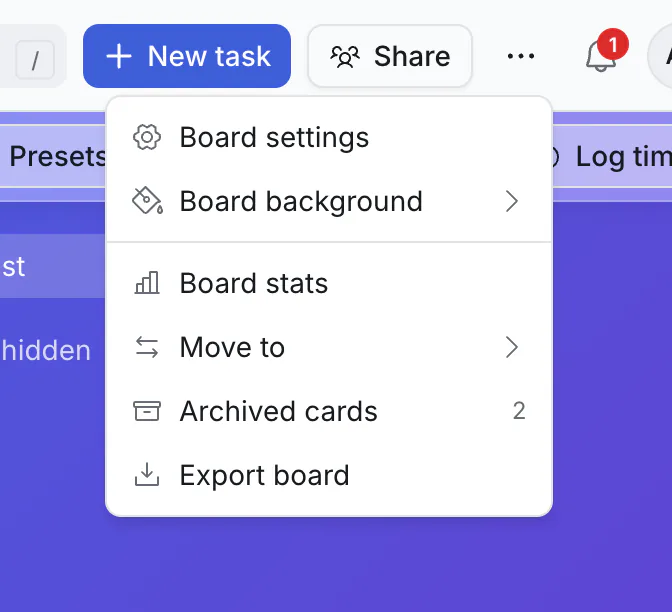
Board settings
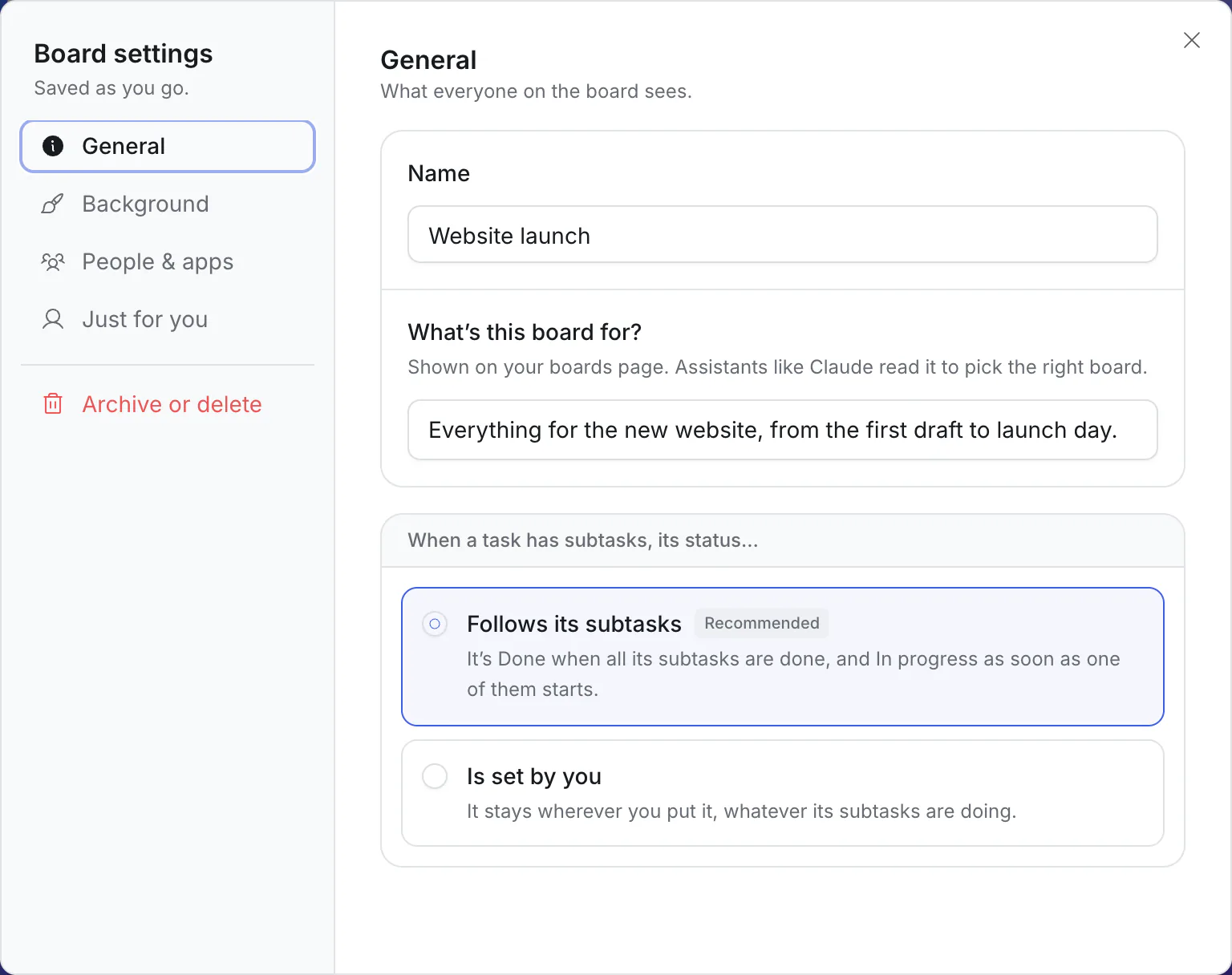
Changes are saved as you make them.
General (what everyone on the board sees)
- Name.
- What's this board for? A sentence or two. It shows on your boards page, and AI assistants read it to pick the right board when you say "add it to the launch board".
- When a task has subtasks, its status…
- Follows its subtasks (recommended): it is Done when all its subtasks are done, and In progress as soon as one of them starts.
- Is set by you: it stays wherever you put it.
Background. One of 12 colors, 12 designs, or your own: pick any hue and a light, medium or deep shade.
People & apps. Who can work on this board (a shortcut to Share), and webhooks, which tell other apps when something changes here. Webhooks are for whoever sets up integrations.
Just for you
- Use as my Inbox. Cards that apps and assistants add without naming a board go here.
Archive or delete (owners only)
- Archive puts the board away. It leaves your boards page, becomes read-only for everyone and keeps everything. It is listed under "Archived boards" at the bottom of the boards page, and can be restored.
- Delete removes the board, its cards, comments and files for everyone. This cannot be undone.
Board stats
⋯ → Board stats shows how the board is doing, over the last 7, 30 or 90 days.
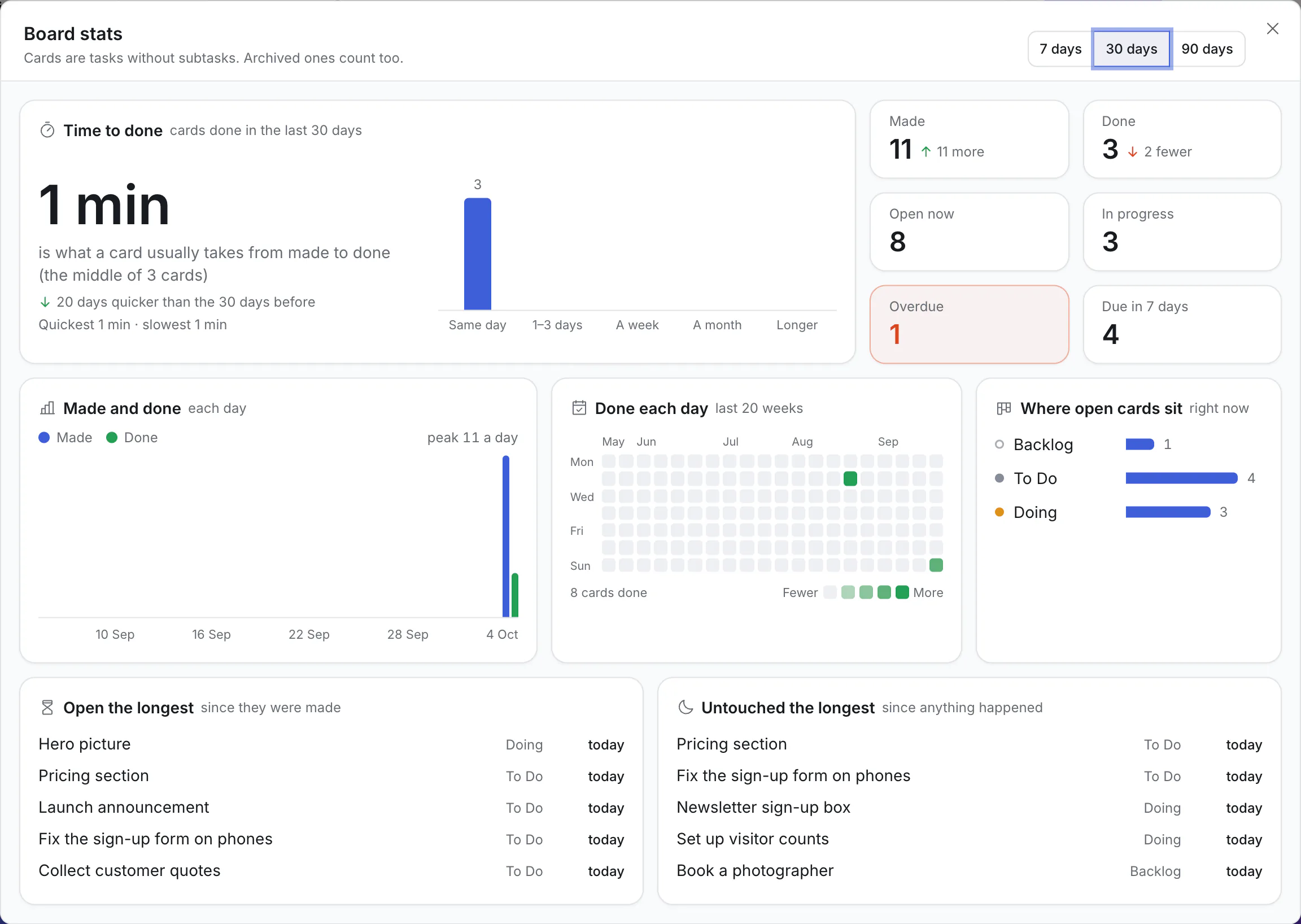
- Time to done: how long a card usually takes from being made to being done, with the quickest and slowest.
- Made and Done: how many cards, compared with the period before.
- Open now, In progress, Overdue, Due in 7 days.
- Made and done each day, as a chart.
- Done each day over the last 20 weeks, as a calendar of squares.
- Where open cards sit, list by list.
- Open the longest and Untouched the longest: the cards most likely to need a nudge. Click one to open it.
Stats count cards without subtasks, and include archived ones.
Move a board
Owners can move a board between Personal and a workspace with ⋯ → Move to. Moving it into a workspace does not share it by itself; use Share for that.
Export and import
- ⋯ → Export board downloads the whole board as one file, archived cards included. Keep it as a backup, or use it to copy the board. It is a file for Kanbanto to read back (its name ends in
.json), not one to open in a spreadsheet. - To bring one back, open the ⋯ menu on the boards page and choose Import a board…. It arrives as a new board.
Comments and attached files are not part of the export file.
Favourites
Star a board on the boards page: point at its tile and click the star. Or, with the board open, click the board's name at the top and choose Add to favourites. Favourites come first in both places.