
Pages inside pages, and finding things
A handbook is useful when people can find the page they need. Three things do that: the tree of pages, topics, and search.
Pages inside a page
An article's subtasks are the pages inside it. Each one is a card of its own, with its own text, pictures, owner and comments, and it can have pages inside it too.
Use them when an article has parts people read separately:
- "Your first week" with a page for each day,
- "How we quote a job" with a page for kitchens, one for bathrooms, one for roofs,
- a policy with a page of questions people ask about it.
To add one, open the article and click Add a subtask, or point at its row in the Outline and click the +. Open the new card and write in its description, like any article.
Keep the outer article short: say what the pages inside are for, and who to ask. Its text is the introduction.
The Outline is the table of contents
Open the Outline tab. Every article is a row, with the pages inside it indented under it.
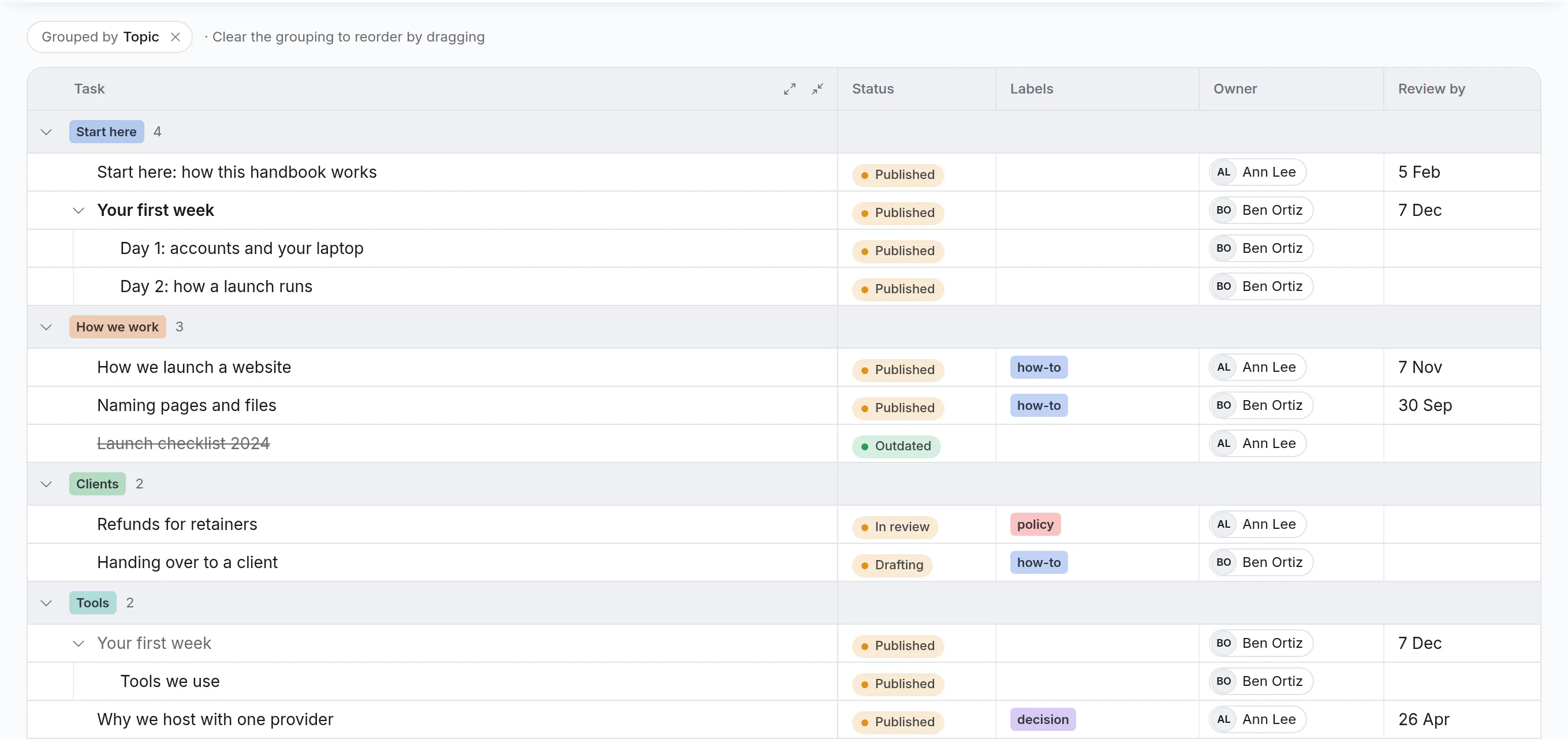
- Fold and unfold an article with the arrow beside it. The two small buttons in the Task heading fold or unfold everything.
- Group by topic. Click Display → Group by → Topic. The handbook is now laid out by subject, with a heading for each. Group by Owner to see what each person keeps, or by List to see what is in review.
- Read one part. Point at an article that has pages inside it and click Focus on its subtasks. The Outline shows only that part.
- Sort by Review by, by clicking the column's heading, to see what is due a second look.
- Reorder by dragging rows, when the Outline isn't grouped or sorted. The order is the handbook's reading order.
Columns for Owner, Review by and Topic are there because they are the board's fields. Hide the columns you don't need under Display.
See the Outline view for everything it does.
Find an article
By its title: click the search icon at the top of the board and type. The board and the Outline narrow down as you type.
By words inside it: use Search cards. It looks through titles, descriptions and comments.
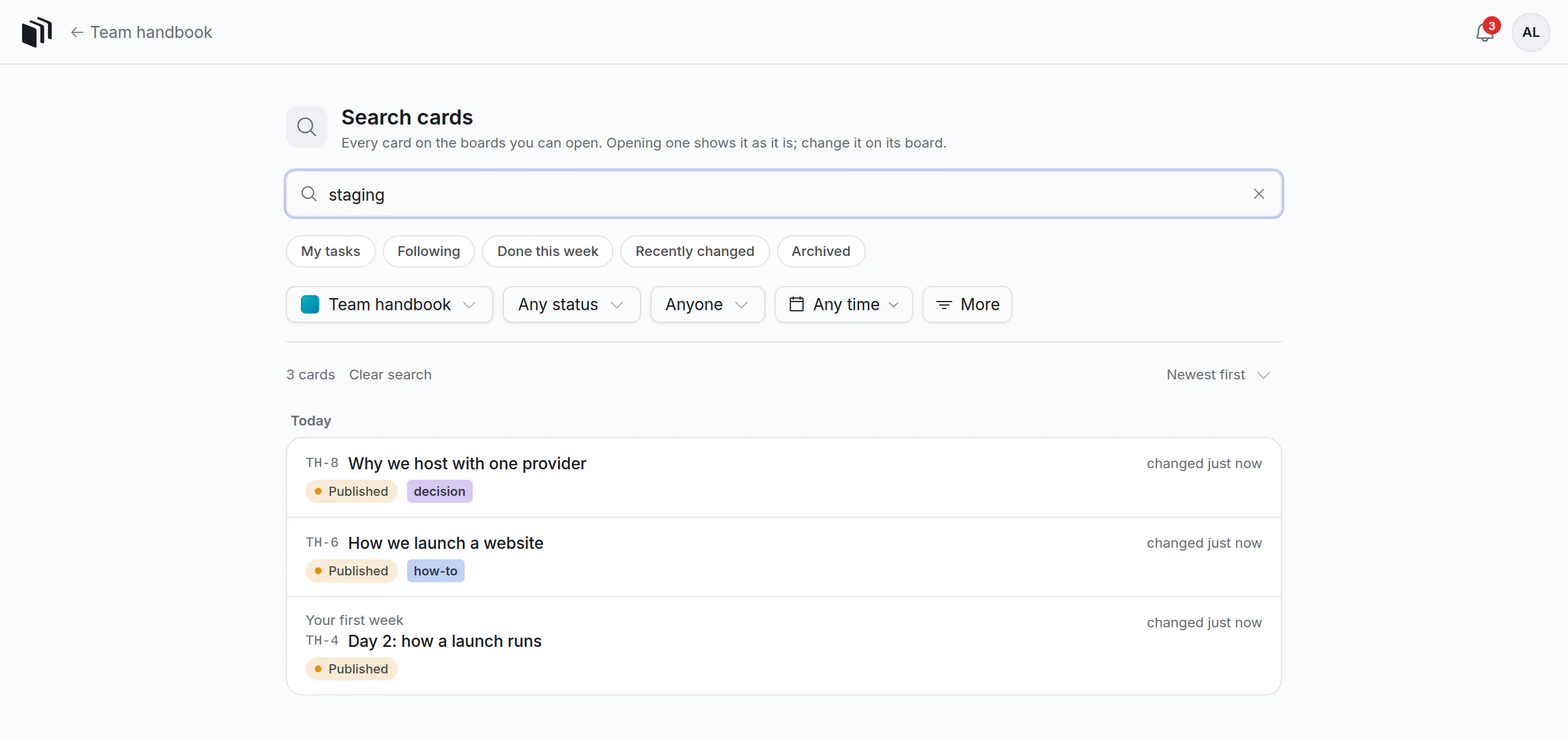
- Click your picture at the top right, then Search all cards.
- Choose the handbook where it says All boards, so only its articles are searched.
- Type the words. A result found through a comment shows the line they were in.
Search cards also finds archived articles, so an outdated page that was put away can still be read.
By what it is: click Filter on the board for a label ("policy"), an owner, or a topic. Save a combination you use often as a preset.
Link articles to each other, and to the work
- From one article to another: type
/, choose Card, and pick the other article. Its name becomes a link. - From a task to an article: do the same in the task's description or in a comment, on any board. "Quoted per HB-7" in a job's card takes the next person straight to how you quote.
- To find what mentions an article: search for its name (HB-7) in Search cards.
For a link that both cards show, add a card link field, for example "Related articles".
Good to know
- To put a page inside another article, drag its row in the Outline, or click Change parent at the top of the card.
- An article can be moved to another board with its pages, its comments and its files.
- The Outline shows the first 500 rows of a big board, with Show more.