
Your first board
This takes about five minutes. By the end you will have a board with a few cards on it, and you will have moved one.
Before you start: get in
Open your Kanbanto site's address in your browser (see where Kanbanto lives).
- New here? Click Create an account, and give your name, your email address and a password. Some sites then send an email with a link to confirm your address: click it and you are in. If the site does not let people sign up by themselves, you need an invite from someone already on it.
- Have an account? Sign in.
1. Click "Create board"
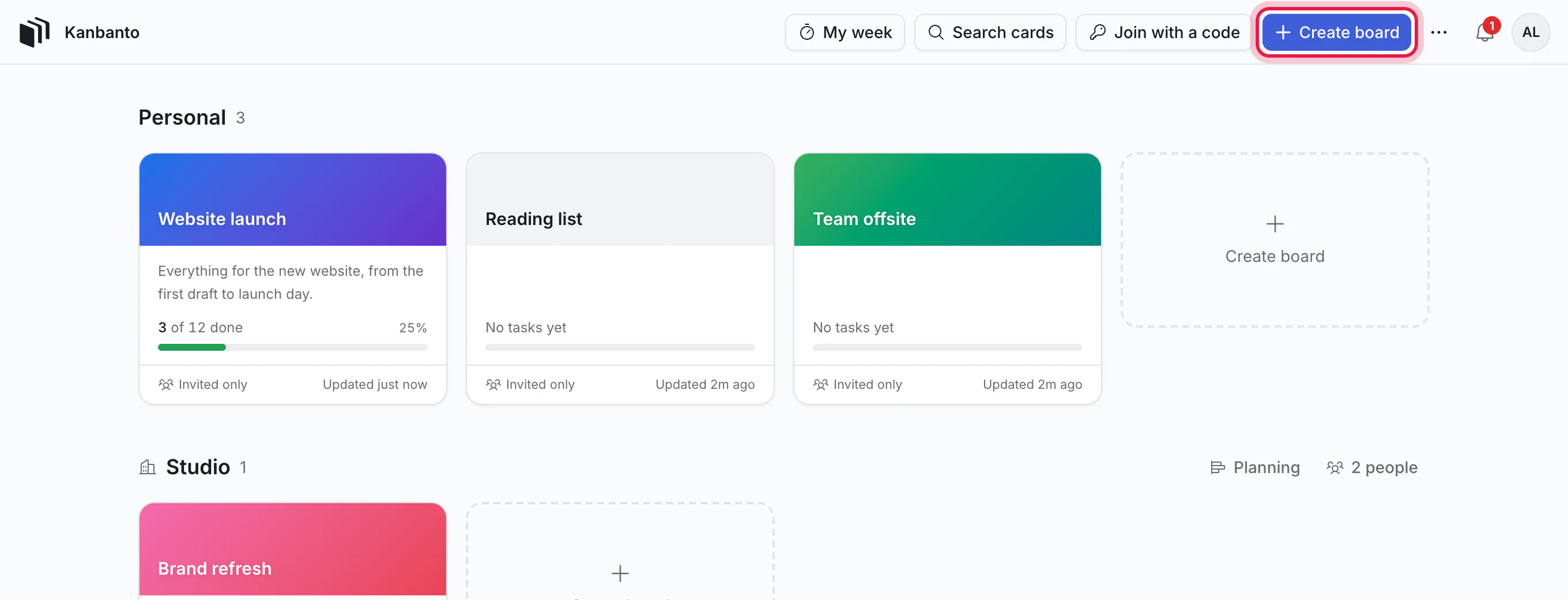
After you sign in you land on the boards page. Every board you can open is here. Click Create board at the top right.
2. Give it a name
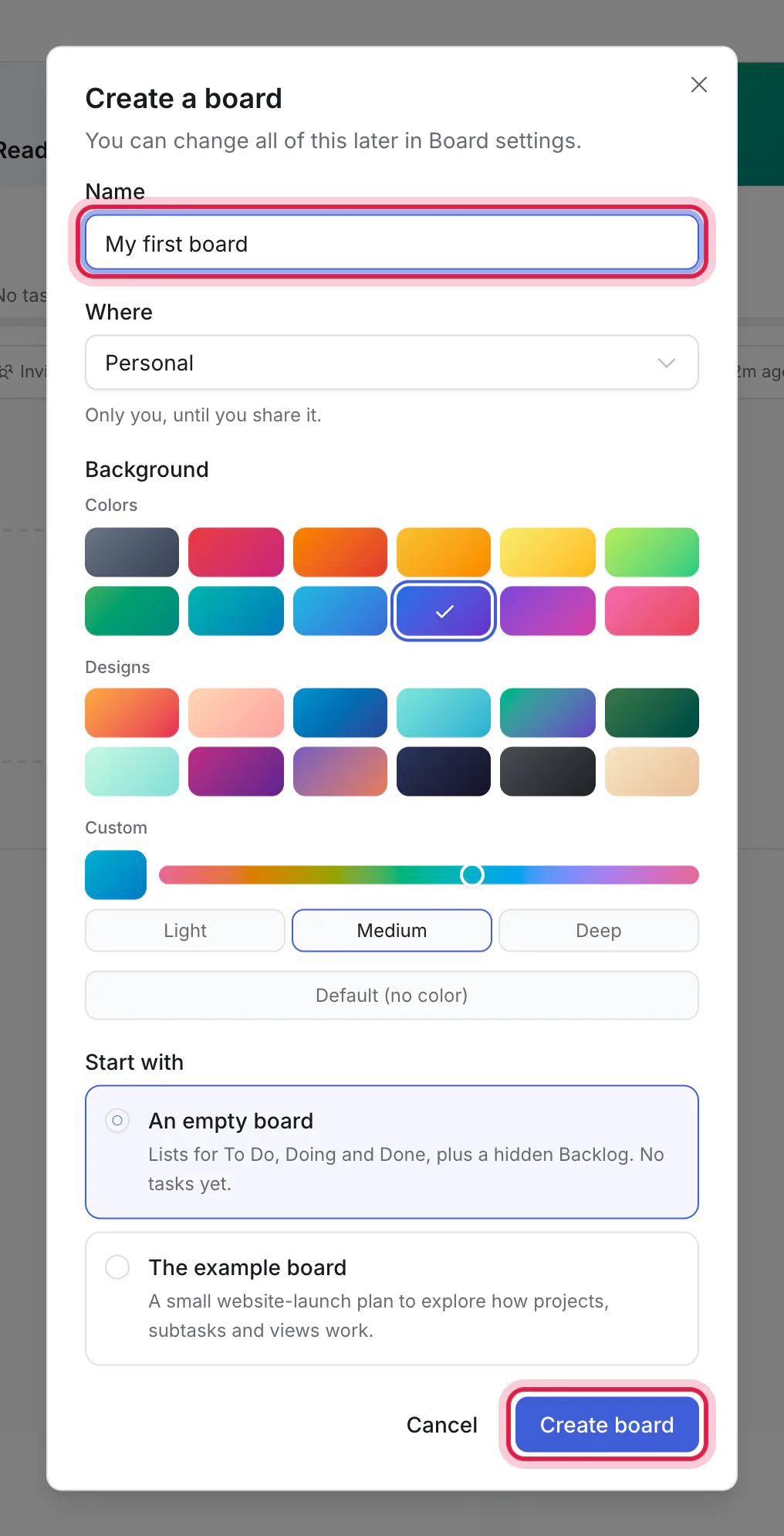
Type a name, such as "My first board". The rest can stay as it is:
- Where: Personal means only you can open it, until you share it. If you are in a team workspace you can pick that instead. Setting up for a team? Personal is fine for trying things out; a board can be moved into a workspace later.
- Background: any color or design you like.
- Start with: An empty board has lists for To Do, Doing and Done and no cards yet (plus a Backlog list that is hidden: a line at the right of the board says so, and shows it when you want it). The example board is a small website-launch plan to explore.
Then click Create board. You can change all of this later.
3. Click "Add a card"
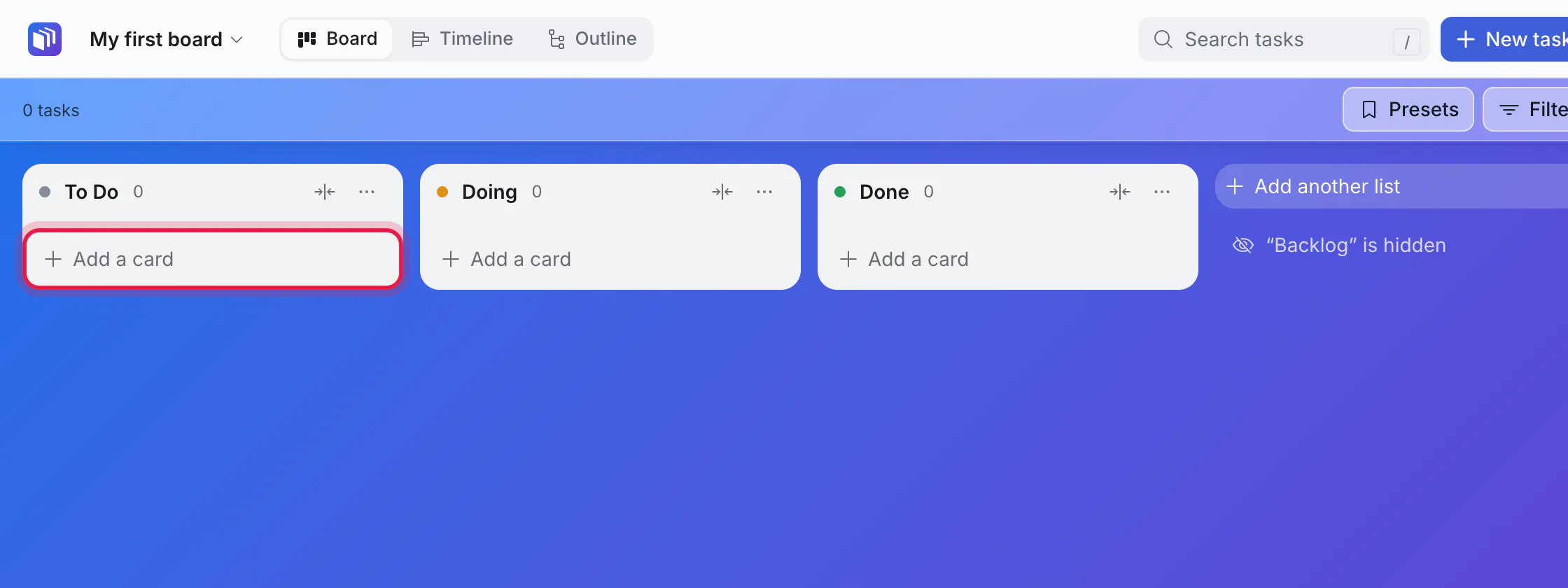
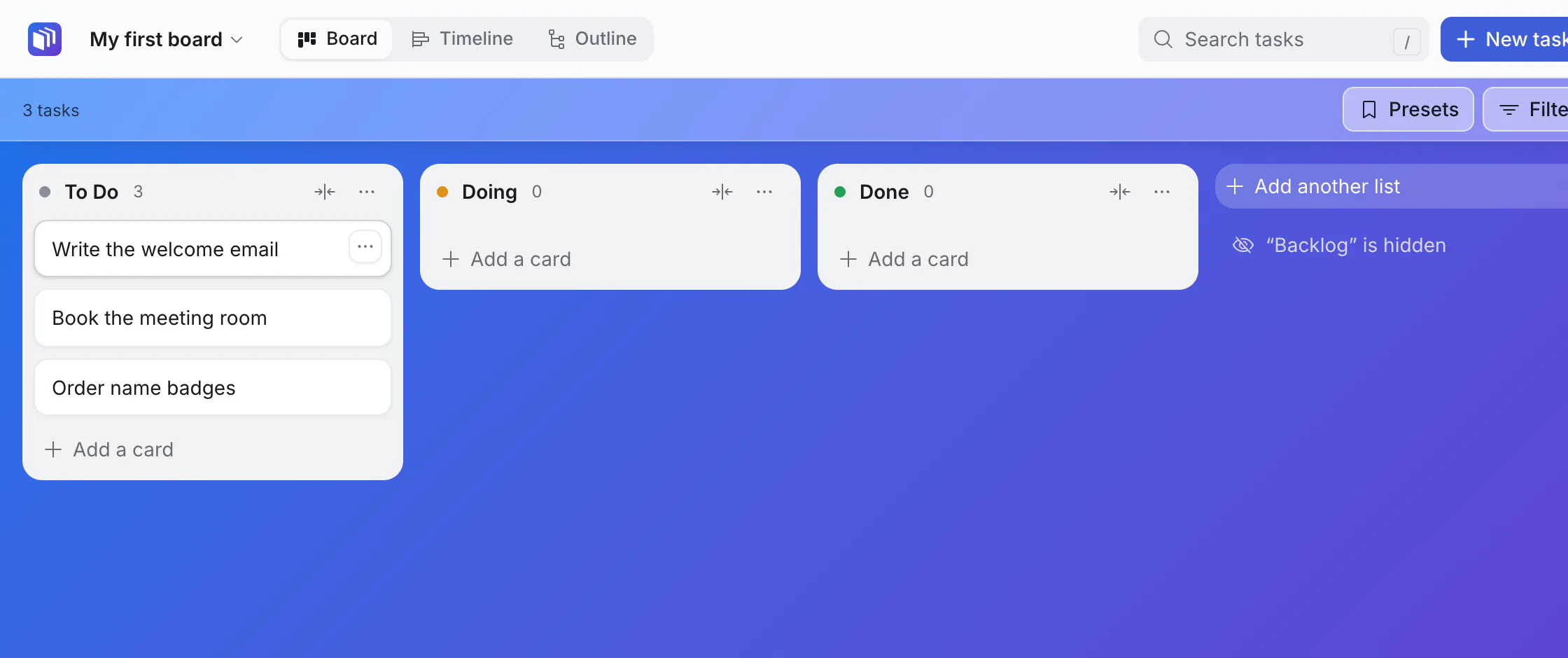
Your board opens with three lists: To Do, Doing and Done. Under To Do, click Add a card.
4. Type what needs doing
Type the task and press Enter (or click Add card).
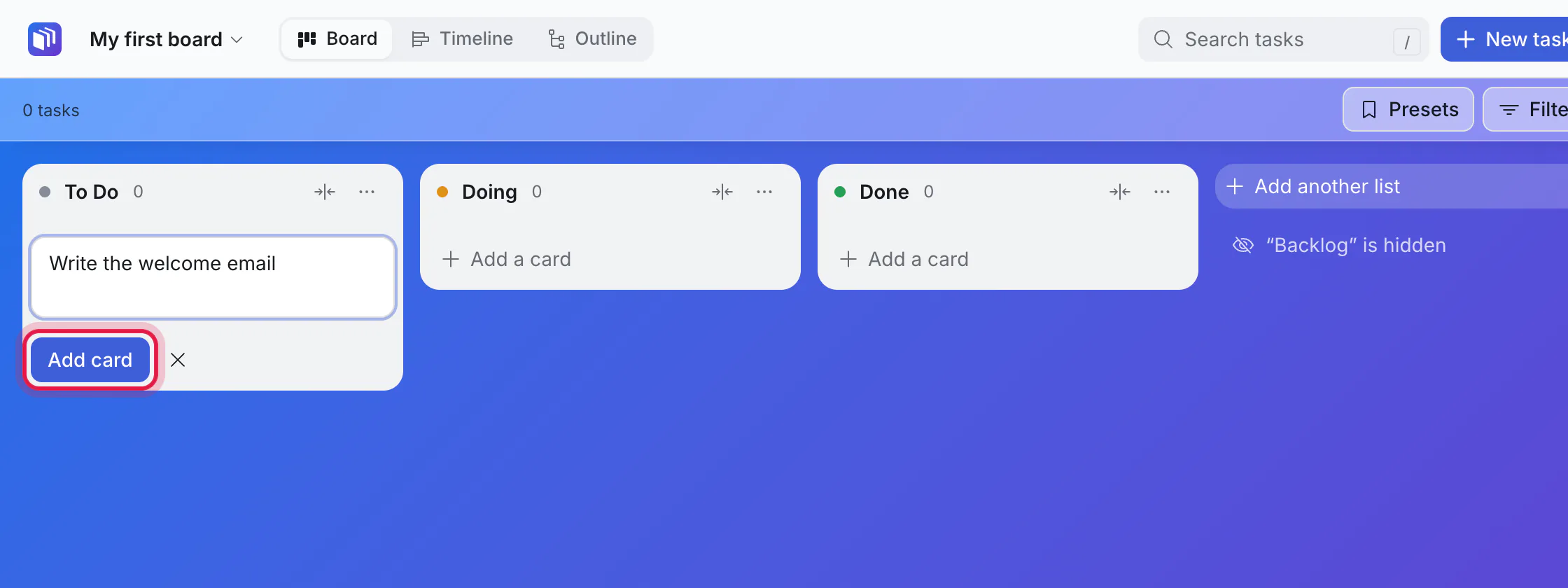
The box stays open, so keep typing to add the next one. Press Esc when you have a few.
Dates in plain words
If you type a date in the title, Kanbanto shows the date it understood under the box, before you press Enter. "Order name badges friday 2pm" becomes a card called "Order name badges", due on Friday at 14:00. There is a picture of this on the Cards page.
5. Drag a card to "Doing"
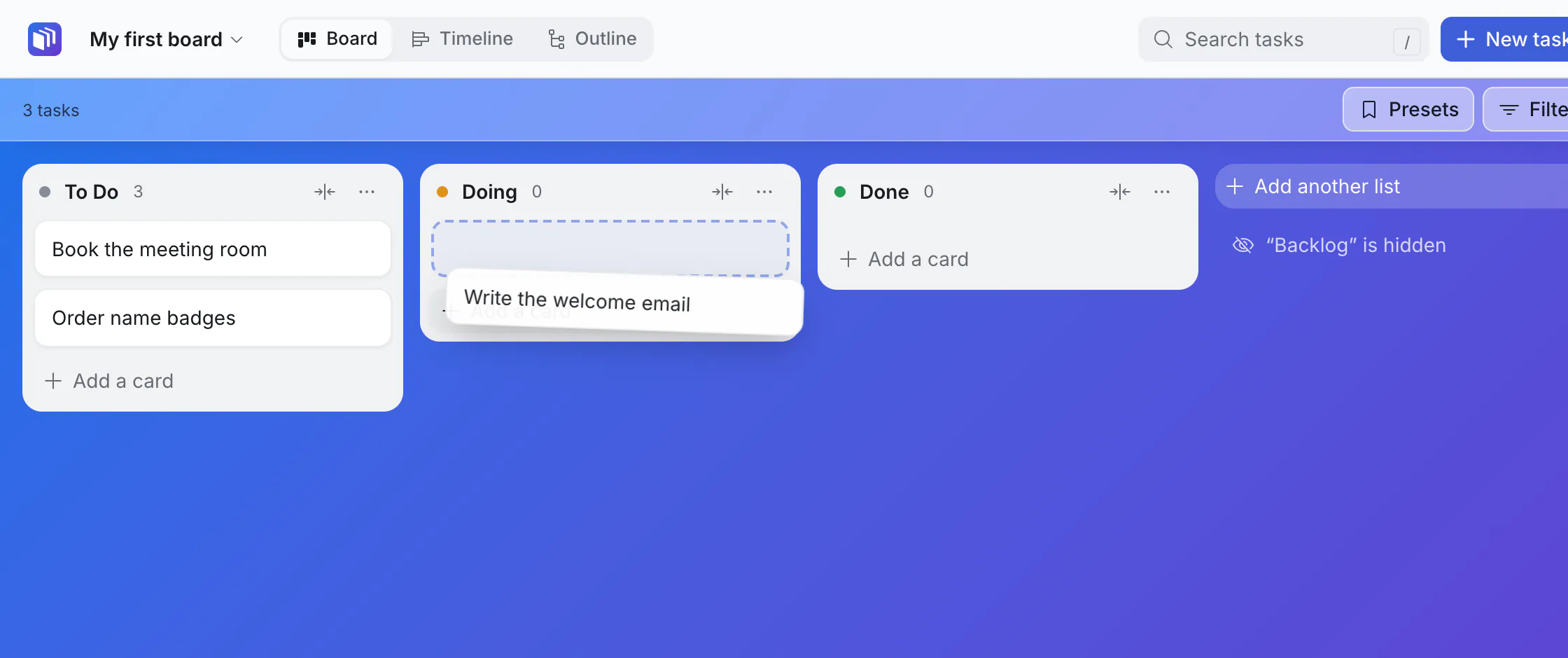
Press on a card, drag it over the Doing list, and let go. A dashed outline shows where it will land.
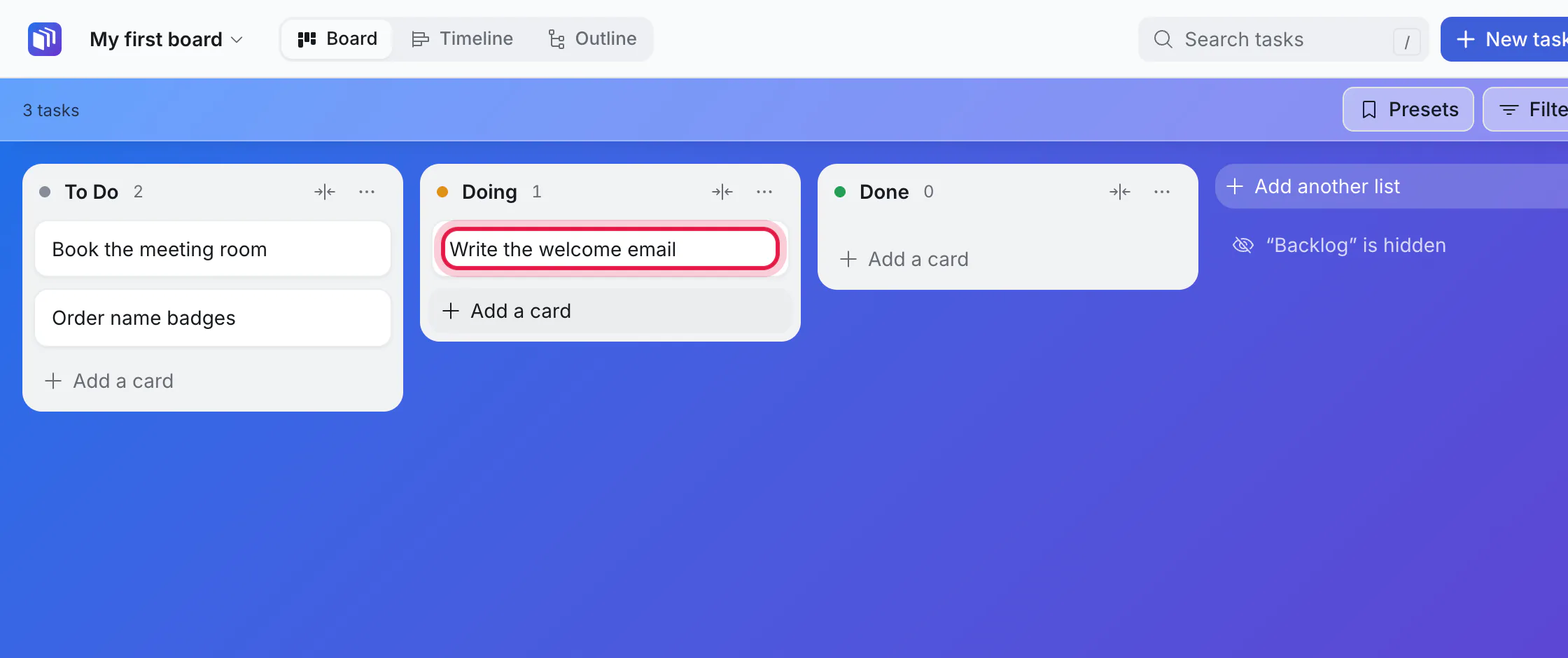
That is all "starting work" means here. When the work is finished, drag the card to Done.
On a phone or tablet, press and hold a card first, then drag.
You can also move a card without dragging. Point at a card and a small ⋯ button appears at its corner (on a phone it is always there). Click it and pick a list under Move to.
6. Open a card
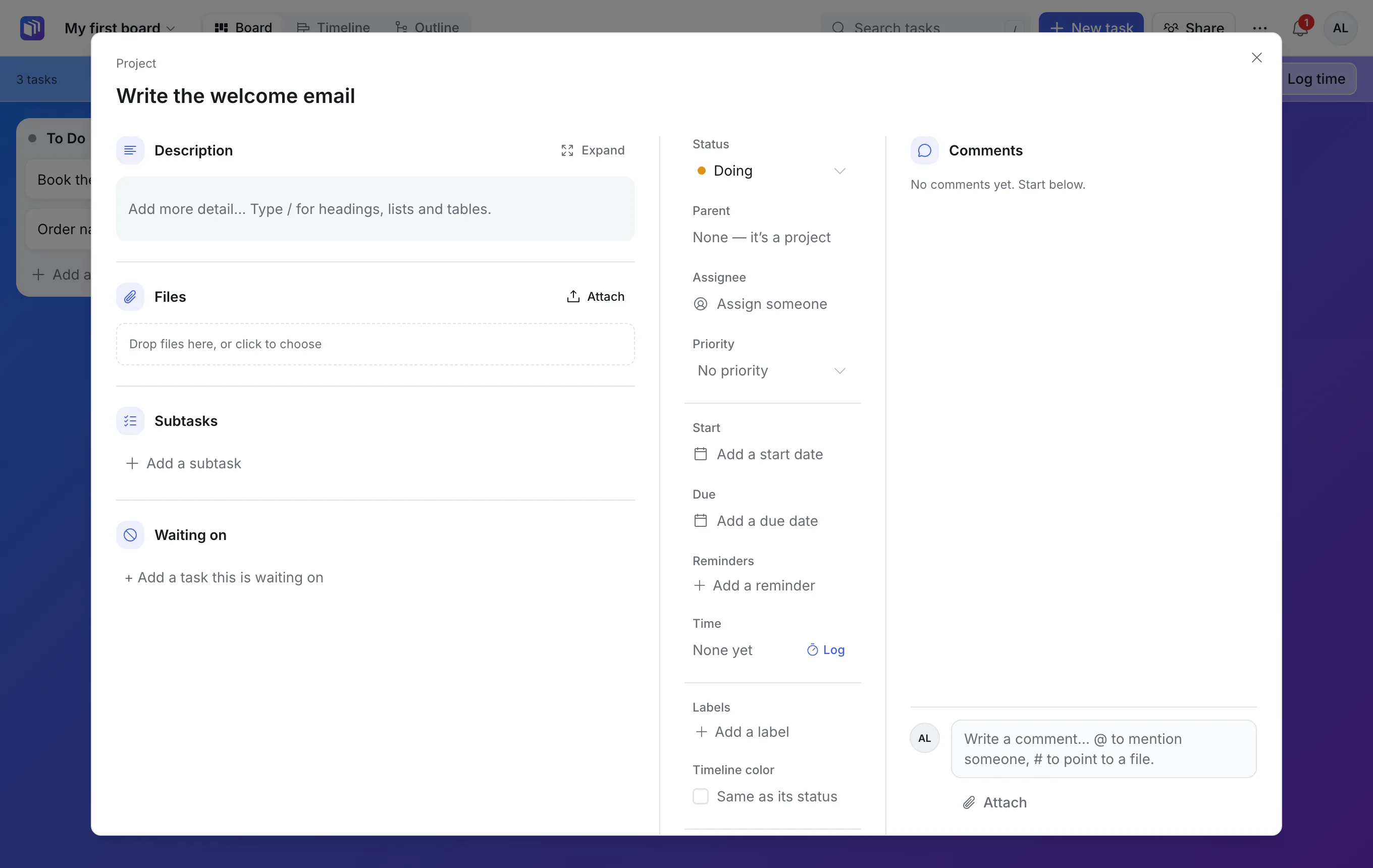
Click a card to open it. This is where the detail lives: a description, who it is for (Assignee), when it is due, files and comments. Press Esc or click outside to close it. Everything else on the card is explained on the Cards page.
Good to know
- Nothing needs saving. Changes are kept as you make them.
- Undo with ⌘Z (Ctrl+Z on Windows). Deleting and archiving also show an Undo button for a few seconds.
- Lists are yours. Rename one by clicking its name. Add more with Add another list.
- On the boards page, a board says Invited only when only the people you added can open it. A new Personal board is like that, with nobody added yet.
- You can also add a card by pressing N, or with New task at the top.