
Add from anywhere
Something worth keeping turns up while you are doing something else: a page, a message, a thought. These are the ways to put it in your Inbox without opening Kanbanto first, and sort it out later.
They are all under your initials → Account settings → Add from anywhere.
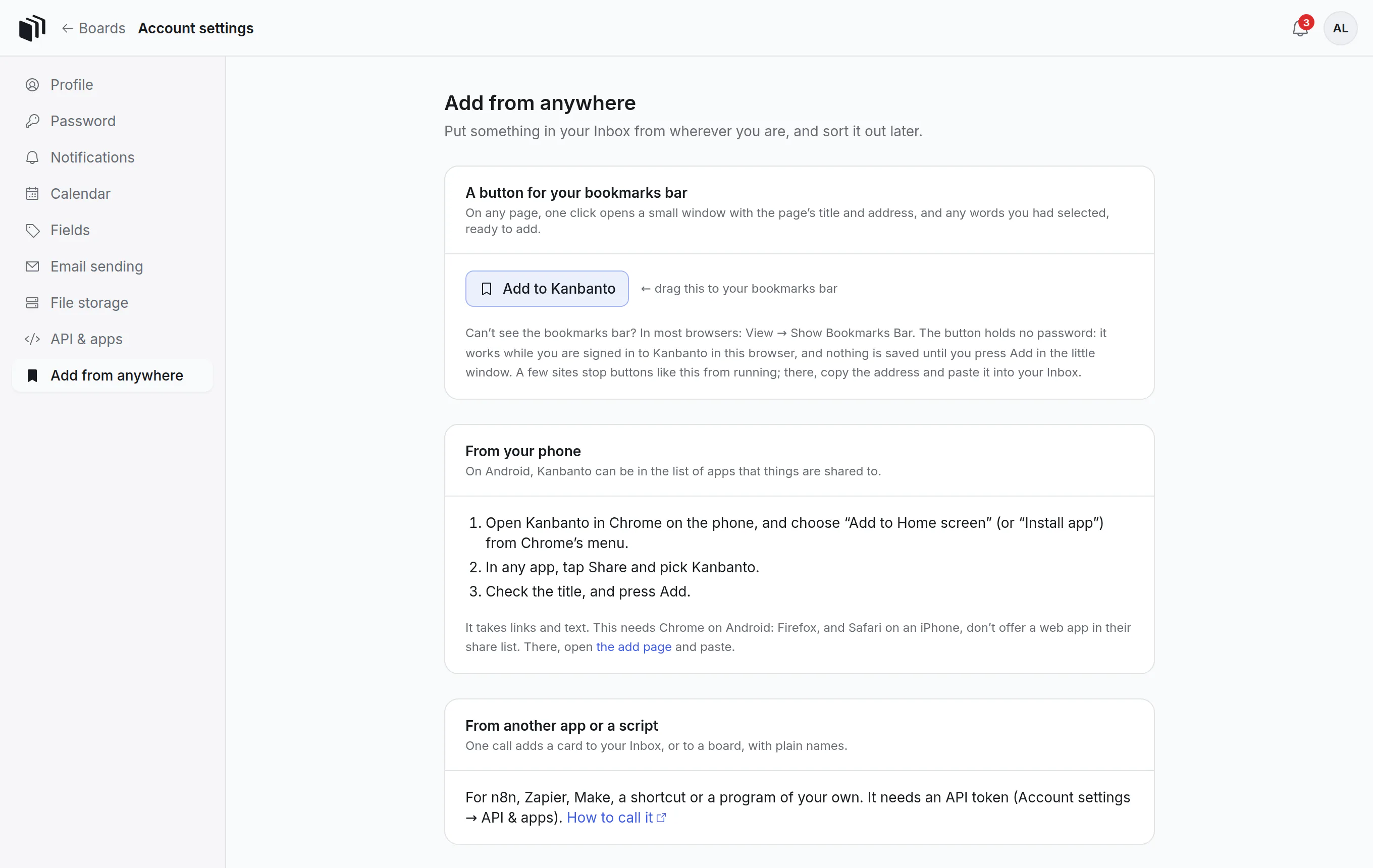
A button for your bookmarks bar
- Open Account settings → Add from anywhere.
- Drag the Add to Kanbanto button onto your browser's bookmarks bar. (No bar? In most browsers: View → Show Bookmarks Bar.)
From then on, on any page:
- Select some words if you want them kept.
- Click Add to Kanbanto in the bookmarks bar.
- A small window opens with the page's title, its address, and the words you selected. Change the title if you like, and press Add (or Enter). The window closes.
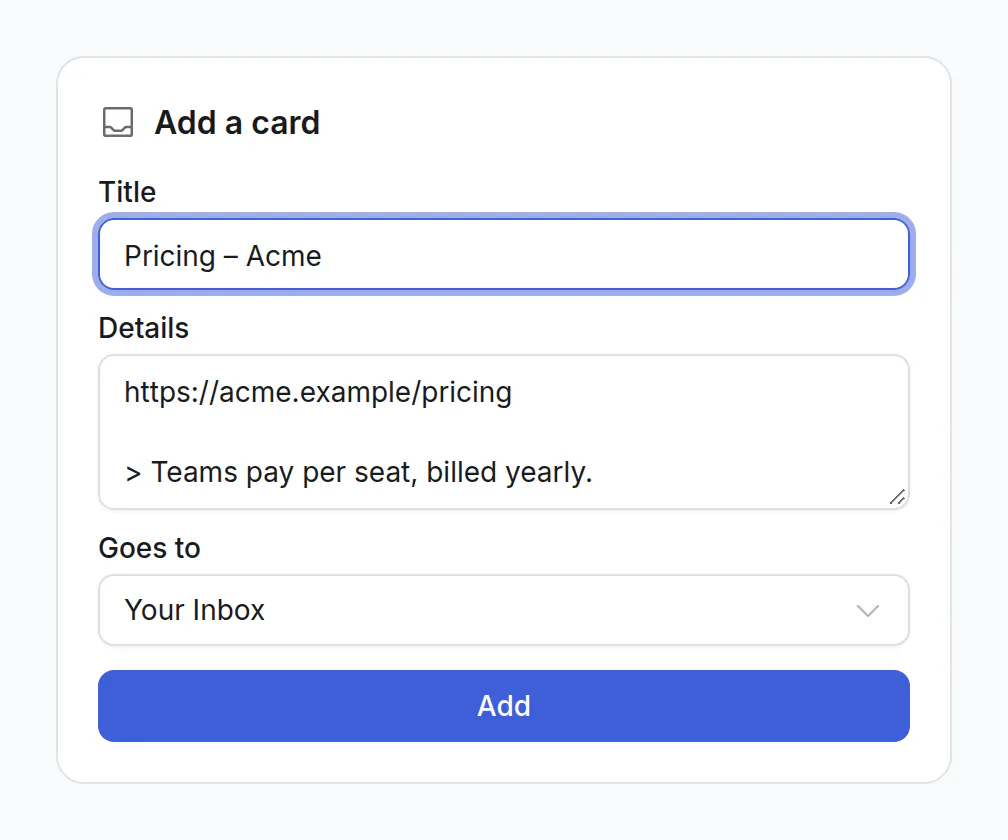
The card goes to your Inbox. To send it straight to a board instead, pick the board under Goes to.
A time typed in the title works as it does in the app: "Renew the domain friday" is due on Friday.
From your phone
On an Android phone, Kanbanto can be one of the apps that things are shared to.
- Open Kanbanto in Chrome on the phone, open Chrome's menu and choose Add to Home screen (or Install app).
- In any app, tap Share and pick Kanbanto.
- Check the title and press Add.
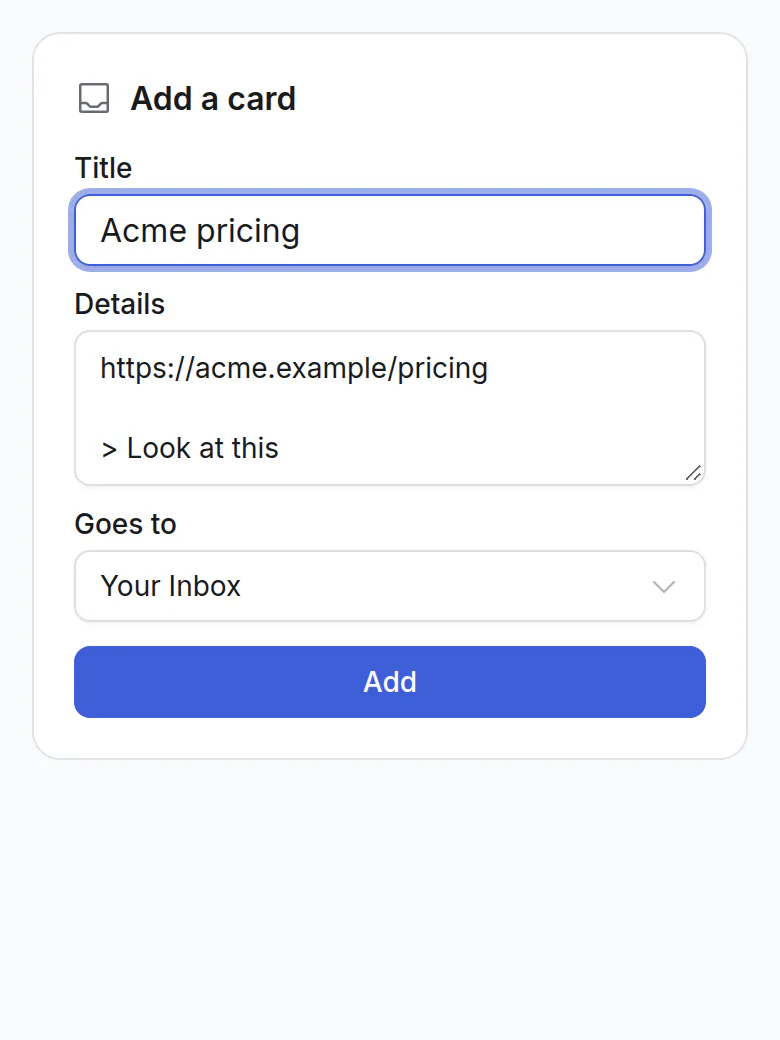
It takes links and text. It needs Chrome on Android: Firefox, and Safari on an iPhone, don't offer a web app in their share list. There, open the add page (the link is on the same settings page) and paste.
From another app or a script
One call adds a card, to your Inbox or to a board, with plain names. It is the way in for automation tools (n8n, Zapier, Make), a shortcut on a phone, or a program of your own. It needs an API token (Account settings → API & apps), which the person who runs your site has to allow. Your site's own page at /api/docs shows how to call it.
Is it safe?
- Nothing is saved until you press Add. The button and the share only open the window with things filled in.
- The button holds no password. It works because you are signed in to Kanbanto in that browser. Signed out, the window asks you to sign in first, and then shows what you were adding.
- It runs only when you click it, on the page you are on, and reads three things there: the page's title, its address, and the words you selected.
- The page you were on can't reach the window, or anything in your Kanbanto.
- A link someone sends you to the add page can put words in the title and the details, and nothing more: it can't choose where the card goes, and you still have to press Add.
Good to know
- A few sites stop bookmark buttons from running. Nothing happens when you click. There, copy the address and paste it into your Inbox.
- Each browser has its own bookmarks bar. Drag the button once in each one you use.
- The button belongs to the site you dragged it from. If your Kanbanto moves to another address, drag it again.
- Pictures can't be shared from a phone this way yet, only links and text.