
Cards in your calendar
Your cards' due dates and reminders can appear in the calendar you already use. It works one way: Kanbanto writes to the calendar. Changing an event there does not change the card.
Set it up under your initials → Account settings → Calendar.
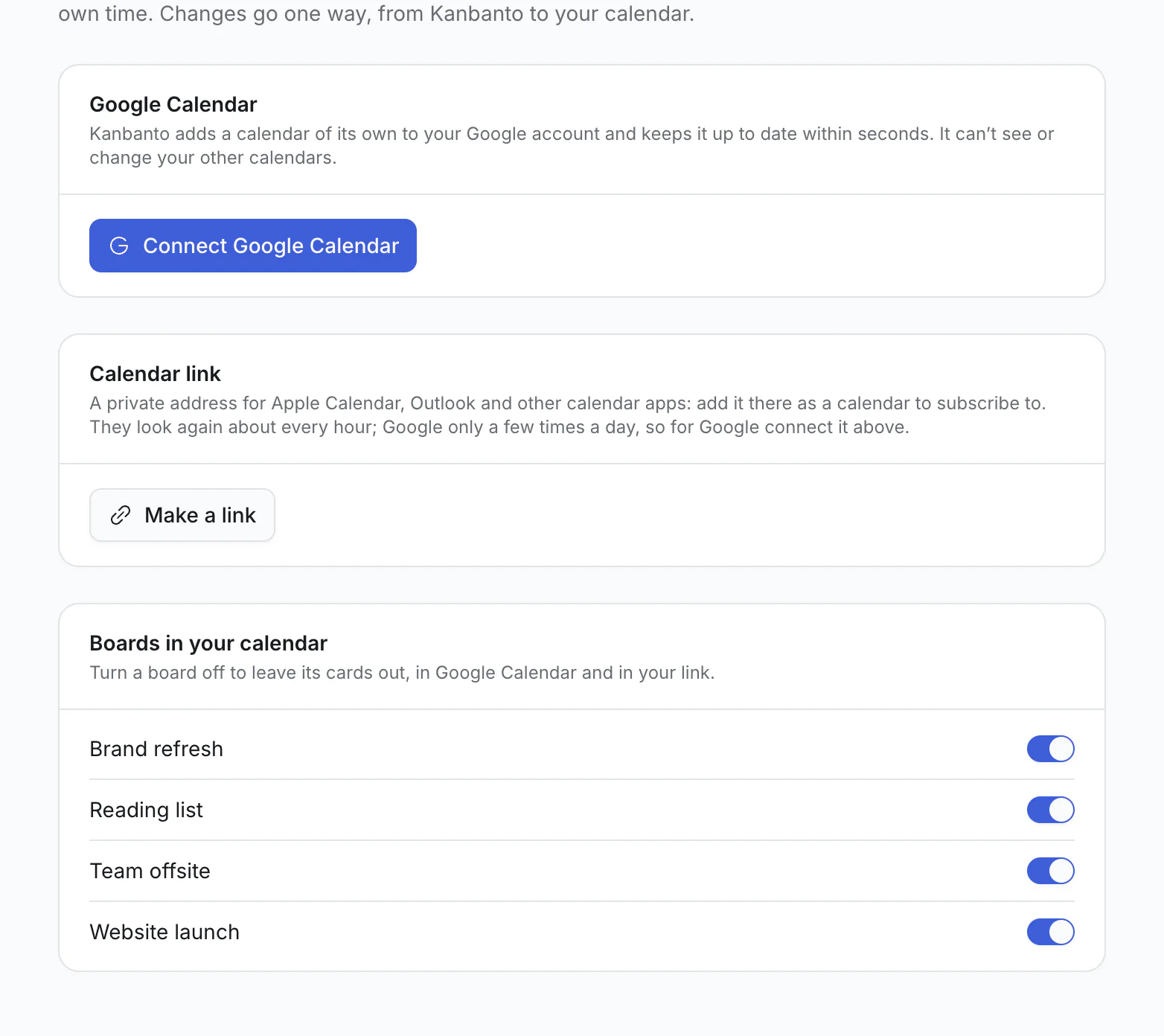
Whoever runs your Kanbanto site decides which of the two ways below are available. One that is not available says so on this page ("isn't set up on this site") instead of showing its button. If you need it, ask them.
Which cards appear
- Cards assigned to you, on every board you can open.
- Cards with nobody assigned, on boards where you are the only person.
Under Boards in your calendar there is a switch for each board, to leave one out.
Google Calendar
- Click Connect Google Calendar.
- Choose your Google account and allow it.
Kanbanto makes a calendar of its own, called "Kanbanto", in your Google account, and keeps it up to date within seconds. It only touches that one calendar, never your others.
To stop, click Disconnect. The Kanbanto calendar is removed from Google.
Apple Calendar, Outlook and others
Under Calendar link, click Make a link.
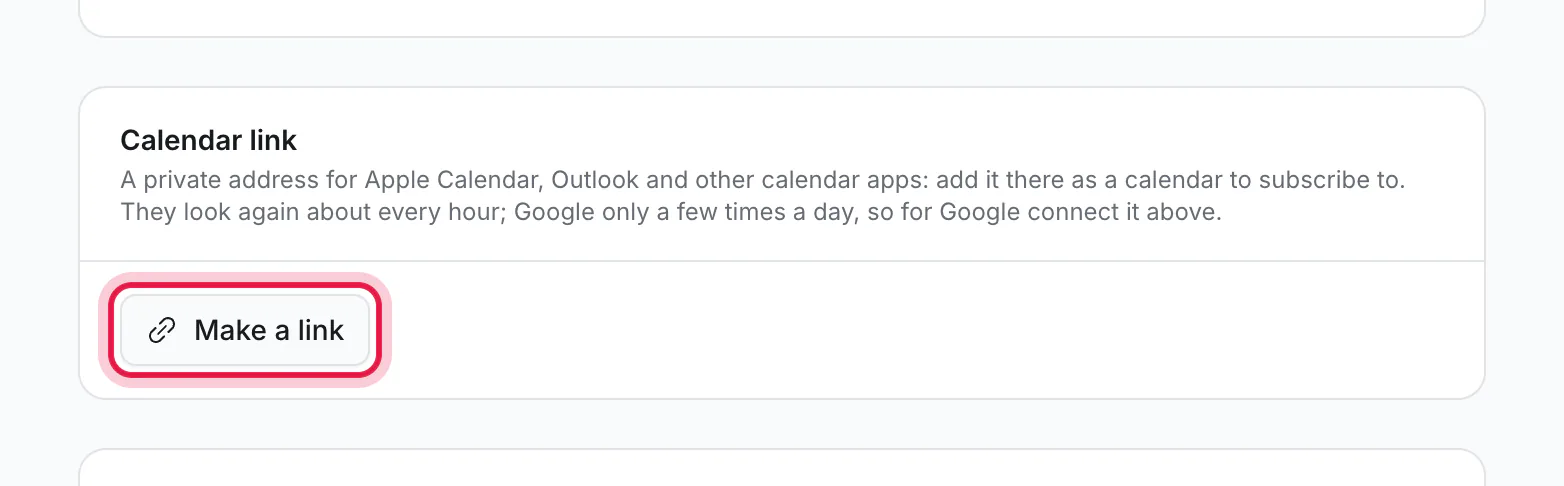
Copy it, and add it in your calendar app. Look for "Add calendar from URL", "Subscribe to calendar" or "New calendar subscription", and paste the link there.
The calendar app checks the link from time to time, so changes can take a while to show; how long is up to the app.
The link is private: anyone who has it can read your card titles. Make a new link replaces it and the old one stops working. Turn off removes it.
How cards look in the calendar
| On the card | In the calendar |
|---|---|
| A due date without a time | An all-day event |
| A due date with a time | A half-hour event at that time |
| A reminder shortly before a timed due date | An alert on that event (Google Calendar) |
| Any other reminder | A short event of its own |
| A finished card | Stays, with a tick: "✓ Pay rent" |
Archived cards, and cards on archived boards, are taken out. They come back if restored.
Good to know
- Only the due date becomes an event. Start dates do not, so long tasks do not fill your calendar.
- If Google stops accepting the connection, the Calendar page says so and offers Connect again.