
Cards
A card is one piece of work. This page covers making cards, what is on one, and moving them around.
Add a card
There are three ways:
- Click Add a card at the bottom of a list, type a title and press Enter. The box stays open for the next one.
- Press N, or click New task at the top. This makes a card and opens it, ready for its title.
- Inside an open card, click Add a subtask to make a card inside it (see tasks inside tasks).
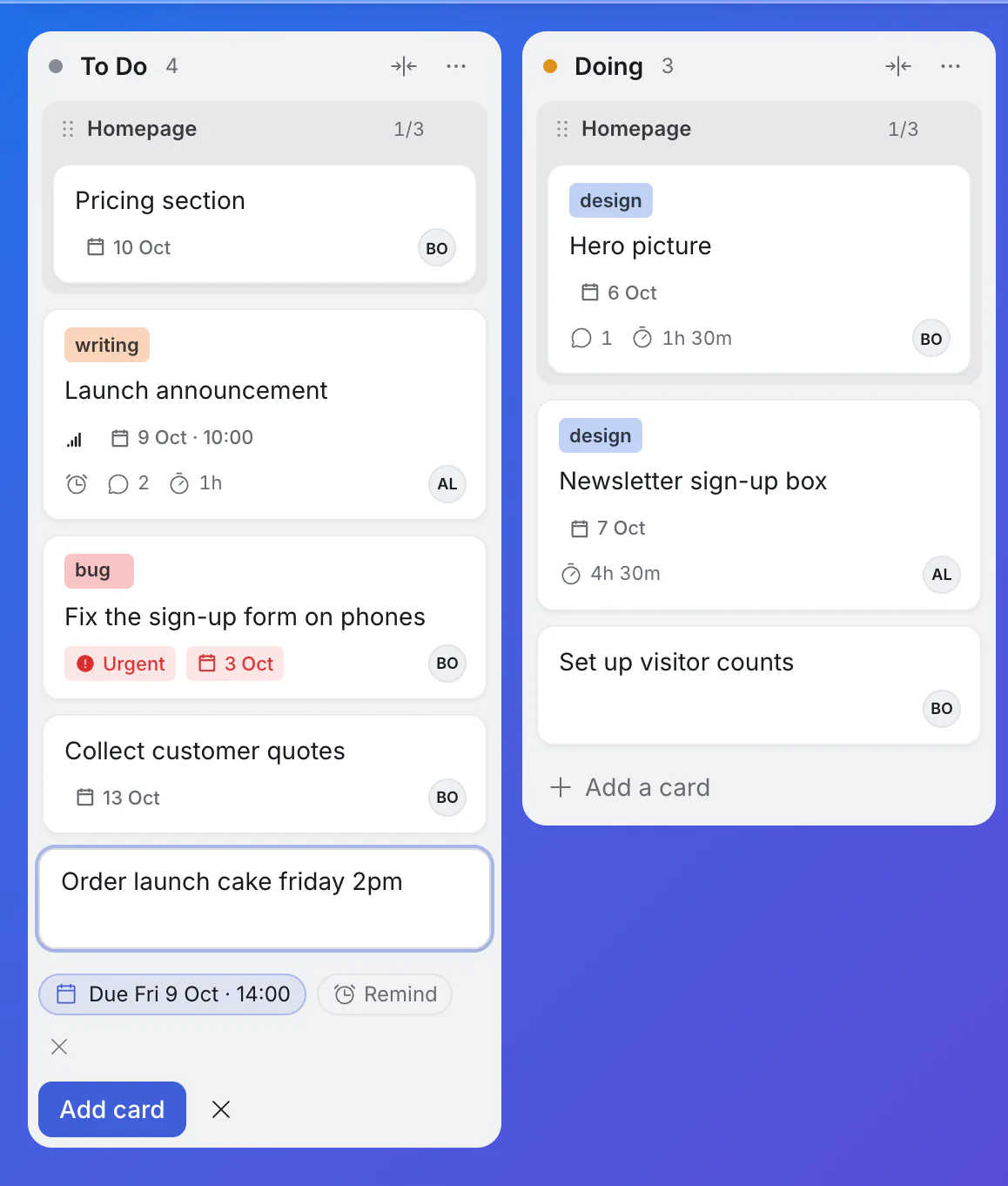
A date typed in the title is understood: "Send invoices next monday 1pm" becomes "Send invoices", due then. Before you press Enter, Kanbanto shows the date it understood under the box, with Remind to add a reminder at that time. The small ✕ on the line below the date means "that was not a date, keep it in the title". (The other ✕, beside Add card, closes the box.)
What is on a card
Click a card to open it.
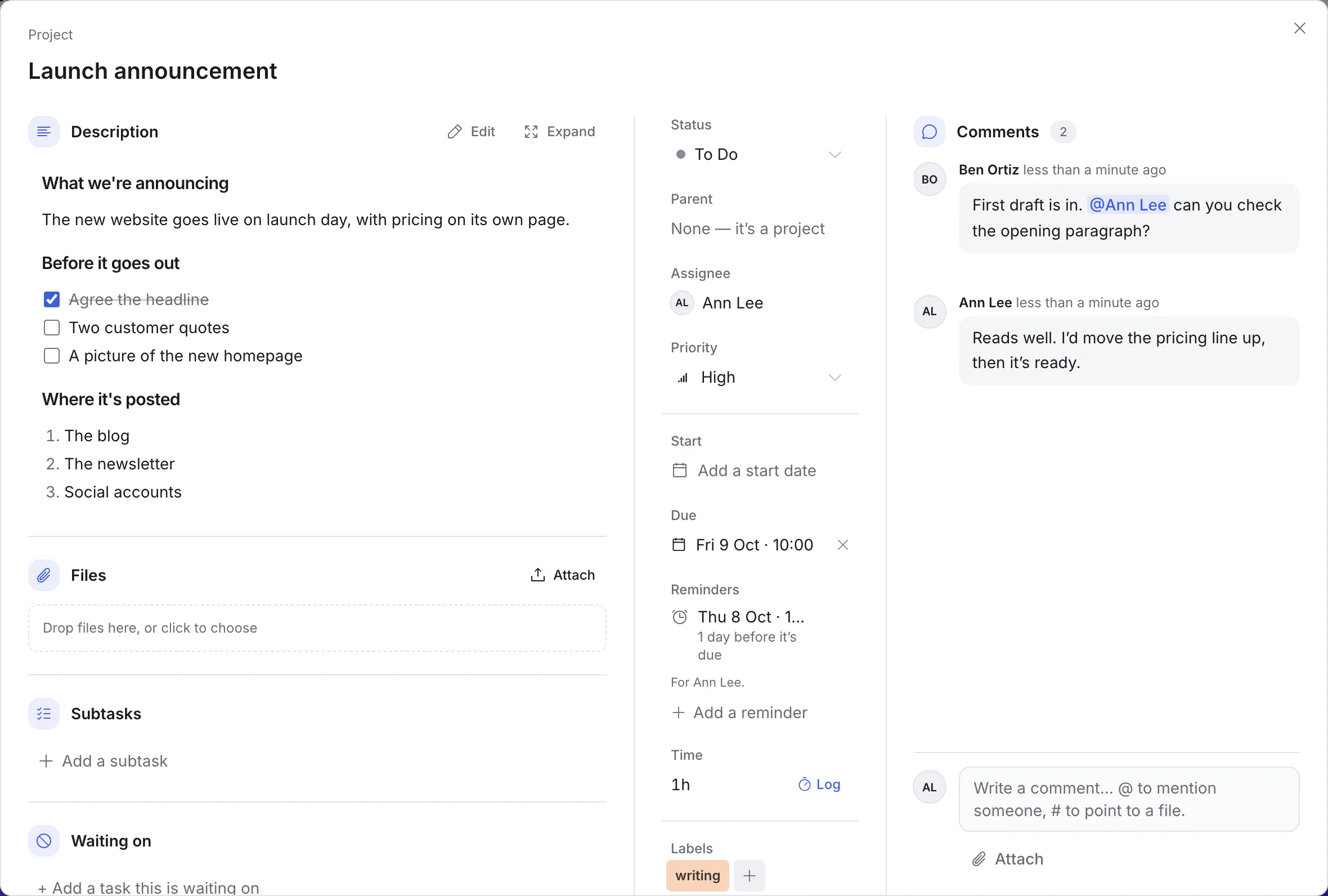
On the left
- Title. Click it to rename.
- Description. The full story, with headings, lists and checklists. See writing a description.
- Files. Anything attached to the card.
- Subtasks. Smaller cards inside this one.
- Waiting on. Other cards that have to finish first. Until they are done, the card shows an amber Waiting sign on the board.
In the middle
- Status. The list it is in. Changing it here is the same as dragging the card.
- Parent. The card it sits inside. A card with no parent is called a project, which is why the top of the card says "Project".
- Assignee. The person responsible, picked from the people on the board: everyone it is shared with, which on a workspace board includes the workspace's members. One per card.
- Priority. Urgent, High, Medium, Low, or none.
- Start and Due. See due dates and reminders.
- Reminders. A nudge at a time you choose.
- Time. Time logged on this card.
- Labels. Colored tags you make up, such as "design" or "bug".
- Timeline color. The color of its bar in the Timeline view. (Scroll down the card's side to find it.)
On the right: comments.
On a narrow screen these are stacked, with a Comment button at the top to jump to the comments.
What a card shows on the board
Without opening it, a card shows its labels, its title, and a line of small signs:
| Sign | Means |
|---|---|
| Small bars, or a red "Urgent" | Its priority |
| A calendar and a date | When it is due. Red when it is overdue. |
| An alarm clock | It has a reminder |
| A speech bubble and a number | How many comments |
| A paperclip and a number | How many files |
| A stopwatch and a time | Time logged on it |
| "1/3" | How many of its subtasks are done |
| Initials in a circle | Who it is assigned to |
Move a card
- Drag it to another list, or up and down within its list.
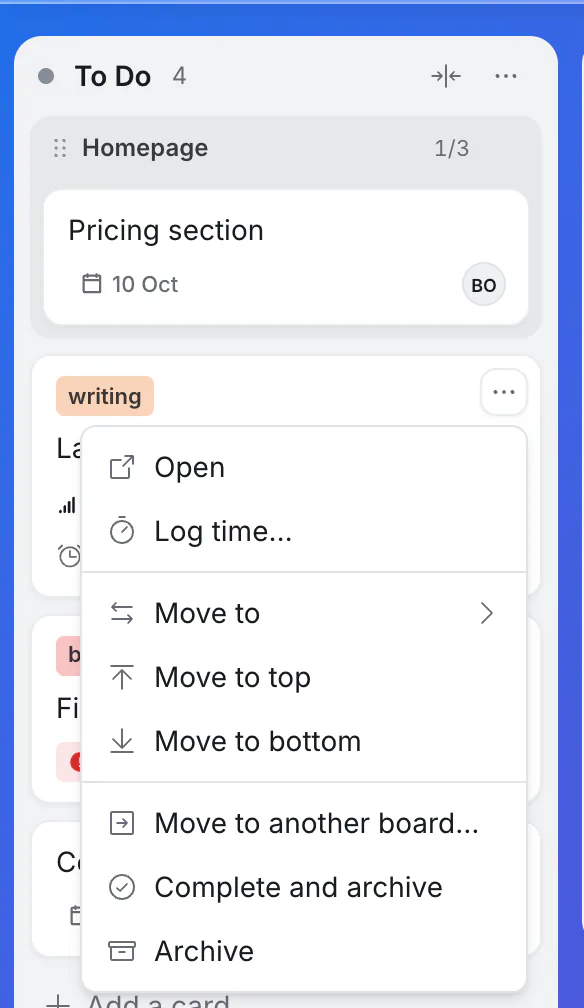
- From its menu. Point at a card and click the ⋯ that appears at its corner: Move to another list, Move to top or Move to bottom, or Move to another board….
Moving a card to another board takes its subtasks, comments and files with it. Before it moves you are shown what will fit: lists and labels are matched by name, and people who are not on the other board are named.
The rest of the card's menu
- Open. The same as clicking the card.
- Focus on its subtasks. Only on a card that has subtasks: shows just those on the board. See tasks inside tasks.
- Log time… Records time you spent on it.
- Complete and archive. Finishes the card and its subtasks, then puts it away.
- Archive. Puts it away as it is. See done cards and the archive.
Good to know
- Undo anything with ⌘Z (Ctrl+Z on Windows).
- Who can change cards: people who can edit the board. People who can only view it can read and comment.
- Labels belong to the board. Make and rename them from any card's Labels, or in Board settings.
- Deleting removes a card, with its subtasks. Delete task is at the very bottom of an open card; scroll down to it. An Undo button appears for a few seconds; after that it is gone. If you might want it again, archive it instead.
- Everyone sees changes at once. If a teammate has the board open, your change appears on their screen.