
Workspaces
A workspace is a home for a team's boards. People you add to the workspace can open the boards shared with it, without being invited to each one. A board made in the workspace is shared with it from the start; a board's owner can also keep one to fewer people (see "Boards in a workspace" below).
Your own boards live in Personal. A workspace sits beside it on the boards page.
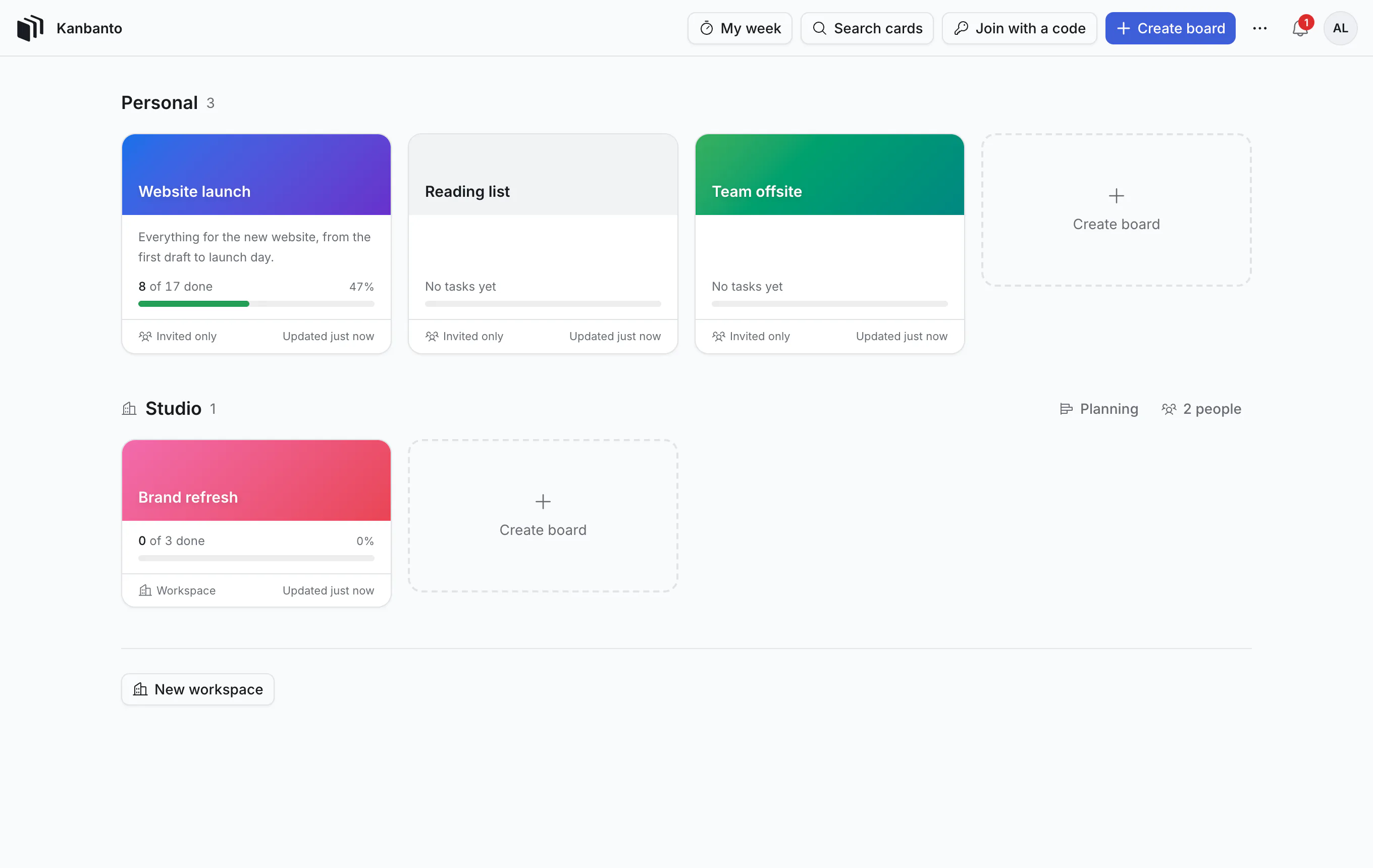
Make a workspace
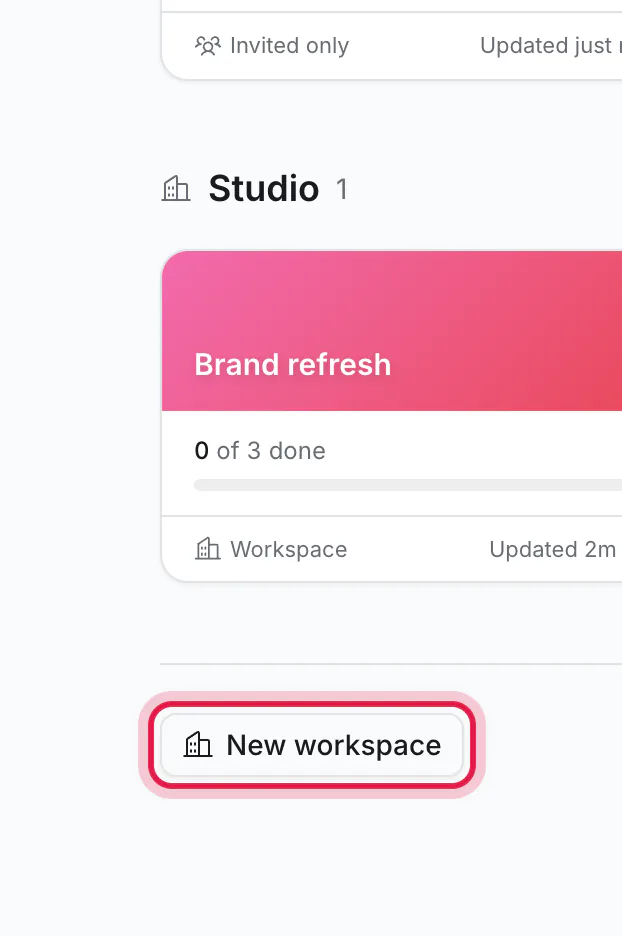
On the boards page, click New workspace. It is at the bottom, under your boards.
Give it a name, such as your team's or company's, and click Create workspace.
You become its admin, and its People page opens so you can invite your team.
Find your way around a workspace
A workspace has two pages of its own, People and Planning, shown as tabs at the top (they are in the picture further down). ← Boards beside them takes you back to the boards page, where the workspace's boards are.
To come back later: on the boards page, beside the workspace's name, click 2 people (it shows the number) for the People page, or Planning for the plan.
Add people
On the People page:
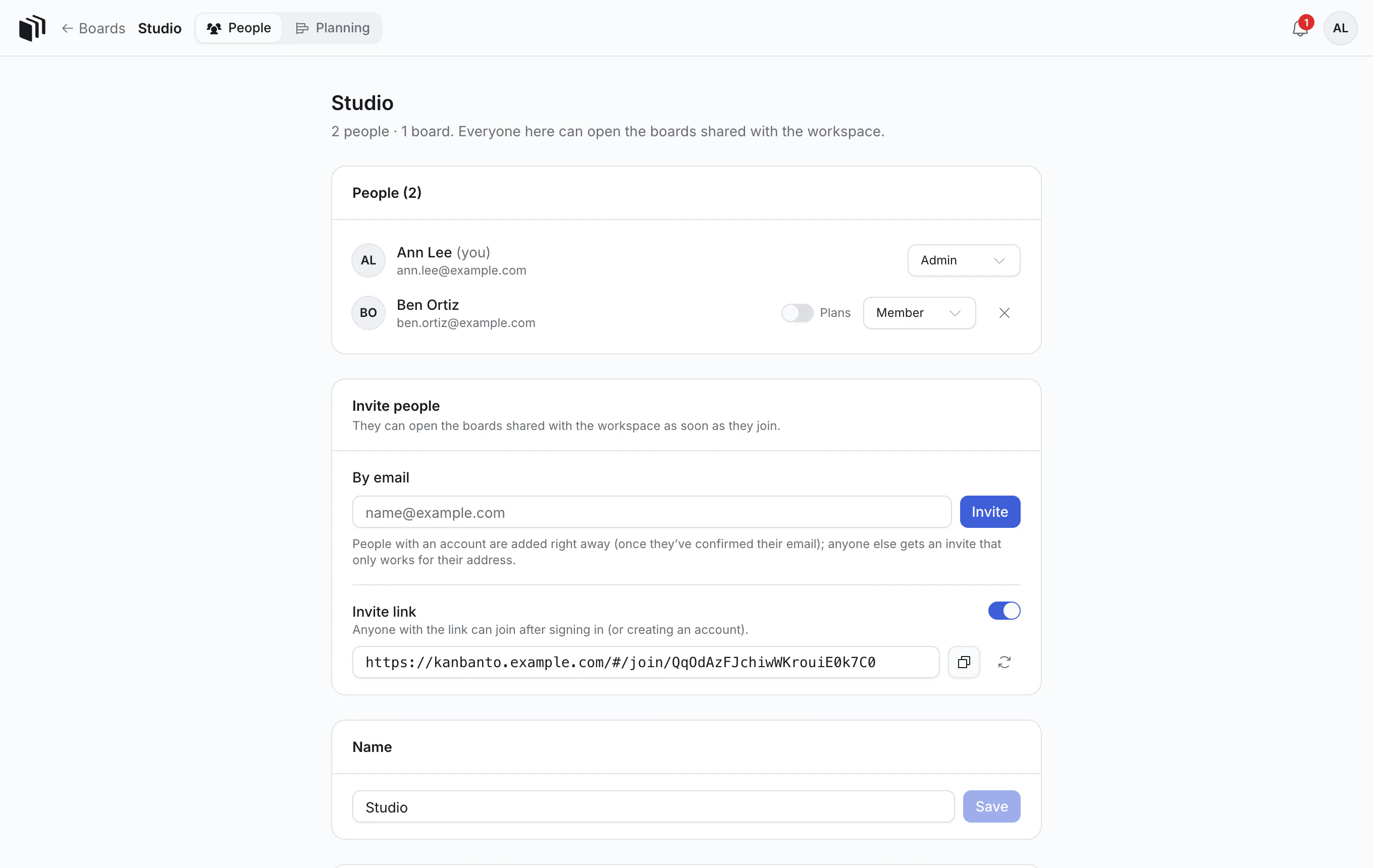
- By email: type addresses and click Invite. People with an account are added right away; anyone else gets an invite that works only for their address.
- Invite link: turn on the switch and a link appears, with a button to copy it. Anyone with the link can join after signing in or creating an account.
People you invite join as members. You can make someone an admin afterwards, in the list at the top.
People can open the workspace's boards as soon as they join. The exception is a board whose owner has limited it; see "Boards in a workspace" below.
Roles
| Role | Can |
|---|---|
| Member | Open the workspace's boards, and read its plan. |
| Admin | Also invite and remove people, rename the workspace, and change its plan. |
An admin can also let a member change the plan without making them an admin: turn on the Plans switch beside their name. ("Plan" here is the team's schedule, not a price. See planning people.)
Being an admin does not open boards that are limited to certain people. A board belongs to its owners.
Boards in a workspace
When you create a board you choose where it goes: Personal or a workspace.
- A board made in a workspace can be opened and edited by everyone in the workspace from the start.
- A board moved into a workspace later (from its ⋯ → Move to) keeps its own sharing: only the people already added to it can open it, until an owner changes that.
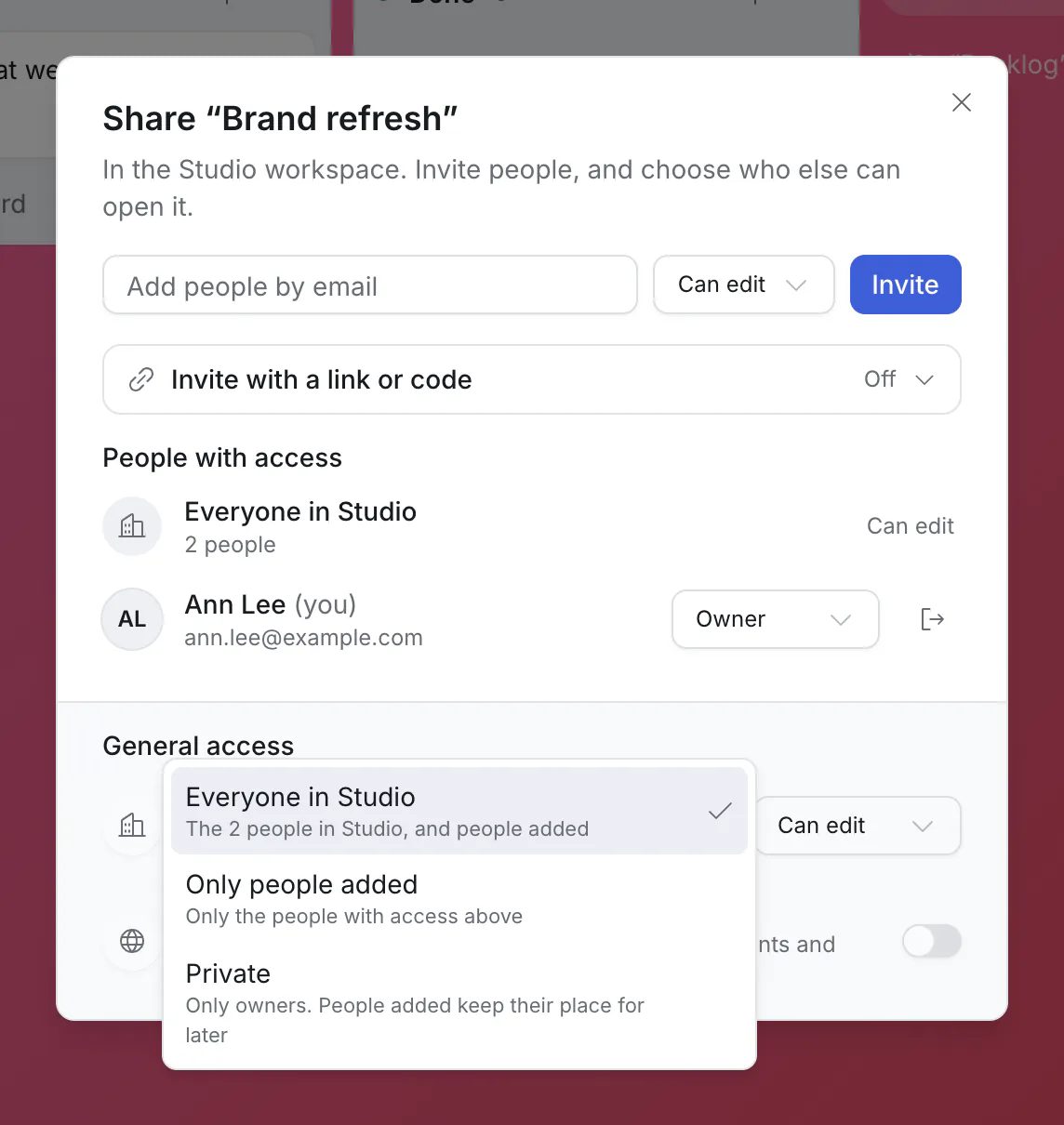
An owner changes who can open a workspace board with Share, under General access:
| Choice | Who can open the board |
|---|---|
| Everyone in the workspace (shown with its name, "Everyone in Studio") | All its members, plus anyone added by name. Beside it you choose Can edit or Can view. |
| Only people added | Just the people listed under "People with access". |
| Private | Only the board's owners. |
A few things follow from this:
- Everyone who can open a board is "on" it. With "Everyone in Studio", every member can be assigned cards and @mentioned there, without being added by name.
- Inviting someone to one board does not bring them into the workspace. A freelancer you add to a single board by email sees that board only: not the other boards, not the People page, not the plan.
- Members only see the boards they can open. A board limited to other people does not appear on their boards page at all.
- On the boards page, each board says how it is shared: Workspace (everyone in the workspace), Invited only (the same as "Only people added") or Private.
Leave or delete
Both are at the bottom of the workspace's People page.
- Leave workspace: boards you own there stay, and an admin becomes their owner.
- Delete workspace (admins) is possible once it has no boards. Move or delete them first.
Good to know
- You can be in several workspaces.
- Your AI assistant knows which board lives where, so "add it to the Studio board" finds the right one.