
Search and filters
Three tools narrow down what you see: search finds words, filters show a kind of card, and Search cards looks across every board.
Search this board
Click Search tasks at the top, or press /, and type.
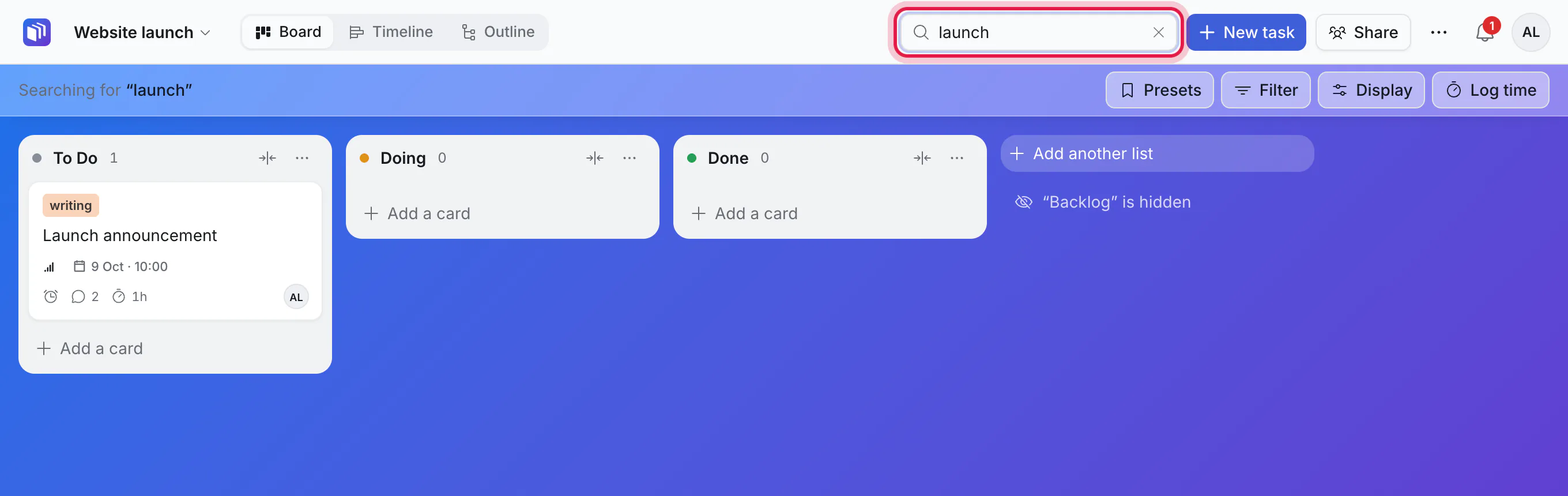
The board shows only cards whose title or description has your words. Clear the box to see everything again.
If archived cards match too, a line under the bar says how many, as a link to them.
Filter
Click Filter.
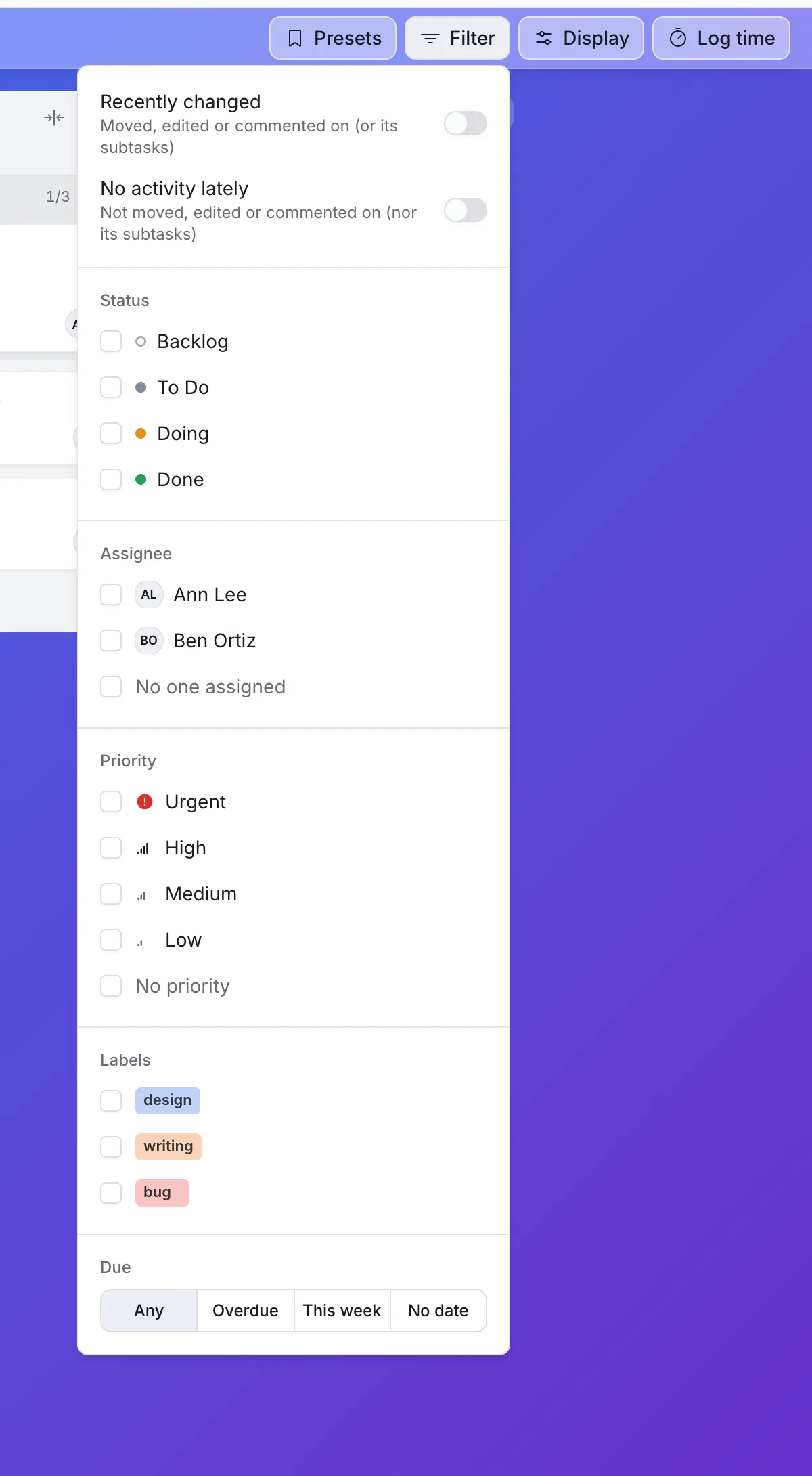
Tick what you want to see. Choices in one group widen the result (Ann or Ben); different groups narrow it (Ann's cards that are urgent).
| Filter | Shows |
|---|---|
| Recently changed | Cards moved, edited or commented on in the last few days. Turn it on and a box appears for the number of days. |
| No activity lately | Cards nothing has happened on for a number of days. Good for finding stuck work. |
| Status | Cards in the lists you tick. |
| Assignee | One or more people's cards, or No one assigned. |
| Priority | Urgent, High, Medium, Low, or No priority. |
| Labels | Cards with a label. |
Filters apply to all three views: Board, Timeline and Outline. Small tags under the bar show which filters are on; click the ✕ on one to drop that filter.
Presets: save a combination
When a mix of filters and Display options is one you come back to, save it.
- Set the filters and Display the way you want.
- Click Presets, then Save this view as a new preset… and give it a name, such as "Mine this week" or "Review".
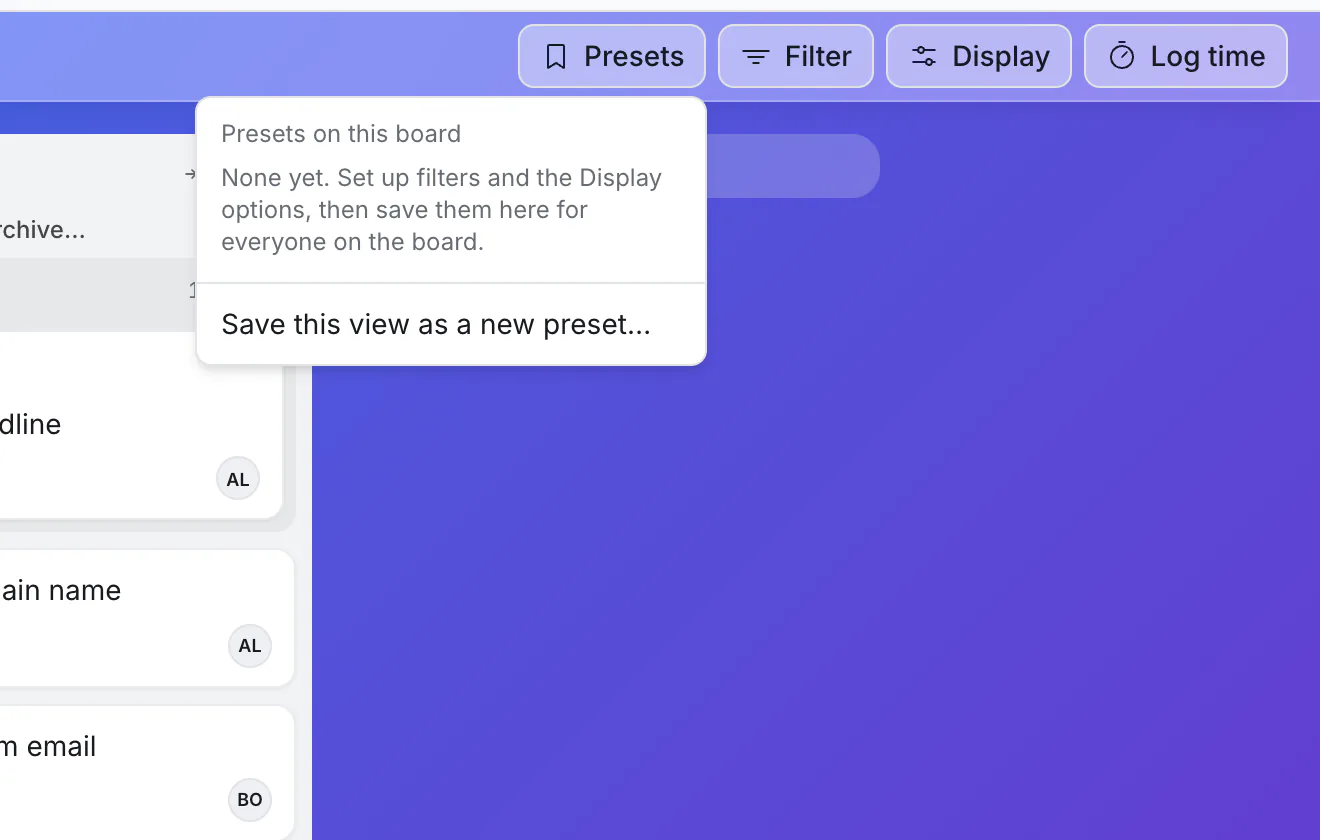
Everyone on the board can pick a preset. People who can edit the board can save, update, rename and delete them.
Search cards: every board at once
Search cards looks through all the boards you can open. Find it on the boards page, or as Search all cards in the menu under your initials.
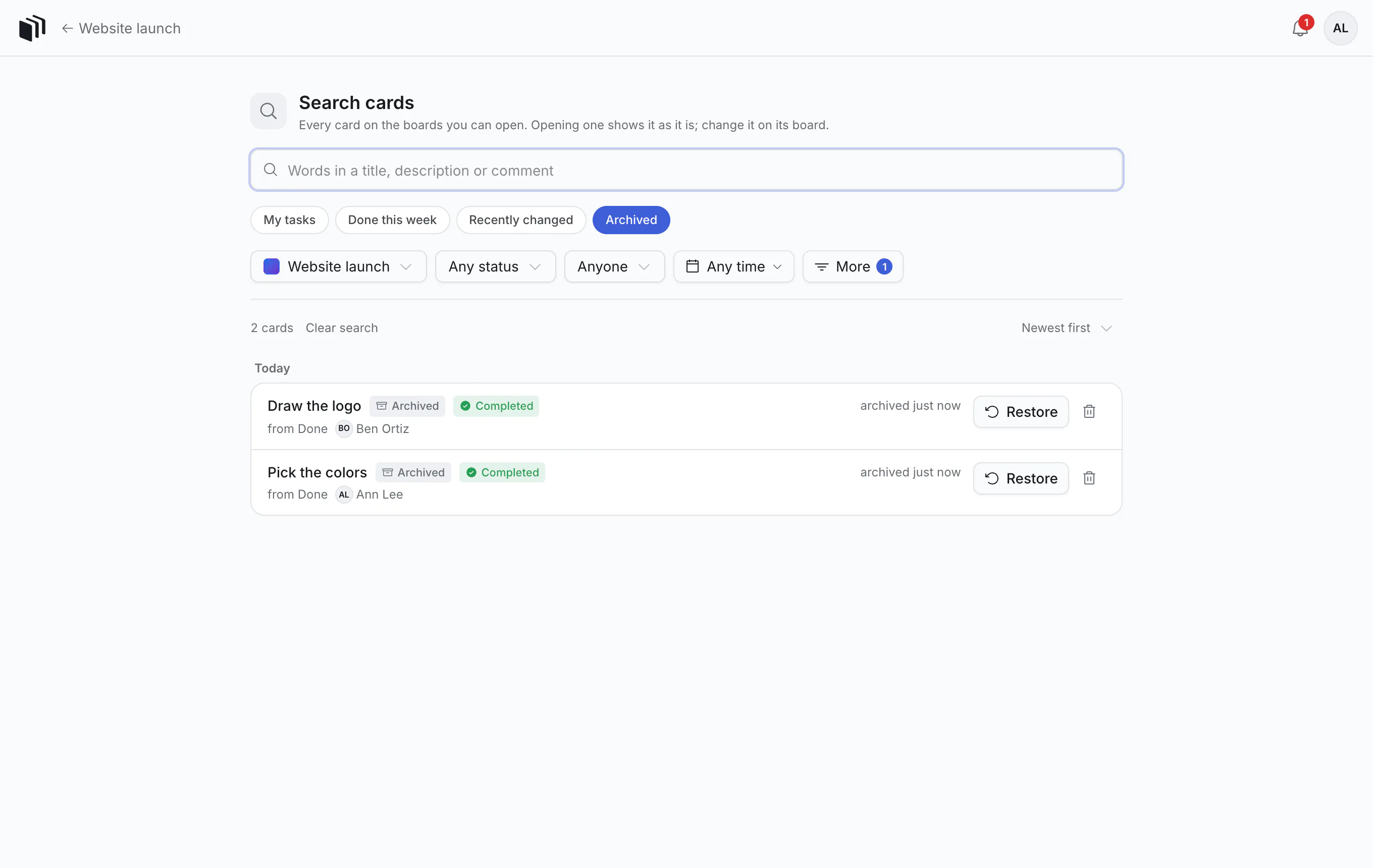
It can:
- search words in titles, descriptions and comments,
- show cards on their boards, archived ones, or both,
- narrow by board or workspace, person, priority, label and due date (some of these are under More),
- start from a ready-made search: My tasks, Done this week, Recently changed, Archived,
- and look at a stretch of time: cards done, made, changed or archived today, this week, last month, or between two days you choose.
This is the place to answer "what did I finish last week?" or "where was that card about the printer?". The address of the page holds the whole search, so you can bookmark one or send it to a teammate. They see the same search run over the boards they can open, which may not be the same cards.
Click a result to see the card right there. To change it, open it on its board.
Good to know
- Search and filters only change what you see. Nobody else's board changes.
- Display → Card age adds a small tag to cards that have been quiet: days since anything happened, amber after a week and red after two.