
Due dates and reminders
Set a due date
Open a card.
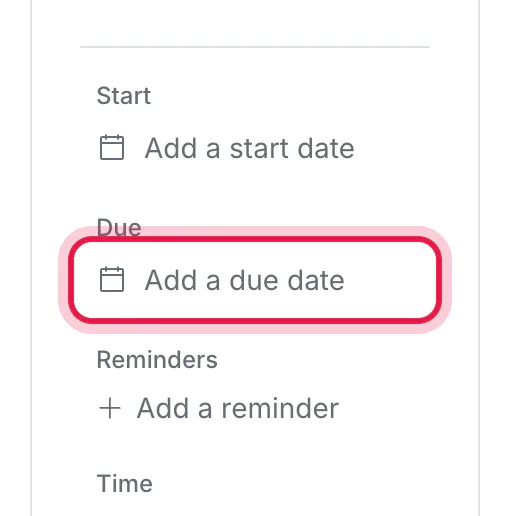
Click Due (or Add a due date).
Pick a day on the calendar, or type one in the box at the top.
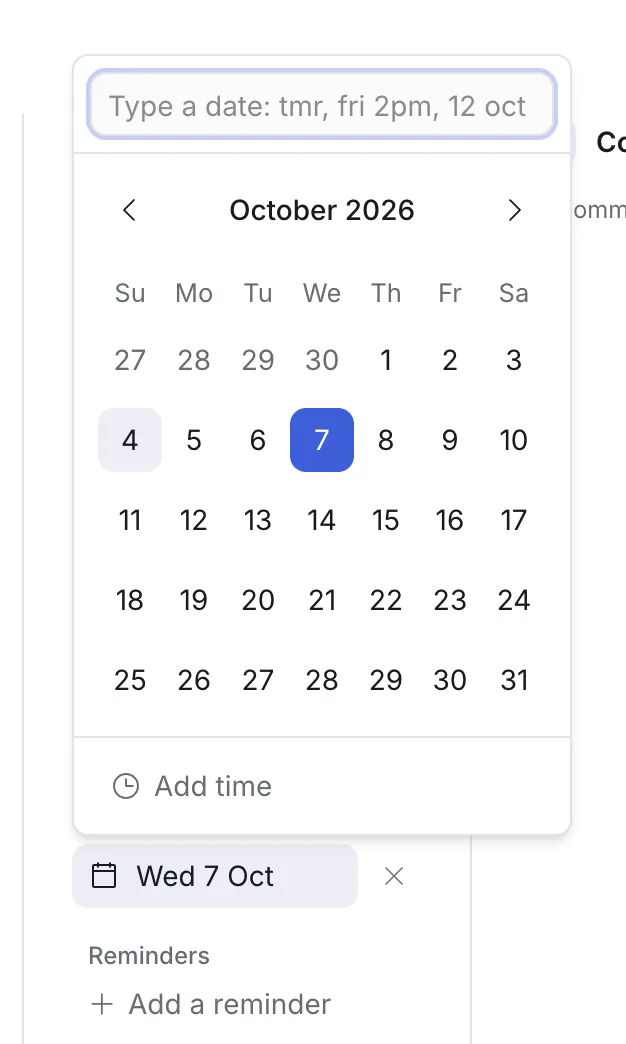
The box understands plain words. Type, check what it understood on the line underneath, and press Enter:
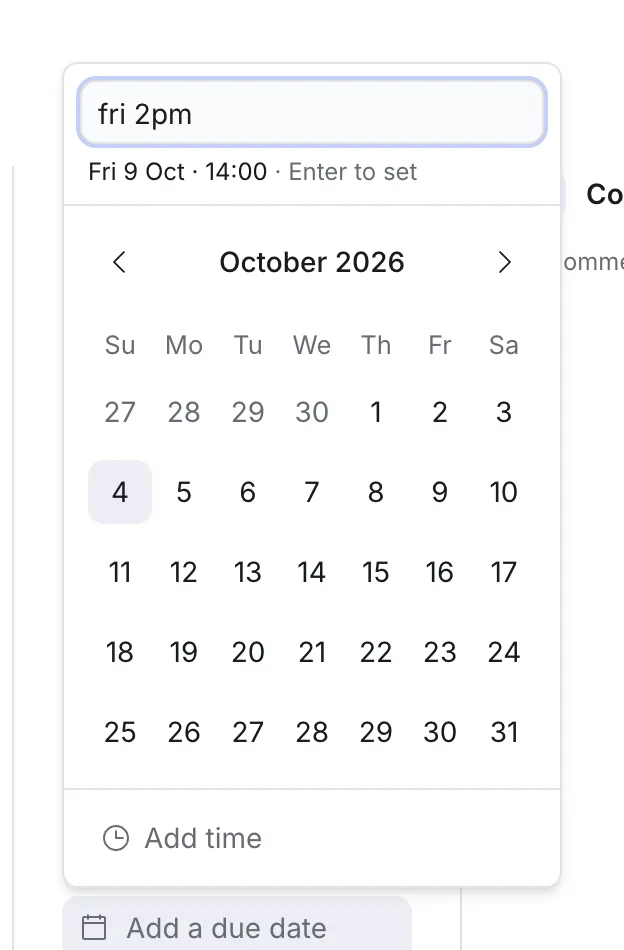
| You type | You get |
|---|---|
tmr or tomorrow | Tomorrow |
fri | The coming Friday |
fri 2pm | Friday at 14:00 |
12 oct | 12 October |
next monday 1pm | Monday of next week at 13:00 |
A due date is a whole day unless you give it a time. Click Add time under the calendar to add one. Times are shown to each person in their own time zone.
To remove a date, click the ✕ beside it.
Start works the same way. A card with both a start and a due date shows as a bar in the Timeline view.
You can also set a date while creating a card, by typing it in the title: "Call the printer fri 10am".
What an overdue card looks like
A card whose due date has passed shows the date in red on the board, until it is done.
Reminders
A reminder is a nudge at a moment you choose.
- Open a card.
- Under Reminders, click Add a reminder.
- Type a time ("tmr 10:00", "fri 2pm", "in 2 hours"), or pick one from the list.
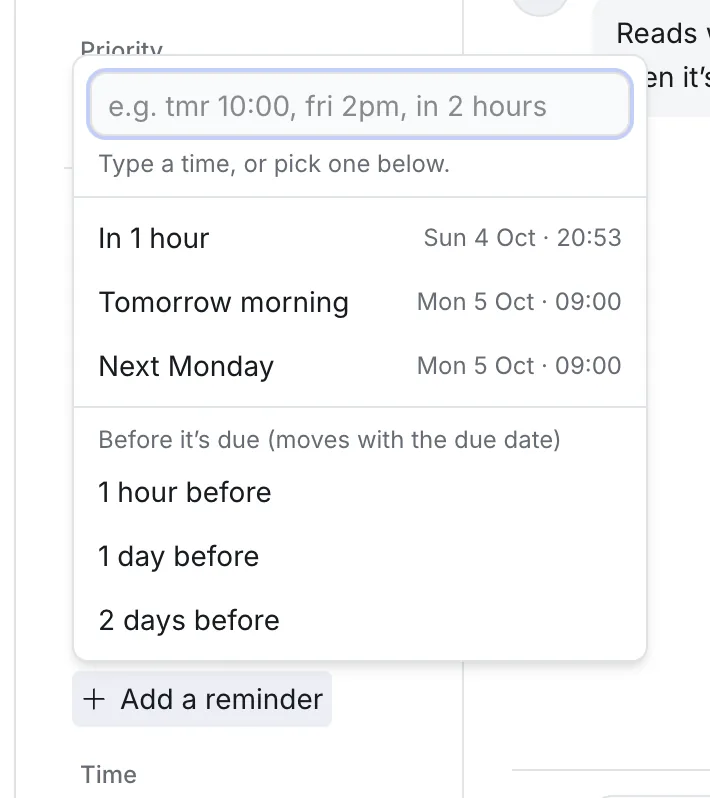
There are two kinds:
- At a time: whatever you type, or one of the suggestions (such as "In 1 hour" or "Tomorrow morning"; they change with the time of day).
- Before it's due: 1 hour, 1 day or 2 days before. This kind moves with the due date. Change the date and the reminder follows. It needs the card to have a due date.
A card can have several reminders. To remove one, point at it and click the ✕ that appears.
Who is reminded, and how
The reminder goes to the card's assignee. If nobody is assigned, it goes to whoever set it. So a reminder you add to a card assigned to Ben reminds Ben, not you.
It arrives:
- under the bell at the top of Kanbanto,
- by email, and
- as a notification on your computer, if you turn that on.
Turn email reminders off, or desktop notifications on, under your initials → Account settings → Notifications. Desktop notifications are switched on per computer, and work even when Kanbanto is not open.
The morning summary
Around 8:00 in your own time zone, Kanbanto emails you a short summary: cards due today and overdue, reminders later today, and mentions you have not seen. It is on to begin with, is only sent when there is something to say, and can be turned off under Account settings → Notifications.
In your calendar
Due dates and reminders can also appear in Google Calendar, Apple Calendar or Outlook. See cards in your calendar.