
Change several cards at once
Tick a few cards, in the Outline or on the Board, then move, assign, label, date or archive them together. It is one change: one Undo takes all of it back.
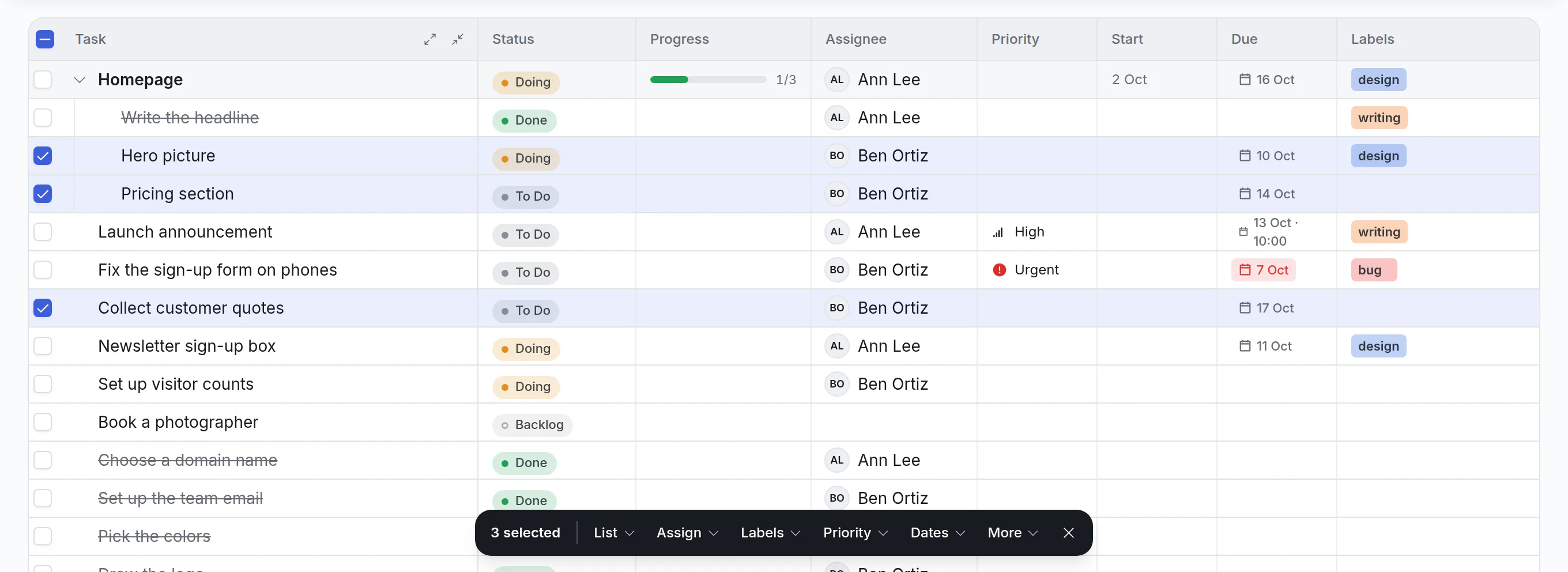
Tick the cards
In the Outline
The Outline is the quickest place for many cards: every card is a row, and a filter can do the choosing.
- Point at a row. A box appears at its start. Click it to tick the row. Once one row is ticked, every row shows its box.
- A run of rows: tick the first, then hold Shift and click the box of the last. Everything between is ticked.
- Everything shown: the box in the Task heading ticks every card in the table. With a search or a filter on, that is every card it found, so a filter is the quick way to choose: filter to "Ben, due this week", tick the heading's box, and you have them. Click it again to untick them.
- On a phone or a tablet there is nothing to point with. On a tablet the boxes are always there; on a phone, tap Select above the list to show them.
On the Board
A click on a card opens it, so ticking starts another way:
- Hold ⌘ (Mac) or Ctrl and click a card. Or open the card's ⋯ menu and choose Select.
- Once one card is ticked, a plain click ticks the next one. Every card shows a box in its corner; click a ticked card, or its box, to untick it. To open a card meanwhile, use Open in its ⋯ menu.
- A run of cards in one list: hold Shift and click, and the cards between the last one you ticked and this one are ticked.
- On a phone, use ⋯ → Select on the first card, then tap the others.
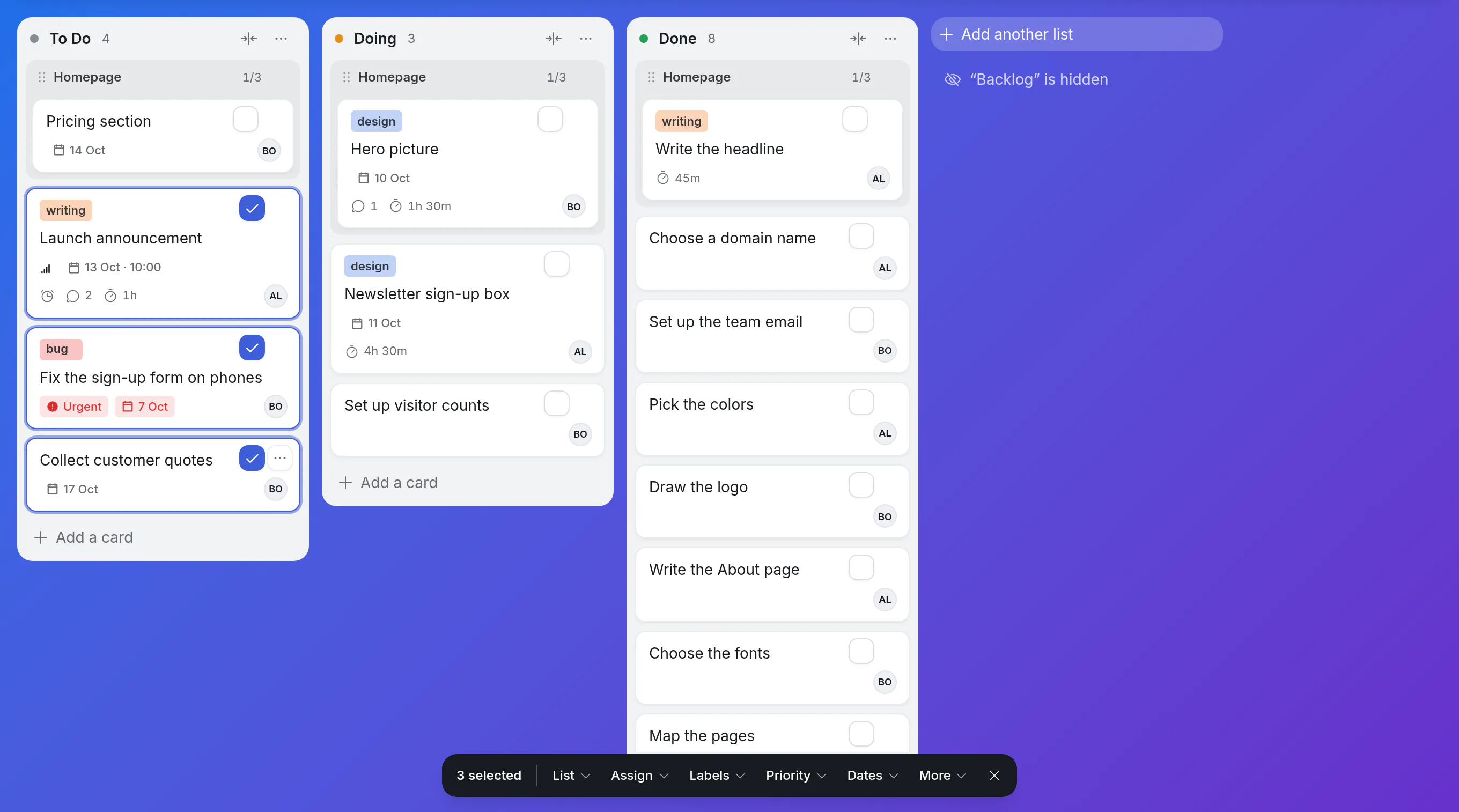
When the last card is unticked, clicks open cards again. A ticked card can still be dragged; dragging moves that one card. A parent shown as a heading above its subtasks can't be ticked on the Board: tick it in the Outline.
The bar
A bar appears at the bottom of the view. It says how many cards are ticked, and stays in sight while you scroll and tick more. Press Esc, or the ✕ at the end of the bar, to let go of them all.
Ticking a card that has subtasks ticks that card only. To take everything under the ticked cards as well, click Add their 5 subtasks in the bar (it says how many there are).
Change them
| In the bar | What it does |
|---|---|
| List | Moves the cards to a list. They arrive at the end of it. |
| Assign | Gives them to one person, or to nobody. |
| Labels | Adds a label to all of them, or takes it off all of them. See below. |
| Priority | Sets a priority, or clears it. |
| Dates | Sets a start or a due date, or clears it. |
| More → Set a field… | Sets one of the board's own fields: pick the field, then the value, as in a card. |
| More → Archive | Puts the cards away, with their subtasks. See the archive. |
| More → Delete… | Deletes them, with their subtasks. Asks first. |
After each change a message says what happened ("Assigned 4 cards to Ben") with an Undo button. ⌘Z / Ctrl+Z works too. The cards stay ticked, so you can go on: assign them, then give them a due date.
A tick in a menu shows what all the ticked cards have in common. Cards that already are what you choose are left alone, and aren't counted in the message.
Labels: add or remove, the rest stay
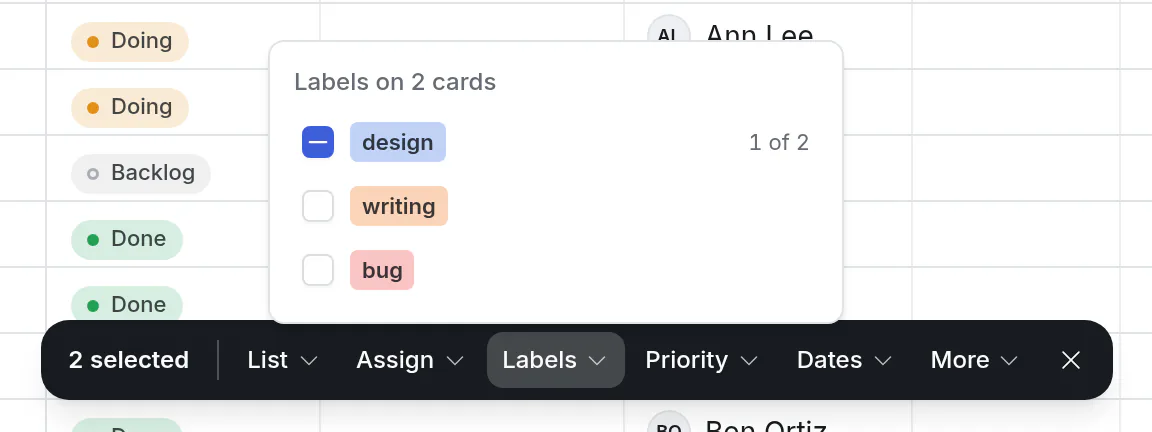
The Labels menu lists the board's labels. A tick means every ticked card has that label; a dash means some do, and says how many. Click a label to give it to all of them. Click a ticked one to take it off all of them. Labels you don't touch stay on the cards as they were.
A field that holds several people works the same way: the editor shows who every ticked card has, adding someone adds them to every card, and removing someone removes them from every card.
Cards that stay where they are
On a board where a parent's list follows its subtasks, a card with subtasks has no list of its own to set. List moves the other ticked cards and the message says how many stayed ("1 card follows its subtasks and stays"). Move its subtasks instead: tick the card, click Add their subtasks, and move them.
Good to know
- Who is told. Someone given many cards at once gets one line under their bell ("assigned “Homepage” and 11 more cards to you"), not one for each. The same goes for everything a card's followers hear about: more than three cards in one change is one line.
- The selection is yours. Nobody else sees what you ticked. It is kept while you search, filter, sort or group (the bar says how many ticked cards aren't shown just now), and forgotten when you switch to another view or leave the board.
- A card that goes (archived or deleted, by you or by someone else) is no longer ticked, also when an Undo brings it back.
- Grouped, a card that shows under two headings is ticked under both, and counts once.
- Who can. Everyone who can edit the board. Viewers and visitors see no boxes.
- How many. Up to 2,000 cards in one change.
- The board's limits and rules see the change like any other: a list turns red if it is now over, and a rule that tells people says all the cards in one line.