
Log time
If you want to know where your hours go, log time on cards. It is optional: boards work the same without it.
Log from the board
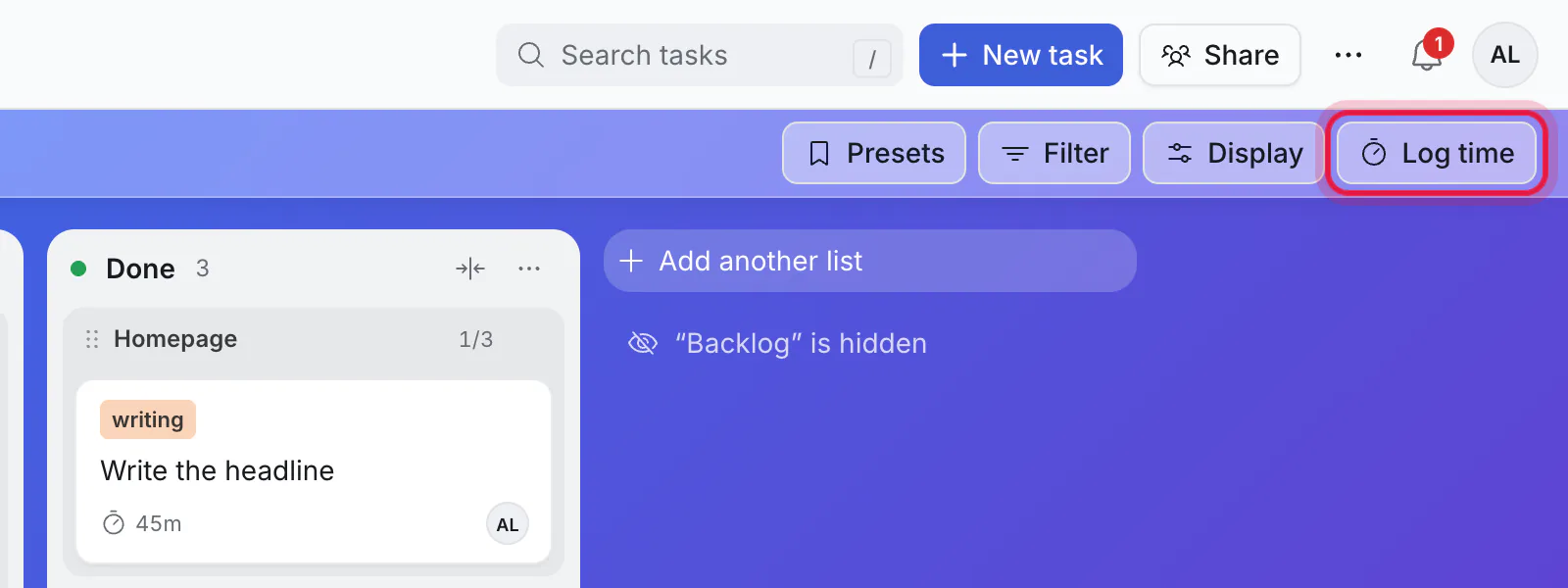
Click Log time at the top of a board, or press L.
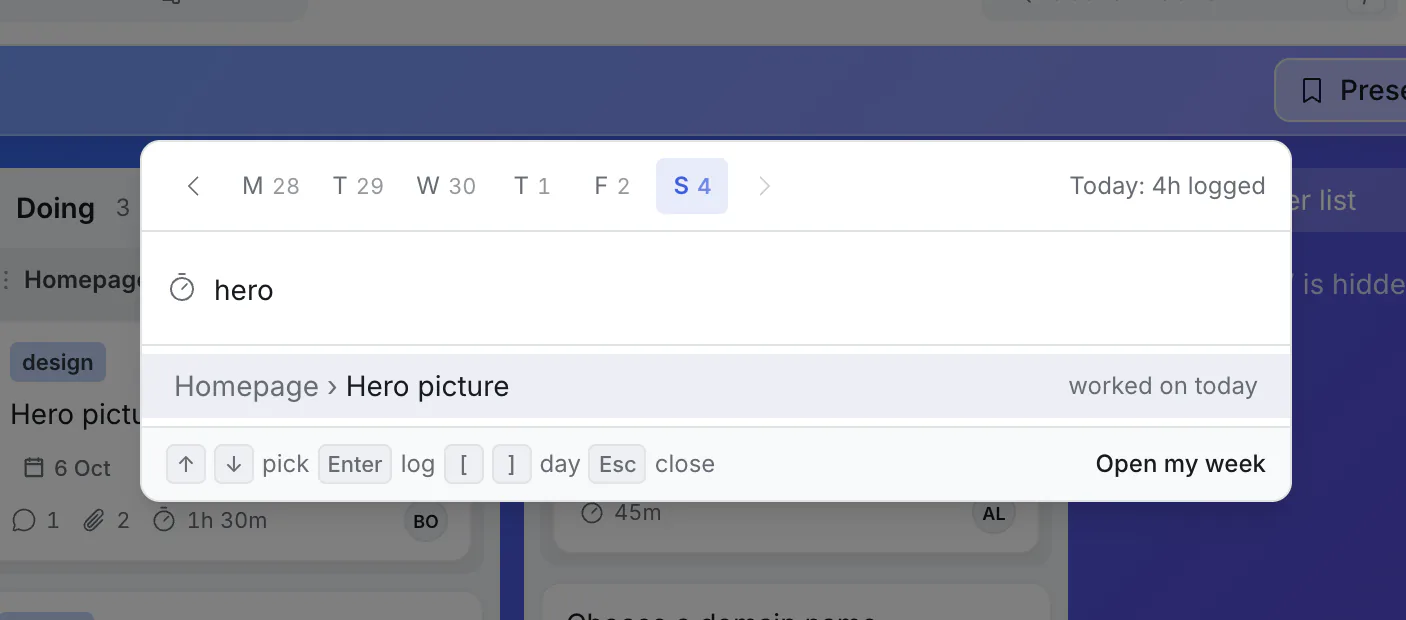
Type part of a card's name and pick it with Enter. The cards you worked on that day come first.
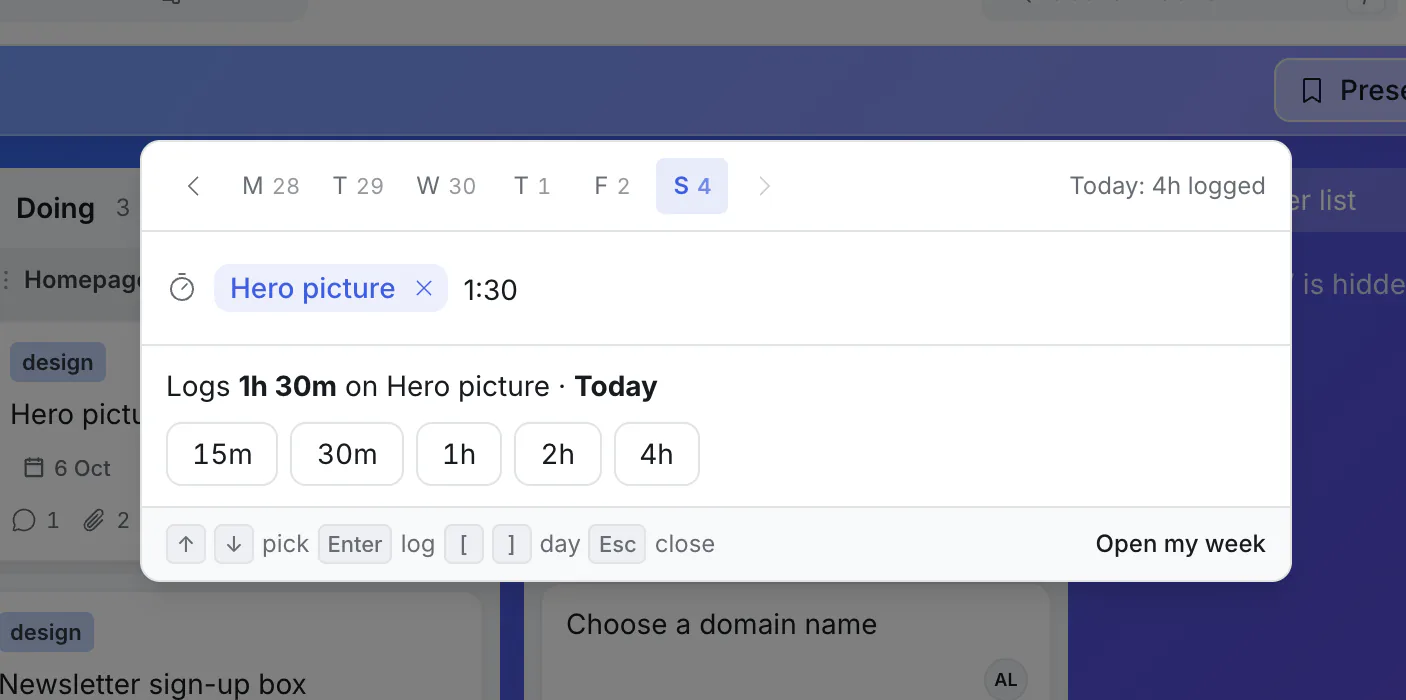
The same box now asks how long. Type it, and press Enter.
Ways to write a time:
| You type | Means |
|---|---|
2 | 2 hours (a plain number is always hours) |
1:30 or 1h 30m | An hour and a half |
45m | 45 minutes |
1.5 | An hour and a half |
Anything after the time is a note: 1:30 review with Ben.
Quick buttons add 15m, 30m, 1h, 2h or 4h, and the box shows how much you have logged that day.
Another day: click a day at the top of the box, or press [ and ] to step back and forward.
Log from a card
- Open a card and click Log beside Time, or
- choose Log time… in the card's ⋯ menu.
The box opens with that card already picked.
See the time on a card
An open card shows its total under Time, and the entries behind it: who, when, how long, and the note.
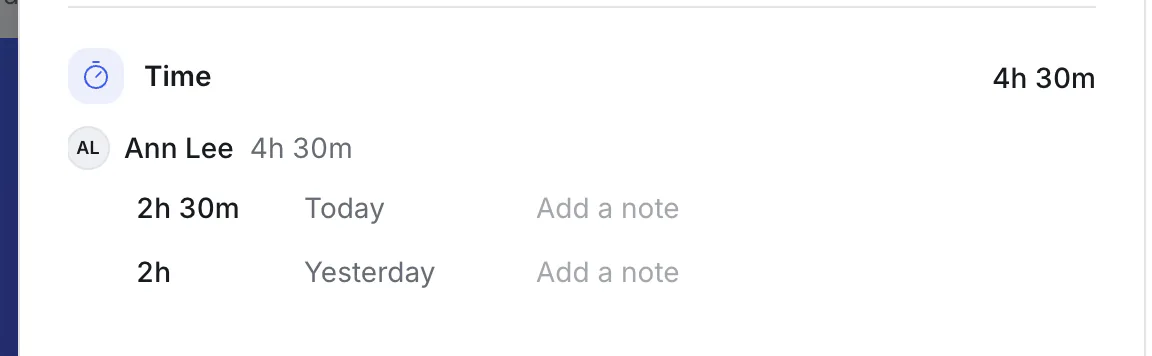
A parent's total includes its subtasks' time.
Fix an entry
On an open card, under Time, click an entry's time, day or note to change it. To delete an entry, point at it and click the ✕ at its end.
You can change your own entries. A board's owner, or an admin of its workspace, can correct anyone's; the entry then says who edited it.
Who can log, and who sees it
- People who can edit the board can log time.
- Everyone on the board sees the time on cards.
- Visitors using a public link do not see logged time.
With your assistant
"Log 2 hours on the homepage for yesterday" works. It only logs what you tell it; it never guesses.