
Tasks inside tasks
Any card can hold smaller cards, and those can hold more. A project becomes its parts, each part its steps. There is no limit to how deep it goes.
Add a subtask
- Open a card.
- Under Subtasks, click Add a subtask.
- Type its title and press Enter. Keep going to add more.
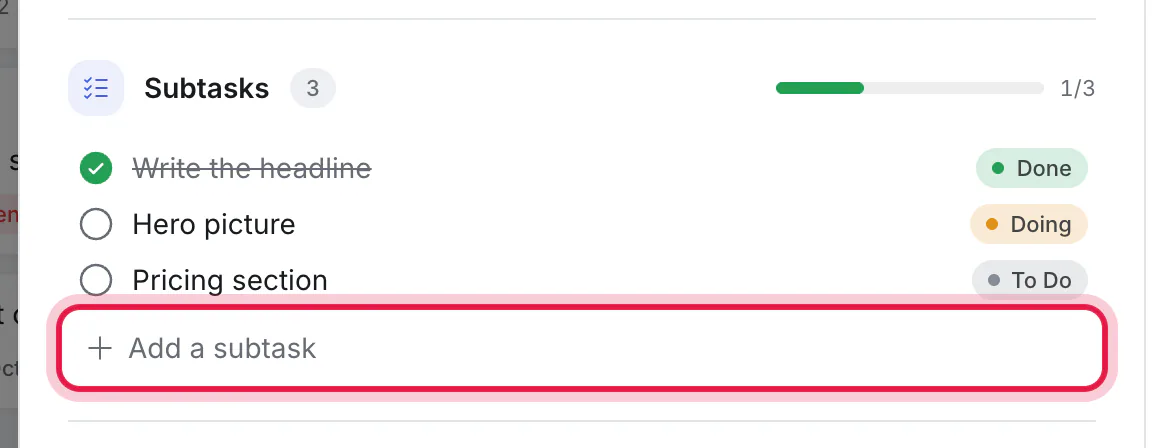
A subtask is a full card. It has its own list, person, due date, description and comments, and it can have subtasks of its own. Click one to open it; the trail above its title shows where it belongs, and each name in the trail is a link back up. The circle beside a subtask shows its status; click it to move the subtask to another list, such as Done.
How subtasks show on the board
To begin with, a card that has subtasks is not shown as a card. It becomes a grey heading in each list that holds one of its subtasks, with the subtasks under it. Here "Homepage" appears in To Do, Doing and Done, because it has a subtask in each:
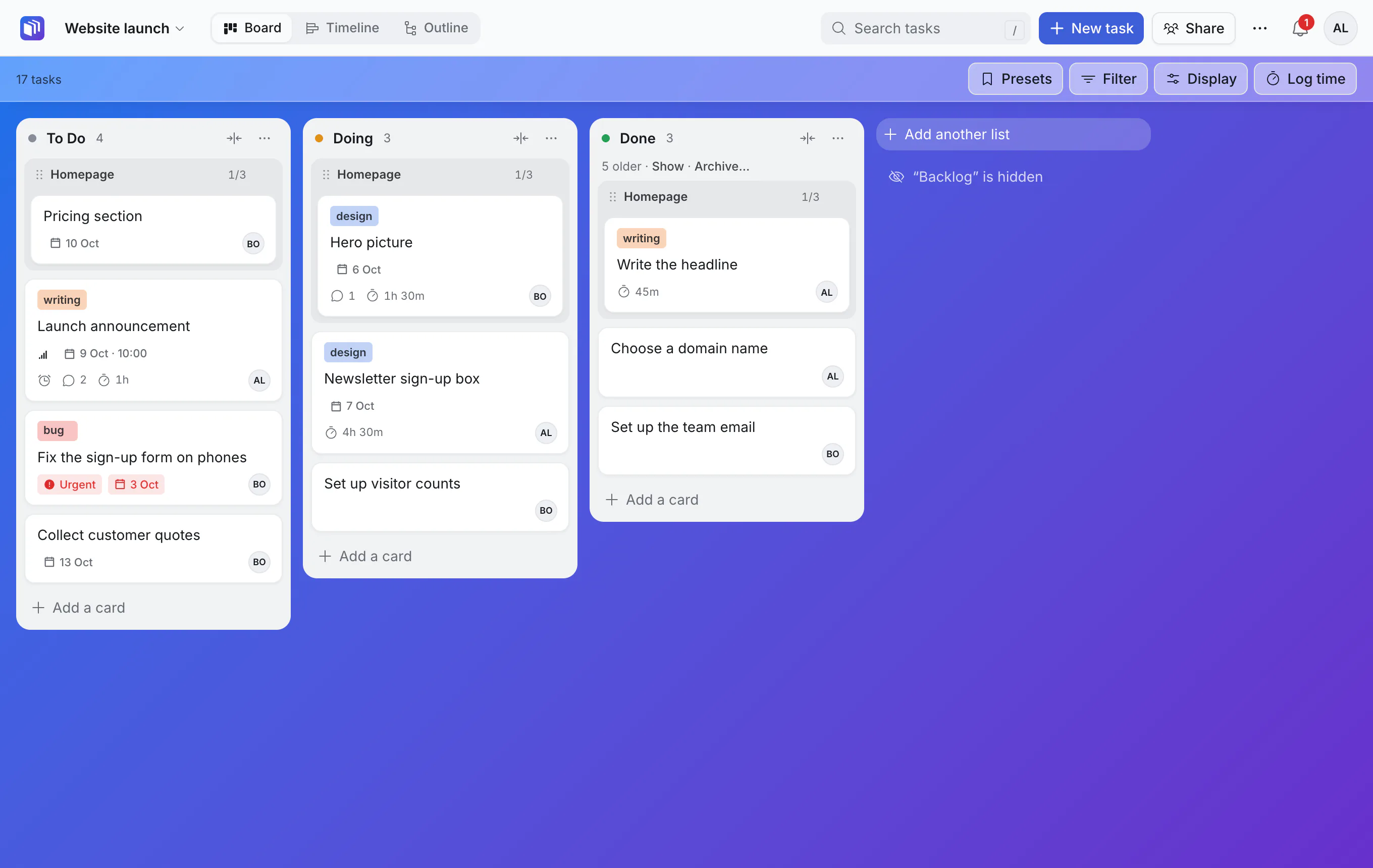
- The heading shows progress across all lists, such as 1/3 done.
- Click the heading to open the parent card.
- Drag the heading to move that list's group of subtasks together.
In Display you can change how this looks:
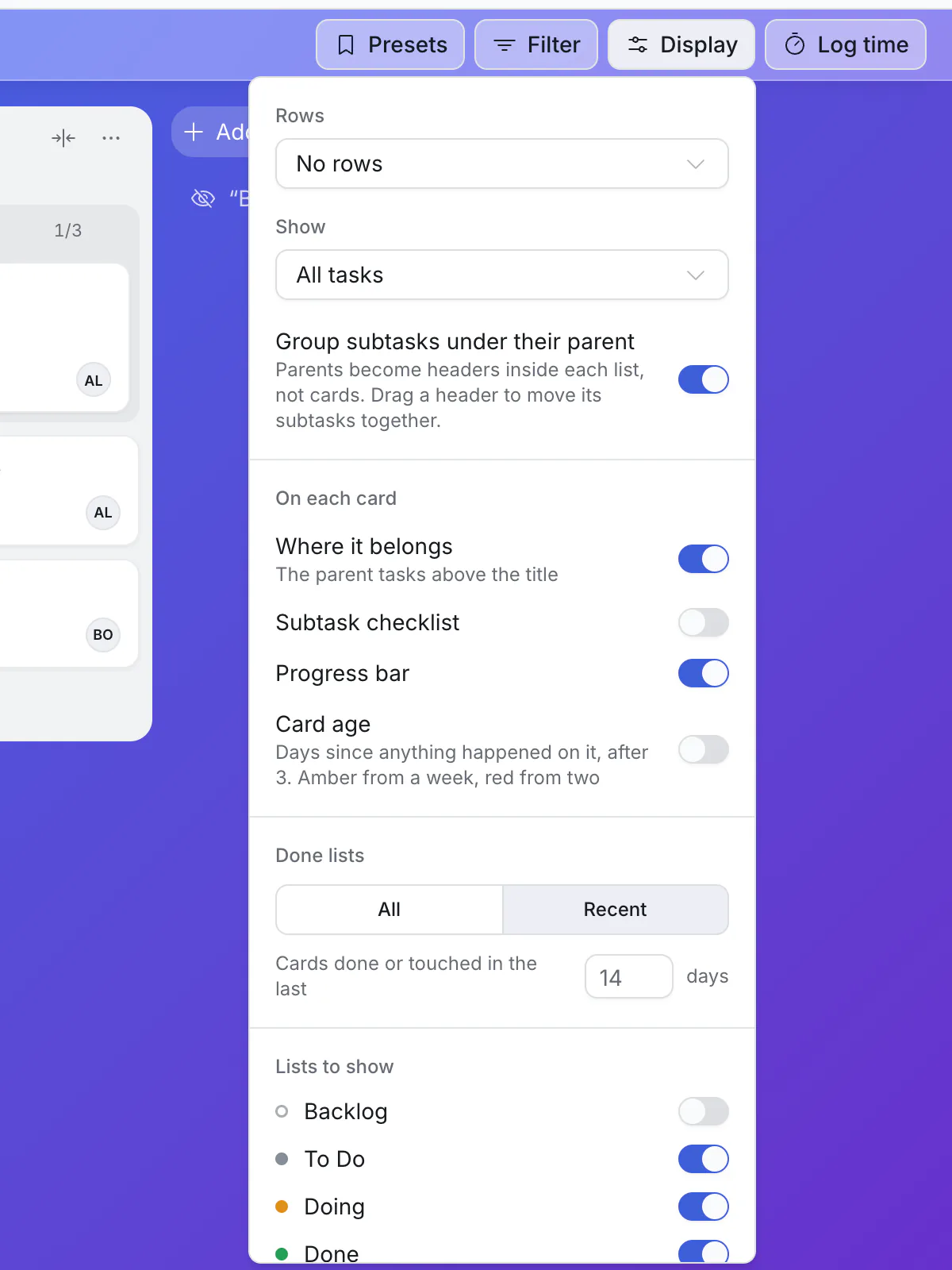
- Group subtasks under their parent is the switch for those headings. Turn it off and the parent is a card like any other, with its subtasks as separate cards.
- Where it belongs shows the parent's name above each card.
- Subtask checklist and Progress bar show a parent's steps on the parent card itself.
- Rows can give each project or each parent a band across the whole board.
A parent's status
By default a parent follows its subtasks: it is in progress when work on them has started, and done when they all are. You move the subtasks; the parent takes care of itself.
If you would rather move parents by hand, the board's owner (the person who made it, or anyone they made an owner) can change this in ⋯ → Board settings: a parent's status "Follows its subtasks" or "Is set by you".
Look at one project at a time
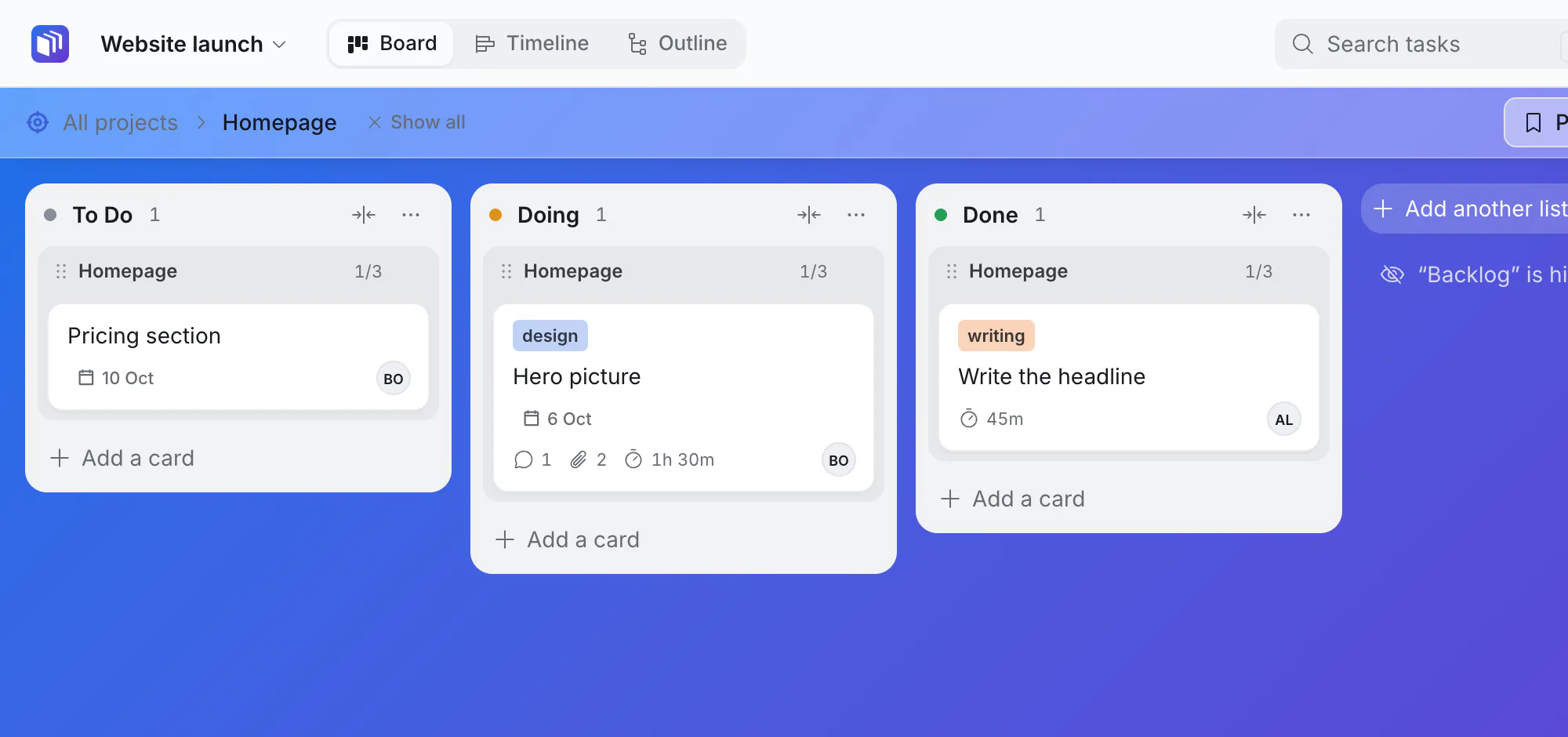
Open a card's ⋯ menu and choose Focus on its subtasks. The board now shows only that card's subtasks. The bar under the top shows where you are, with a way back to the whole board.
See the whole tree
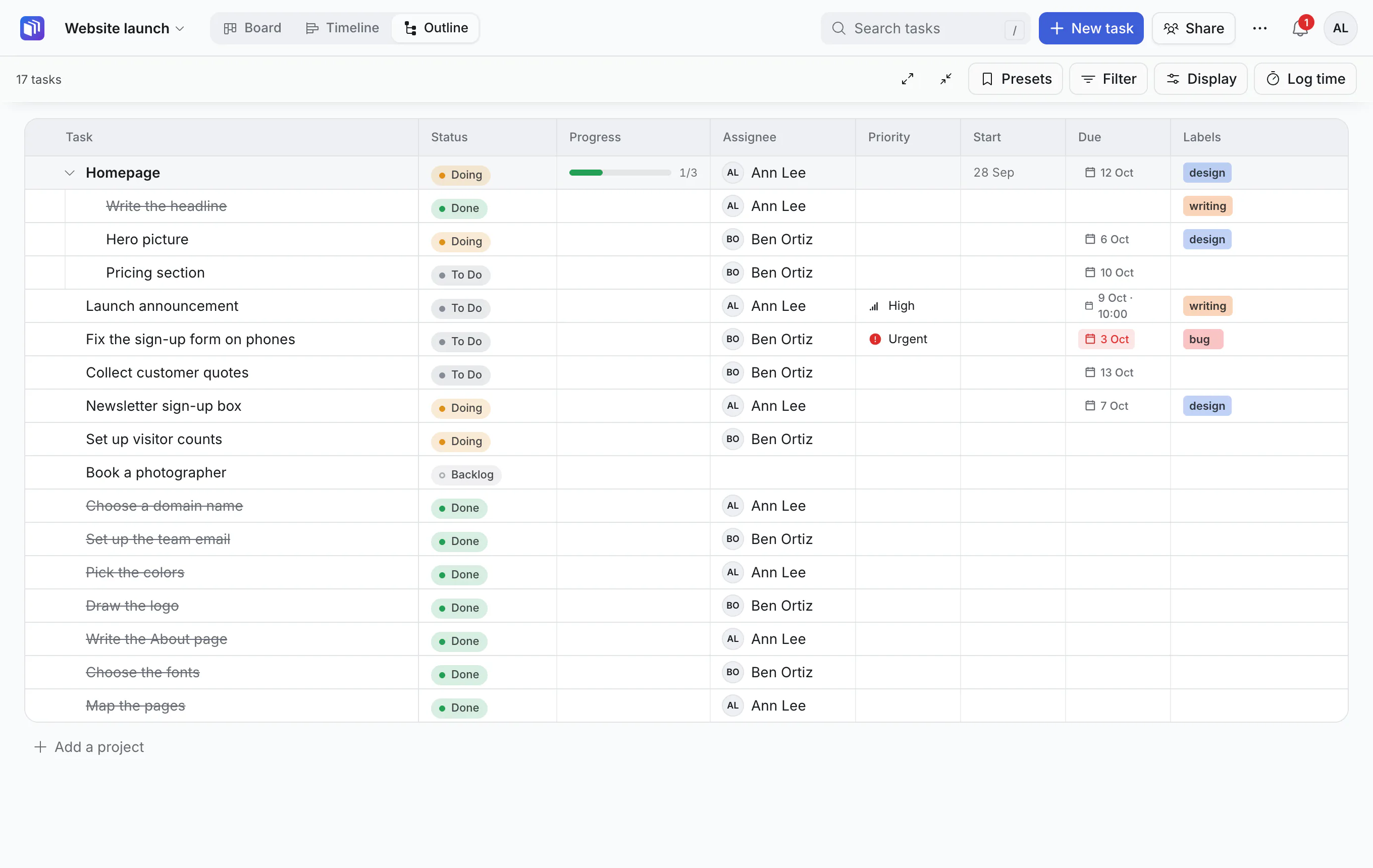
The Outline view shows every task under its parent, like an indented table. Fold and unfold branches, and drag rows to rearrange them.
Change where a task belongs
- In the open card, click Parent and pick another card, or none to make it top-level.
- In the Outline, drag the row to its new place.
Good to know
- Archiving or deleting a card takes its subtasks with it.
- Moving a card to another board takes its subtasks too.
- A card cannot go inside one of its own subtasks.